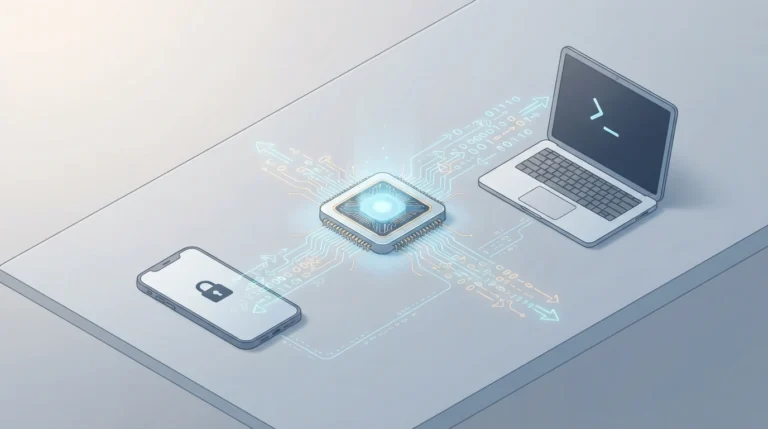
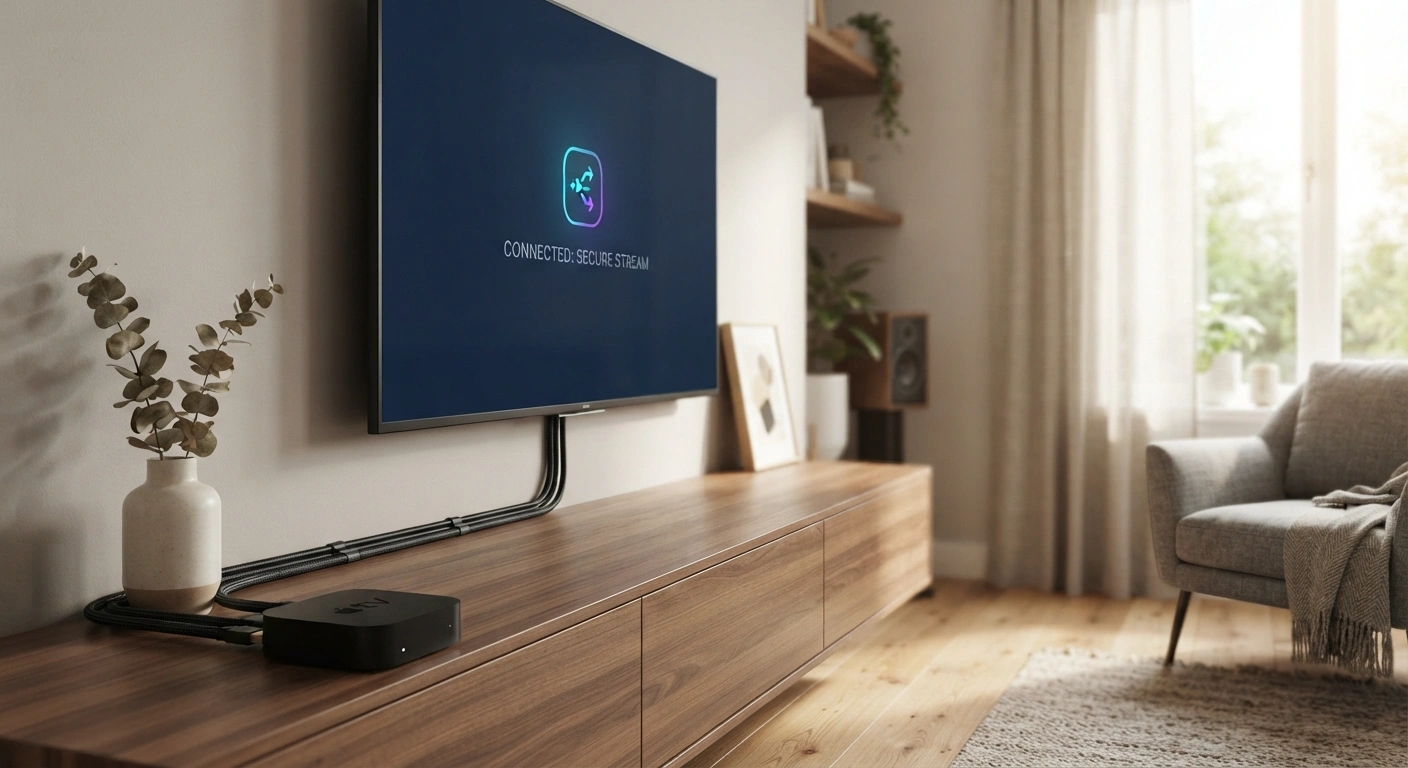
That black screen, purple flash, or “HDCP error detected” message rarely means anything is actually broken. It means two devices in your HDMI chain — your streaming box, your TV, maybe a receiver sitting between them — failed a brief digital handshake that’s supposed to happen invisibly every time protected content plays. Once you understand what that handshake is actually checking, the fix usually takes under two minutes.
What HDCP Actually Is
High-bandwidth Digital Content Protection is a copy-protection standard built into HDMI connections specifically to prevent unauthorized copying of protected video as it travels between devices. Every time you press play on Netflix, Disney+, or a Blu-ray player, the sending device and the receiving display run a quick verification: the source asks whether the display supports content protection, the display confirms it does, and only then does the actual video stream. An HDCP error means that handshake failed somewhere along the chain — not that your content, account, or hardware is damaged.
Why It Actually Happens
A Loose or Faulty Cable Connection
This is the single most common cause by a wide margin. A cable that isn’t fully seated, or one that’s simply worn out, can interrupt the handshake before it completes — even if the picture otherwise looks fine most of the time.
Mismatched HDCP Versions
Newer content, particularly 4K streams, requires HDCP 2.2 or higher. If one device in the chain — often an older receiver or a cheap HDMI switch sitting between your source and TV — only supports the older HDCP 1.4 standard, the handshake fails specifically because the versions don’t match, not because anything is broken.
Devices Powered On Out of Sequence
The handshake depends on devices recognizing each other in a specific order. Powering everything on simultaneously, or in the wrong sequence, can disrupt that recognition even when every cable and device is fully compatible.
Outdated Firmware
TVs and streaming devices periodically need firmware updates specifically to stay compatible with evolving HDCP requirements — a TV that hasn’t updated in a while can start failing handshakes with newer streaming hardware or apps that assume current firmware.
Screen Mirroring and AirPlay
Mirroring a phone or tablet to a TV introduces an extra link in the content-protection chain, and generic, non-certified adapters or dongles are a common point of failure here specifically — this is why an HDCP error during AirPlay or mirroring often doesn’t happen with the same content played directly from a streaming app.
The Fix That Resolves Most HDCP Errors
Step 1: Power Everything Off
Turn off both your TV and the source device (streaming box, console, cable box) completely, not just standby.
Step 2: Unplug the HDMI Cable at Both Ends
Disconnect it fully rather than just checking that it looks seated — a cable that appears connected can still be making poor contact.
Step 3: Reconnect Firmly
Plug both ends back in securely, making sure the connection feels fully seated on each side.
Step 4: Power On in the Correct Order
Turn on the source device first, then the TV — this order matters more than most people expect, since it lets the source initiate the handshake correctly rather than the TV waiting for a signal that hasn’t started yet.
If That Doesn’t Fix It
Try a Different HDMI Port
Some TVs assign different HDCP capabilities to different ports, particularly older models — switching to a different input is a fast, free troubleshooting step before assuming a hardware problem.
Check for a Firmware Update
Both your TV and your source device may have a pending update specifically addressing content-protection compatibility — check each device’s settings menu for a system update option.
Verify Cable and Device Compliance
If you’re streaming 4K content, confirm every device in the chain — including any switch, receiver, or splitter sitting between the source and the TV — explicitly supports HDCP 2.2 or higher. A single older-standard device anywhere in that chain can block the entire handshake, even if your TV and streaming box are both fully current.
Remove Intermediate Devices Temporarily
If you’re running through an AV receiver, soundbar with passthrough, or HDMI switch, try connecting the source directly to the TV as a test. If the error disappears, the intermediate device is the actual point of failure, not your TV or streaming box.
Quick Fixes by Device Type
Roku and Streaming Sticks
Unplug the device fully from power (not just the HDMI cable) for about 10 seconds, then reconnect — this forces a complete handshake reset rather than a partial one.
Smart TVs
Check the specific HDMI port’s HDCP support in the TV’s input settings if available, and confirm the port you’re using is rated for the content resolution you’re trying to play.
Gaming Consoles
Try a different HDMI cable specifically rated for the console’s maximum output resolution — a cable rated only for 1080p can trigger HDCP errors on a 4K-capable console even when every device itself is fully compliant.
AirPlay and Screen Mirroring
Force-close and reopen the streaming app on your phone or tablet after reconnecting, and confirm any adapter or dongle in use is officially certified rather than a generic third-party accessory.
Frequently Asked Questions
Does an HDCP error mean my TV is broken?
No. It almost always means a handshake failure between devices — a loose cable, a version mismatch, or an incorrect power-on sequence — rather than an actual hardware fault.
Why does HDCP only cause problems with 4K content?
Because 4K streams typically require HDCP 2.2 or higher, while older content only requires HDCP 1.4. A device anywhere in the chain that only supports the older standard can handle standard-definition or HD content fine while failing specifically on 4K.
Why does my HDCP error only happen with one streaming app?
This usually points to an app-specific content protection check rather than a device-wide handshake failure — worth force-closing and reopening that specific app, and confirming it has the latest update, before assuming a hardware issue.
Can a cheap HDMI cable actually cause an HDCP error?
Yes. A cable that isn’t properly rated or is simply worn can interrupt the handshake even when every device involved is fully compliant — this is a genuinely common and easy-to-overlook cause.
Will unplugging and replugging my devices delete anything or cause damage?
No. This is a safe, standard troubleshooting step that simply forces a fresh connection and handshake attempt — it doesn’t affect saved settings, accounts, or stored data on any device.
The HDCP handshake is designed to be invisible when everything’s working correctly, which is exactly why an error message feels so disproportionate to the actual fix — nine times out of ten, the entire problem traces back to one loose connection or one outdated piece of firmware in an otherwise perfectly fine setup.