

The spinning beach ball has a way of showing up at the worst possible moment — mid-export, mid-email, mid-anything you didn’t save recently enough. When it appears, most people jump straight to the keyboard shortcut without asking a more useful question first: is this app actually frozen, or is it just thinking? That distinction matters more than which method you use to force it closed, and it’s the part most guides on this topic skip entirely.
Here’s every real way to force quit on a Mac, in order of how fast and safe each one actually is — plus the judgment call that determines which one you should reach for.
First: Is It Actually Frozen?
Before force-quitting anything, check the cursor. A normal arrow means the app is still responsive underneath whatever’s making it look stuck. A spinning, colorful wheel (Mac users call it the beach ball) means the app’s main thread is genuinely blocked and isn’t going to respond to normal input. If you’re seeing the plain cursor, give the app another 15-30 seconds — it may be finishing a heavy task like a large file save or an export, and force-quitting at that exact moment is how unsaved work actually gets lost. If the beach ball’s been spinning for over a minute with no letup, it’s safe to assume it’s stuck and move on to the methods below.
Method 1: The Keyboard Shortcut (Fastest)
Press Option (Alt) + Command + Escape at the same time. This opens the Force Quit Applications window immediately, listing every open app — select the unresponsive one and click Force Quit. This is the fastest method because it works from anywhere, without needing to click through a menu first, and it’s the one worth committing to muscle memory if you deal with app freezes more than occasionally.
Method 2: The Apple Menu
Click the Apple logo in the top-left corner of the screen, then select Force Quit. This opens the identical window as the keyboard shortcut — same list, same result — just reached by mouse instead of keys. Useful if the keyboard shortcut isn’t registering for some reason, or if you simply prefer navigating by click.
Method 3: From the Dock
Right-click (or Control-click) the frozen app’s icon in the Dock, then hold the Option key — the menu item that normally says “Quit” will change to Force Quit while Option is held down. This is a genuinely underused method, and it’s the fastest option specifically when the app you need to close is already sitting in the Dock and you don’t want to open a separate window at all.
Method 4: Activity Monitor (For Background Processes)
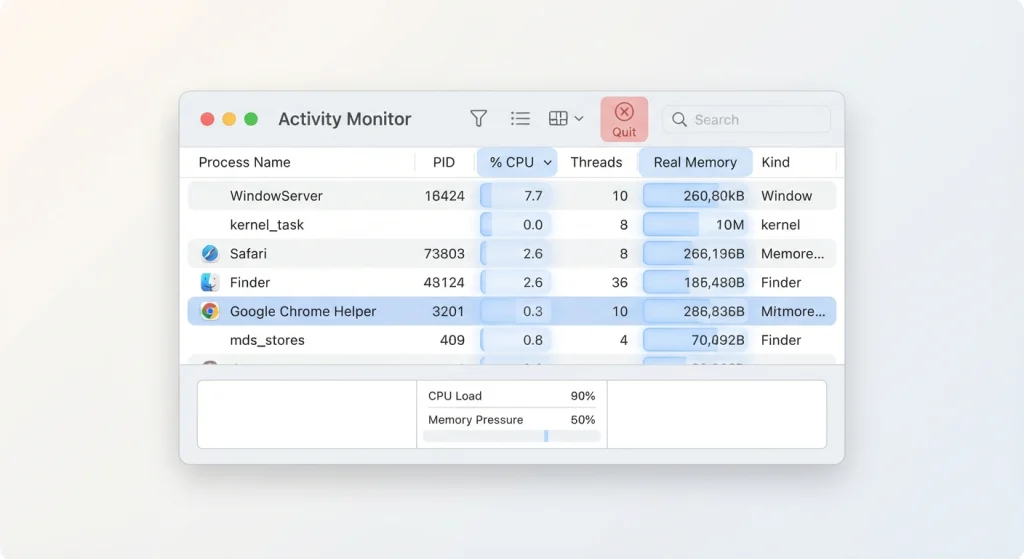
Not every freeze comes from an app with a visible window. Sometimes the actual problem is a background process — a helper task, a stuck sync service, a runaway browser tab — that never shows up in the standard Force Quit list at all. Open Activity Monitor (via Spotlight search, or Applications → Utilities), find the process consuming an unusual amount of CPU or memory in the % CPU or Memory columns, select it, and click the X button in the toolbar (or use View → Quit Process for more forceful options if a normal quit doesn’t work).
This is the method worth reaching for when your whole Mac feels sluggish rather than one specific app being visibly stuck — Activity Monitor shows you the actual resource hog, which the standard Force Quit window won’t.
Method 5: Terminal (For When Nothing Else Responds)
Open Terminal (Applications → Utilities → Terminal) and type:
killall AppName
If the app’s name contains a space — System Settings, for example — wrap it in quotes: killall "System Settings". This method works even when an app is frozen badly enough that it isn’t responding to any GUI interaction at all, including the Force Quit window itself, since Terminal commands operate at a lower level than clicking through menus.
Method Comparison: Speed vs. Safety
| Method | Speed | Best for |
|---|---|---|
| Keyboard shortcut | Fastest | Everyday use, one frozen app with a visible window |
| Apple menu | Fast | Same as above, mouse preference |
| Dock right-click | Fast | App already visible in the Dock |
| Activity Monitor | Moderate | Background processes, general system sluggishness |
| Terminal | Moderate | Apps unresponsive even to the Force Quit window itself |
Which Processes Are Actually Safe to Force Quit
This is the part most force-quit guides skip, and it’s genuinely the more important question once you’re inside Activity Monitor. User-facing apps — your browser, a document editor, a design tool — are always safe to force quit; worst case, you lose unsaved work in that specific app. System processes with names you don’t recognize are a different situation entirely: many are core to macOS running normally, and forcing one closed can cause broader instability rather than fixing anything. A reasonable rule of thumb: if you don’t recognize the process name and it isn’t clearly tied to an app you have open, look it up before killing it rather than assuming it’s safe because it’s using a lot of memory. High memory or CPU usage on its own doesn’t mean a process is the problem — some background system tasks legitimately spike temporarily and settle on their own.
If Force Quit Itself Won’t Work
Occasionally the Force Quit window opens but clicking Force Quit does nothing, or the entire system feels unresponsive, not just one app. At that point, the Terminal method above is worth trying first, since it bypasses the frozen GUI layer entirely. If that also fails, Apple’s own guidance is to hold the power button for up to 10 seconds to force a full shutdown, then power back on normally. This is a genuine last resort, not a first move — it’s the equivalent of pulling the plug, and any app that had unsaved changes at that moment loses them, no exceptions.
Cutting Down How Often This Happens
Frequent freezes are usually a symptom, not a random inconvenience, and it’s worth treating repeat offenders as a signal rather than routine. A single app freezing occasionally is normal software behavior. The same app freezing constantly points to something specific: an outdated version that needs updating, insufficient free storage space slowing the whole system down, too many browser tabs or background apps competing for memory at once, or (less commonly) a corrupted preference file for that specific app, which usually gets resolved by deleting the app’s preferences file and letting it regenerate on next launch. Keeping macOS and your apps updated closes out a meaningful share of freeze-causing bugs on its own, since app freezes are frequently the result of a known compatibility issue that’s already been patched in a newer release.
There’s a reasonable case for treating force quit as a diagnostic tool, not just an annoyance to route around — if the same app keeps ending up in that Force Quit window week after week, that’s more useful information than another round of Option-Command-Escape.