There isn’t one right way to get your iPhone’s screen onto a TV — there are four genuinely different methods, and which one actually works for you depends on your TV’s age, your Wi-Fi situation, and whether you’re streaming one video or mirroring your whole screen. Picking the wrong one first is the most common reason this feels harder than it should.
The Four Real Methods, and When Each One Fits
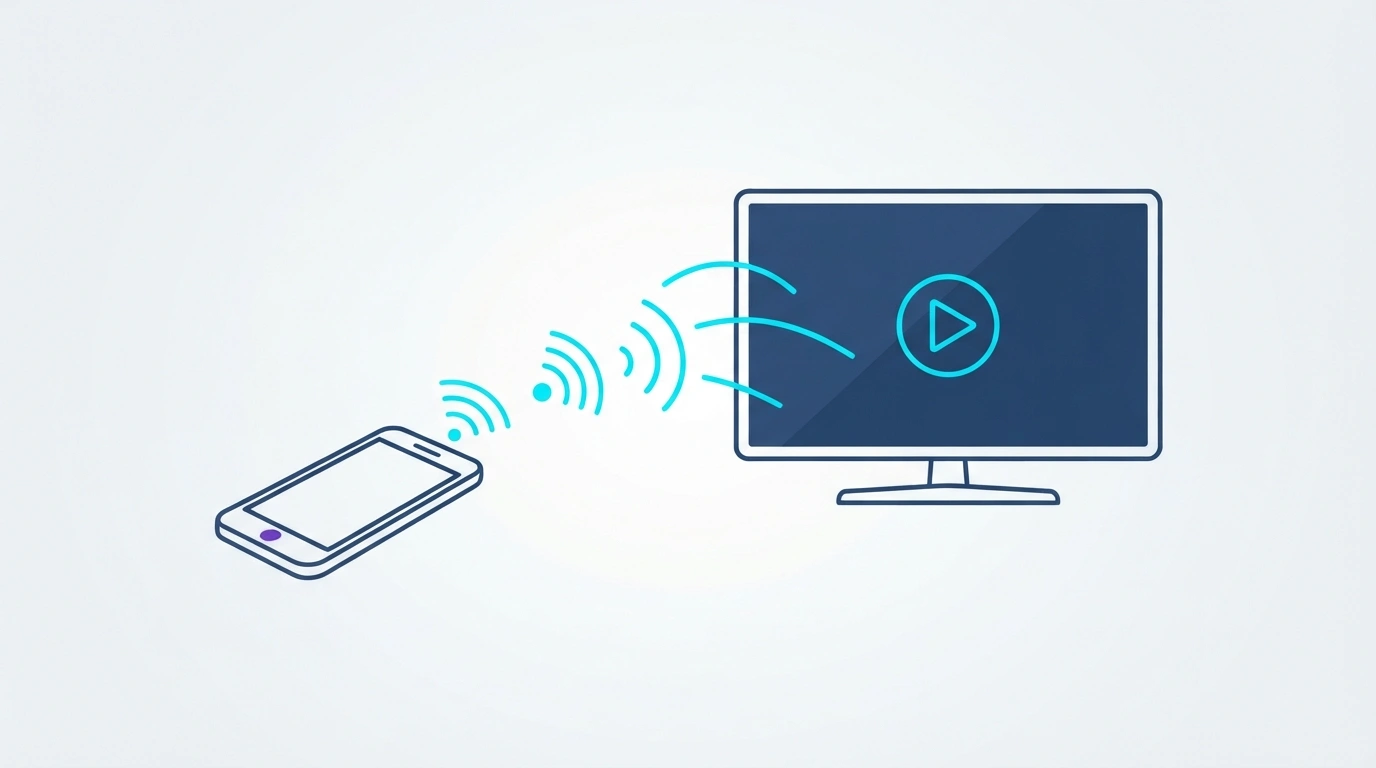
AirPlay Streaming (Best for Watching Video)
This sends just the selected media — a video, a song, a photo — to the TV, rather than duplicating your entire screen. It’s the better choice specifically for watching video, since it doesn’t drain your battery as fast as full mirroring and keeps the content at full resolution rather than matching your phone’s screen dimensions.
Screen Mirroring (Best for Presentations, Apps, or Games)
This duplicates everything on your iPhone’s display in real time — notifications, app switching, whatever you’re doing. It’s the right choice when you specifically need the TV to show exactly what’s on your phone, not just one piece of media.
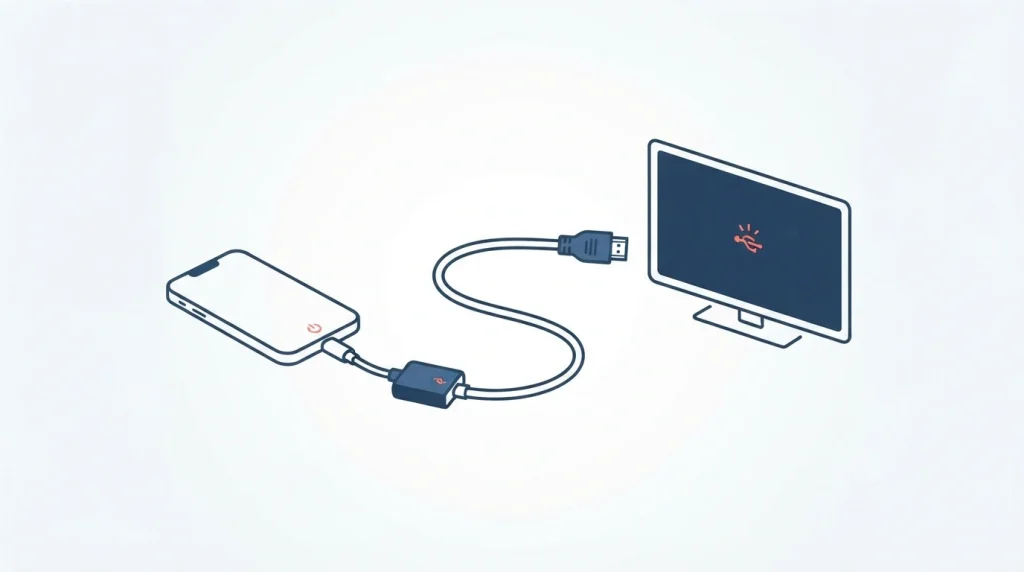
Wired HDMI Adapter (Best When Wi-Fi Isn’t an Option)
A physical cable connection through an adapter, bypassing wireless entirely. This is the most reliable option when your Wi-Fi is weak, your TV doesn’t support AirPlay, or you’re in a hotel, classroom, or office network that blocks the local device discovery AirPlay depends on.
A Streaming Device as a Middleman (Best for Older or Non-Smart TVs)
An Apple TV, Roku, Fire TV, or Chromecast with Google TV connected to an otherwise non-AirPlay TV, acting as the receiving device instead of the TV itself.
Using AirPlay: Step by Step
Step 1: Get Both Devices on the Same Wi-Fi Network
This is the most common point of failure — connect your iPhone and your TV (or Apple TV, Roku, etc.) to the same Wi-Fi network before doing anything else. If your home has multiple networks, double-check they’re genuinely on the same one, not just similarly named.
Step 2: Find What You Want to Stream
Open the video, photo, or app content you want to send to the TV.
Step 3: Tap the AirPlay Icon
This is either a rectangle with a triangle pointing up, or three overlapping circles with a triangle — it appears in the playback controls of most video and music apps, and in the Share menu for photos.
Step 4: Select Your TV From the List
Choose your TV or Apple TV from the device list that appears, and playback should begin on the TV within a few seconds.
To Stop AirPlay
Tap the AirPlay icon again in the app you’re streaming from, then select your iPhone from the list to return playback to your phone.
Using Screen Mirroring: Step by Step
Step 1: Open Control Center
Swipe down from the top-right corner of your screen (or up from the bottom edge on older Home-button iPhones).
Step 2: Tap Screen Mirroring
This is the icon showing two overlapping rectangles, separate from the standard AirPlay icon used for single-video streaming.
Step 3: Choose Your TV
Select your TV or Apple TV from the list. Your entire iPhone screen should now appear on the TV, mirrored in real time.
To Stop Mirroring
Return to Control Center, tap Screen Mirroring again, then tap Stop Mirroring.
Using a Wired HDMI Adapter: Step by Step
Step 1: Get the Right Adapter for Your iPhone
This is the step people get wrong most often. iPhone 15 and later use a USB-C port and need a USB-C to HDMI adapter. iPhone 14 and earlier (along with iPhone SE models) use a Lightning port and need a Lightning Digital AV Adapter. These are not interchangeable, and mismatched adapters simply won’t connect.
Step 2: Avoid Cheap, Uncertified Adapters
This matters more than it sounds like it should — non-certified, generic third-party adapters frequently lack proper HDCP support, which is the copy-protection handshake that streaming apps like Netflix and Disney+ require before they’ll play protected video. An adapter without it may display your home screen and photos fine while showing a black screen or error specifically when you try to stream protected content.
Step 3: Connect Everything in Order
Plug the adapter into your iPhone, connect an HDMI cable from the adapter to an open HDMI port on your TV, then use your TV remote to switch to that specific HDMI input.
Step 4: Give It a Moment
Your iPhone briefly negotiates the connection before the display appears — a short pause here is normal, not a sign something’s wrong.
Which Smart TVs Actually Support AirPlay
Most current smart TVs from major brands support AirPlay 2 natively, generally starting around these model years: Samsung (2019 and later), LG (2019 and later), Sony (2020 and later), and Vizio (2018 and later). If your TV predates these ranges, or is from a brand that doesn’t support AirPlay at all, a streaming device (Apple TV, Roku, or Chromecast with Google TV) connected to that TV is the practical workaround rather than replacing the TV itself.
Why AirPlay Sometimes Fails to Find Your TV
Hotel and Guest Networks Often Block It
AirPlay depends on local device discovery between your iPhone and the TV, and many hotel, office, and guest Wi-Fi networks specifically block this kind of local network communication even when both devices can reach the internet fine. If you’re traveling and AirPlay won’t connect, this is very likely why — a wired HDMI adapter sidesteps the problem entirely.
A VPN Can Interfere
If you’re running a VPN on your iPhone, its configuration can block the local networking AirPlay needs, even while your general internet access works normally. Temporarily disabling it is a quick way to confirm whether this is the cause.
Outdated Software on Either Device
Both your iPhone’s iOS version and your TV’s firmware need to be reasonably current for AirPlay to connect reliably — checking for pending updates on both devices resolves a meaningful share of connection failures that otherwise look like a hardware incompatibility.
Frequently Asked Questions
What’s the difference between AirPlay and Screen Mirroring on iPhone?
AirPlay streams a single piece of selected media (a video or song) at full resolution without duplicating your whole screen. Screen Mirroring duplicates everything on your iPhone’s display in real time, including notifications and app switching.
Can I connect my iPhone to a TV without Wi-Fi?
Yes — a wired USB-C or Lightning to HDMI adapter works entirely without Wi-Fi, making it the most reliable option in hotels, classrooms, or anywhere with unreliable wireless.
Why does my iPhone show a black screen when streaming Netflix through an HDMI adapter?
This usually means the adapter doesn’t properly support HDCP, the content-protection handshake streaming services require — an issue specific to cheap, non-certified adapters rather than your iPhone or TV.
Does my TV need to be a “smart TV” to use AirPlay?
Not necessarily — while many modern smart TVs support AirPlay natively, an older or non-smart TV can still receive AirPlay by connecting it to an Apple TV, which acts as the receiving device in place of the TV’s own software.
Why can’t my iPhone find my TV over AirPlay in a hotel room?
Hotel and guest Wi-Fi networks frequently block the local device discovery AirPlay relies on, even when both devices have working internet access — a wired HDMI adapter avoids this limitation entirely.
Which method is “best” really depends on what you’re trying to do in the moment — a quick video on the couch calls for AirPlay, a slide deck for work calls for mirroring, and a hotel room with sketchy Wi-Fi calls for the adapter sitting in your bag that you’ll be glad you packed.