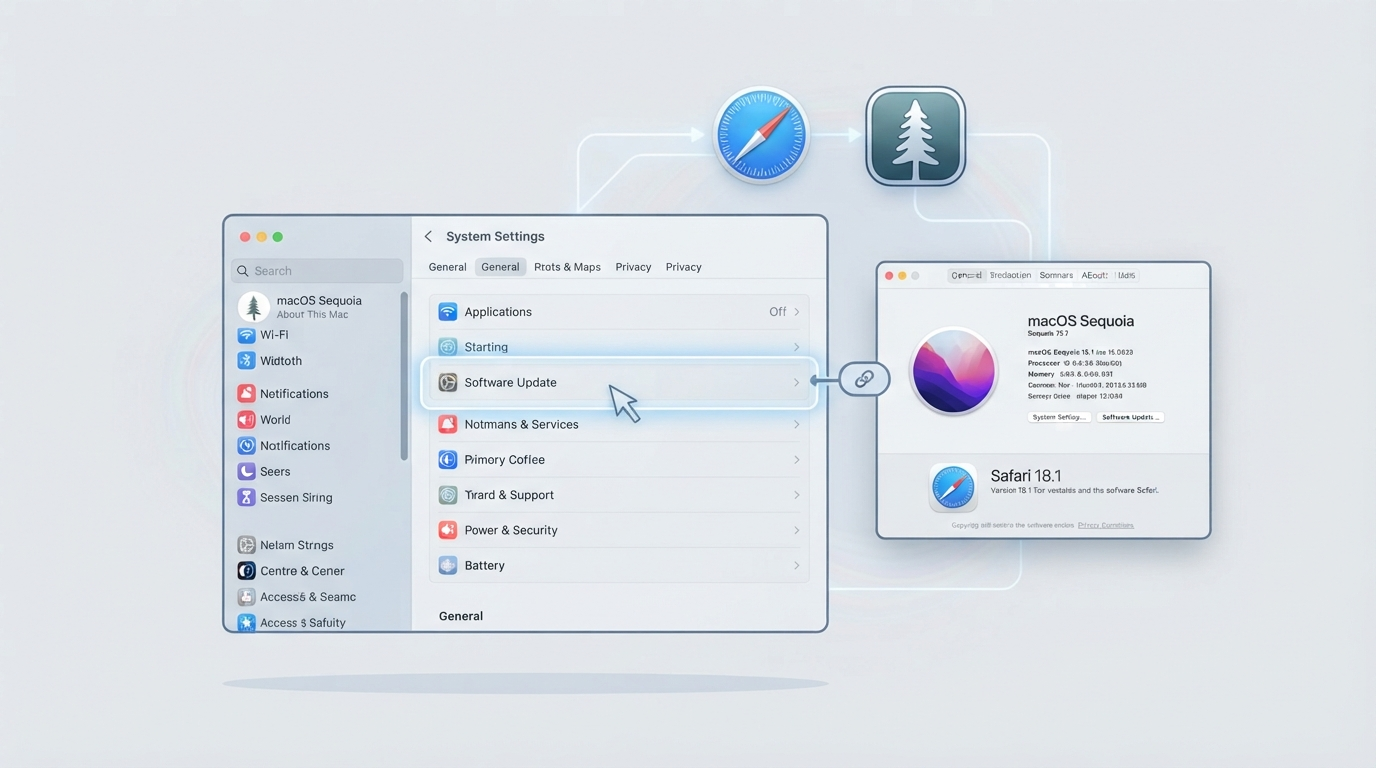
Here’s the thing almost every guide on this topic buries under a sales pitch for some third-party app cleaner: Safari doesn’t update on its own, separately from macOS. There’s no “Safari” listing sitting in your App Store updates tab waiting for a click, and there hasn’t been for years on any modern system. If you’ve been hunting for one and coming up empty, you’re not missing a setting — you’re looking for something that isn’t there anymore.
Here’s how it actually works, what to do if your Mac says it’s “up to date” but Safari still feels old, and what your real options are if your Mac is too old to update at all.
The Short Answer
On any currently supported Mac, Safari updates arrive bundled inside macOS software updates — there’s no standalone Safari installer or separate update toggle. To update it: open the Apple menu, go to System Settings → General → Software Update, and install whatever’s listed there. If it says your Mac is up to date but Safari still seems behind, the update genuinely doesn’t exist for your OS version yet, or something specific is blocking it — both of which have real fixes, covered below.
Updating Safari the Only Way It Actually Works
- Click the Apple menu in the top-left corner of your screen.
- Select System Settings, then General.
- Click Software Update.
- If an update is listed, click Update Now (for a minor update) or Upgrade Now (for a full version upgrade), and enter your administrator password if prompted.
- Let your Mac restart if it needs to — this is normal and expected for a full update.
That’s genuinely the entire process on a modern Mac. There’s no separate step for Safari specifically, because there isn’t a separate Safari to update — it’s part of the OS package itself.
How to Actually Check Your Current Safari Version First
Before assuming anything’s wrong, confirm what you’re actually running: open Safari, click Safari in the menu bar (next to the Apple logo), and select About Safari. This shows your exact version number in a small floating window — compare that against Apple’s current release before concluding you’re behind.
“It Says I’m Up to Date, But Safari Feels Old” — What’s Actually Going On
This is the single most common point of confusion, and it comes down to one fact almost no competing guide states plainly: Software Update only ever shows updates that are actually compatible with your specific Mac model. If your Mac has aged out of the newest macOS version Apple currently ships, Software Update will correctly tell you that you’re “up to date” — meaning up to date for what your hardware supports — even though a newer Safari exists for newer Macs. That’s not a bug, and it’s not something a cache clear or a restart will fix, because there’s genuinely nothing newer available for your specific hardware.
If Your Mac Can’t Take the Latest macOS
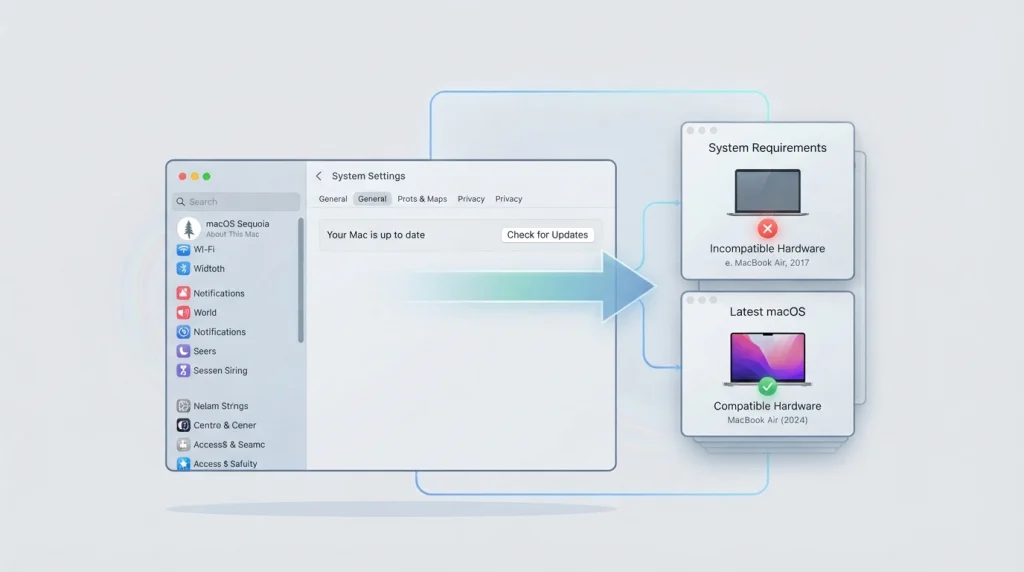
This is the scenario almost every other guide either skips or buries a workaround for using a paid utility. Here’s the honest, direct version: if your Mac’s hardware is too old for the macOS version that ships the newest Safari, you cannot get that newer Safari on this machine, full stop. No setting, no terminal command, and no third-party app changes that.
Your genuinely available options at that point:
- Check whether Apple has released a rare standalone Safari security update for your specific older macOS version — Apple does occasionally do this, though far less often than full-version bundled updates, and typically only for serious security patches rather than feature updates. It’s worth a check on Apple’s own security releases page before assuming there’s nothing.
- Switch your default browser to something still actively maintained on your OS version — Firefox and Chrome generally support older macOS versions longer than Safari does, and switching costs nothing.
- Weigh whether the specific sites giving you trouble are worth troubleshooting individually, since sometimes a site claiming Safari is “out of date” is actually a site-side detection issue rather than a genuine compatibility problem — worth a quick check with the site itself before assuming your browser is the actual cause.
None of this requires new hardware immediately, contrary to what a lot of “just buy a new Mac” advice implies — it just means accepting the ceiling your current hardware has, the same way any aging device eventually does.
Before You Update: What Actually Matters
- Free space: Major macOS updates need meaningful free storage — generally in the 25-40GB range depending on the specific update, sometimes more. Check available space under About This Mac → Storage before starting, since an update that runs out of space mid-installation is a genuinely worse problem than the one you started with.
- Back up first: This is worth doing before any major system update, not because Safari updates are especially risky, but because any full macOS update touches enough of the system that a Time Machine backup taken five minutes beforehand is cheap insurance against the rare update that goes sideways.
If the Update Won’t Install
A handful of specific, fixable causes account for most stalled updates: insufficient free storage (checked above), a weak or interrupted internet connection during a large download, or occasionally a background process holding a file the installer needs. Restarting your Mac before retrying resolves a meaningful share of these on its own. If it still won’t go through, booting into Safe Mode and attempting the update again rules out a conflicting background process as the cause — and if none of that works, that’s the point where contacting Apple Support directly, rather than guessing further, is the efficient move.
Frequently Asked Questions
Can I download Safari separately without updating macOS?
On modern, currently supported macOS versions, no — Safari ships bundled with the OS. Apple occasionally releases standalone security-only Safari updates for specific older, no-longer-fully-supported macOS versions, but these are the exception, not a general workaround.
Why does Software Update say I’m up to date if Safari is clearly an old version?
Because Software Update only shows updates compatible with your specific Mac model. If your hardware can’t run the newer macOS version that ships the newer Safari, your Mac genuinely has nothing newer to offer you.
Will updating Safari delete my bookmarks or saved passwords?
No. A standard software update doesn’t remove your bookmarks, saved passwords, browsing history, or extensions — those are stored separately from the application code itself.
Does updating macOS always update Safari too?
In the vast majority of cases yes, since Safari updates are typically bundled directly into macOS releases — but Apple doesn’t guarantee every single macOS point release includes a Safari version bump, so check About Safari afterward to confirm.
My Mac is too old to update — is there any way to get a newer Safari?
Not officially, no. Your realistic options are watching for a rare standalone security patch for your specific OS version, or switching to a browser that still actively supports your older macOS.
Bottom Line — the Part Nobody Else Gave You
Every other guide on this exact question ends with the same suggestion: install a third-party app-updater tool to “simplify” a process that, as you’ve just seen, genuinely doesn’t need simplifying — it’s four clicks. If your real problem is an aging Mac that can’t take the newest macOS, no app-updater tool fixes that either, because the actual constraint is your hardware, not a missing shortcut. The honest fix for “Safari feels behind” is almost always either those four clicks, or an honest acceptance of what your specific Mac model can and can’t run — not a subscription to something that promises to solve a problem that was never really about needing more clicks in the first place.