Most guides to prompting Copilot stop at the same basic tip: write a descriptive comment above where you want code, and Copilot will fill it in. That’s true, and it’s also the least interesting thing Copilot can do. The real gap between someone getting mediocre, generic suggestions and someone getting Copilot to consistently produce code that matches their actual codebase isn’t a smarter comment — it’s understanding the handful of context mechanisms Copilot actually offers beyond inline completion, most of which go completely unused by casual users.
The Foundation: Inline Comment Prompting
This is still the starting point, and it’s worth doing well before moving to anything more advanced. Write a comment describing exactly what the function or block should do, including relevant specifics — expected input types, edge cases, the library or pattern you want used — directly above where you want the code generated. The more specific the comment, the less Copilot has to guess, and specificity here means naming actual constraints, not just describing intent vaguely. “Sort the list” produces a generic sort. “Sort the list of Order objects by created_at descending, treating null timestamps as oldest” gives Copilot enough to produce something closer to correct on the first try.
Slash Commands: Copilot’s Built-In Shortcuts

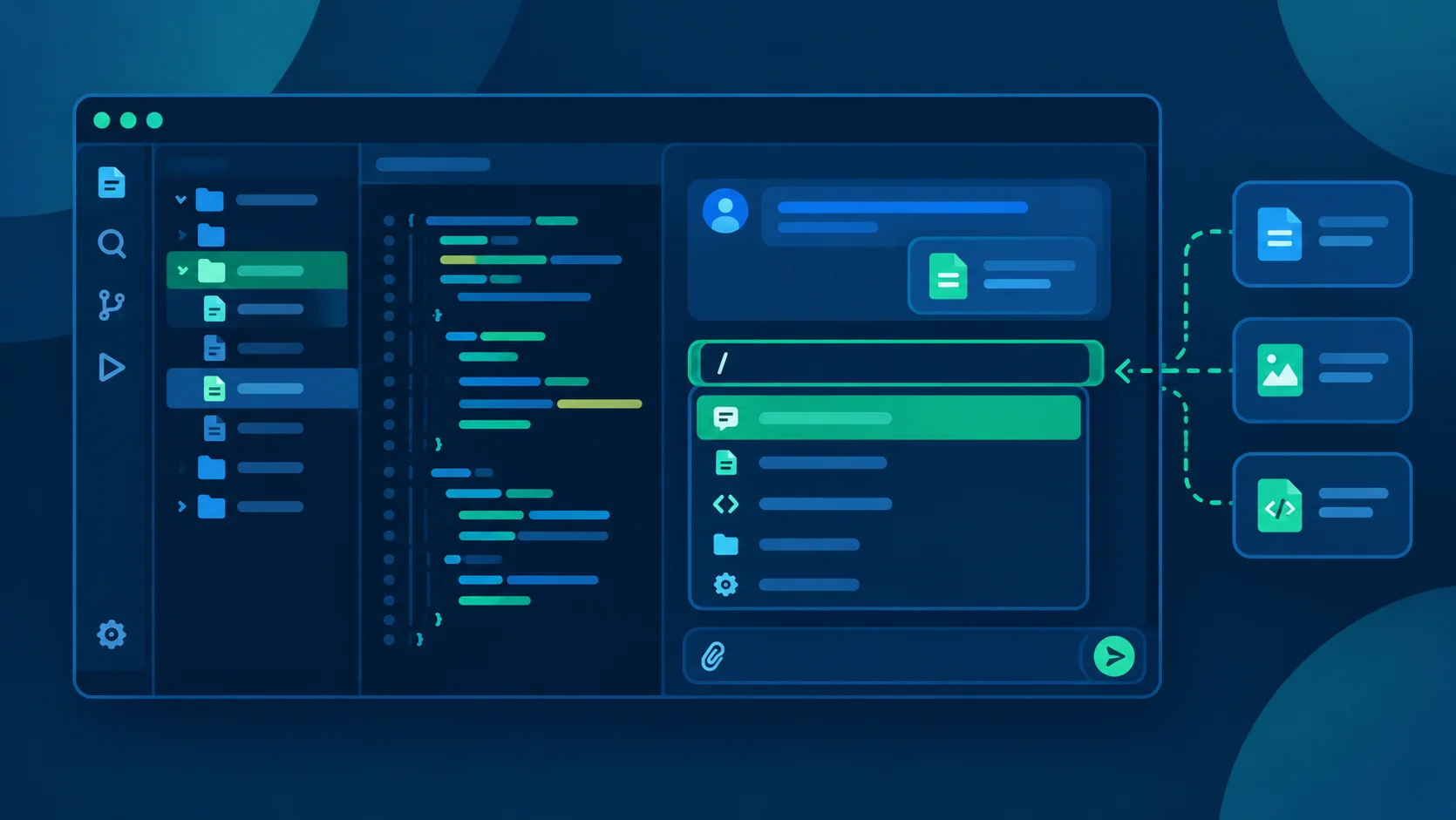
This is the part most casual users never discover, and it’s a genuine multiplier once you know it exists. Inside Copilot Chat, typing / brings up a menu of built-in commands that skip having to describe common tasks from scratch every time: /fix targets and repairs a specific problem in selected code, /tests generates test cases for the code you’ve selected, /explain walks through what a selected block of code actually does, and /doc generates documentation comments for selected code. Using these instead of writing out the equivalent request in plain English isn’t just faster — it also routes your request through a more specifically-tuned prompt template on Copilot’s end, which tends to produce more consistent results than an equivalent freeform request.
Chat Participants: Telling Copilot Where to Look
Beyond commands, Copilot Chat supports “chat participants” — prefixed with @ — that scope a request to a specific context rather than your currently open file alone. @workspace lets Copilot search and reference your entire open project rather than just the active file, genuinely useful when a question spans multiple files. @vscode scopes a question specifically to VS Code’s own features and settings. @terminal brings the integrated terminal’s context into the conversation, useful for debugging a command that just failed. Using the right participant for the question you’re actually asking is a meaningfully different experience than asking Copilot to guess your intended scope from phrasing alone.
Context References: Pointing Directly at What Matters
Alongside participants, Copilot supports # references to pull specific, named context into a prompt — #file to reference a particular file directly, #selection to reference exactly what’s currently highlighted in your editor. This matters more than it sounds like it should: rather than describing “the function I just wrote” and hoping Copilot correctly infers which one, referencing it directly removes an entire class of ambiguity from the request.
Custom Instructions: Setting Standing Context Once
This is the single most underused feature for anyone using Copilot daily across a real project, and it solves a genuinely annoying problem — re-explaining your project’s conventions in every single prompt. A .github/copilot-instructions.md file in your repository lets you define standing context Copilot automatically applies to every interaction within that project: coding style preferences, architectural patterns you want followed, libraries to prefer or avoid, naming conventions. More advanced setups go further, using .instructions.md files scoped to specific file patterns (applying C#-specific guidance only when a .cs file is open, for instance, versus different guidance for Python files) rather than one global file trying to cover every language and context in a single set of rules.
Agents: What Used to Be Called Chat Modes
Worth knowing if you’ve seen older Copilot documentation referencing “chat modes” — GitHub renamed this feature to Agents as of October 2025, and it’s genuinely more than a naming change. Agents are specialized personas with a defined focus — a “Developer” agent oriented around test-driven development with quality gates, a “Code Reviewer” agent focused on systematic review practices, a “Tester” agent emphasizing behavior-driven test coverage. Selecting the right agent for the task at hand — rather than always defaulting to Copilot’s general-purpose mode — shapes not just tone but the actual priorities Copilot applies when generating or reviewing code, since each agent is built around a genuinely different evaluation lens.
Reusable Prompt Files for Repeated Tasks
For tasks your team performs repeatedly — generating a standardized architectural decision record, scaffolding a new service following your team’s established pattern — .prompt.md files let you define a reusable, named prompt once and invoke it by name in Copilot Chat going forward, rather than re-typing an equivalent detailed request every time. This is genuinely useful specifically for team consistency: everyone invoking the same named prompt gets the same underlying instructions, rather than five developers writing five slightly different versions of the same request with five slightly different results.
Best Practices That Apply Across All of the Above
Be explicit rather than relying on implied context
Across every mechanism above, the consistent finding from teams documenting their own Copilot practices is the same: busy users benefit more from exact commands and phrases they can adapt than from broad, vague direction — specificity beats cleverness almost everywhere in prompting Copilot.
Keep custom instructions modular
Rather than one sprawling instructions file trying to cover everything, splitting concerns into focused files — one for safety/security rules, one for tone and documentation style, one for testing conventions — keeps each file’s purpose clear and makes it easier to update one concern without accidentally touching another.
Iterate rather than expecting a perfect first result
Treating an initial Copilot suggestion as a draft to refine — asking a follow-up to adjust a specific part rather than abandoning the whole suggestion and starting over — is consistently more efficient than repeatedly rewriting the original prompt from scratch hoping for a better one-shot result.
Why This Matters More for Copilot Specifically Than for Some Other Tools
Because Copilot operates as a plugin across several different editors rather than a purpose-built standalone environment — a structural difference covered in more depth in our Cursor comparison — getting the most out of it depends more heavily on actively using its context mechanisms (chat participants, references, instructions files) than tools built with deeper automatic codebase awareness baked in by default. Copilot can reach comparable results, but it generally requires more deliberate context-feeding from the user to get there, which is exactly why understanding these mechanisms matters more here than a one-line “just be descriptive” tip suggests.
Frequently Asked Questions
What’s the fastest way to improve Copilot’s suggestions without learning anything new?
Write more specific inline comments — naming actual constraints, types, and edge cases rather than vague intent — since this alone meaningfully improves suggestion quality with zero new features to learn.
What are Copilot’s slash commands, and why use them over plain English?
Built-in shortcuts like /fix, /tests, /explain, and /doc route your request through a more specifically-tuned prompt template than an equivalent freeform request, generally producing more consistent results for those common tasks.
What happened to Copilot’s “chat modes”?
GitHub renamed this feature to Agents as of October 2025 — functionally similar specialized personas (Developer, Code Reviewer, Tester, and others), just under updated terminology and with expanded built-in options.
Do I need a custom instructions file to use Copilot effectively?
Not for casual use, but for any ongoing project, a .github/copilot-instructions.md file meaningfully reduces repetitive re-explaining of your project’s conventions in every prompt, and is worth setting up early rather than after the fact.
What’s the difference between @workspace and referencing a specific file with #file?
@workspace lets Copilot search broadly across your entire open project when a question’s scope isn’t limited to one place. #file points directly at a specific named file, removing ambiguity when you already know exactly which file is relevant.
Copilot’s ceiling is considerably higher than the “write a comment, get a suggestion” reputation it’s often reduced to — the gap between casual and genuinely effective use is almost entirely about knowing these context mechanisms exist and reaching for the right one, not about writing cleverer prose in your prompts.