Search this problem and you’ll run into two very different kinds of results: legitimate troubleshooting guides, and a disturbing number of fake “support” pages built entirely around a phone number, urging you to call for a “permanent fix.” Those aren’t real repair resources — they’re tech-support scam pages, and calling the number on them risks handing a stranger remote access to your Mac or your payment details. None of that is necessary here. Orange discoloration is a real, well-understood display issue with a short list of actual causes, and most of them are diagnosable — and some fixable — without calling anyone.
Here’s how to actually work through it.
Quick Answer
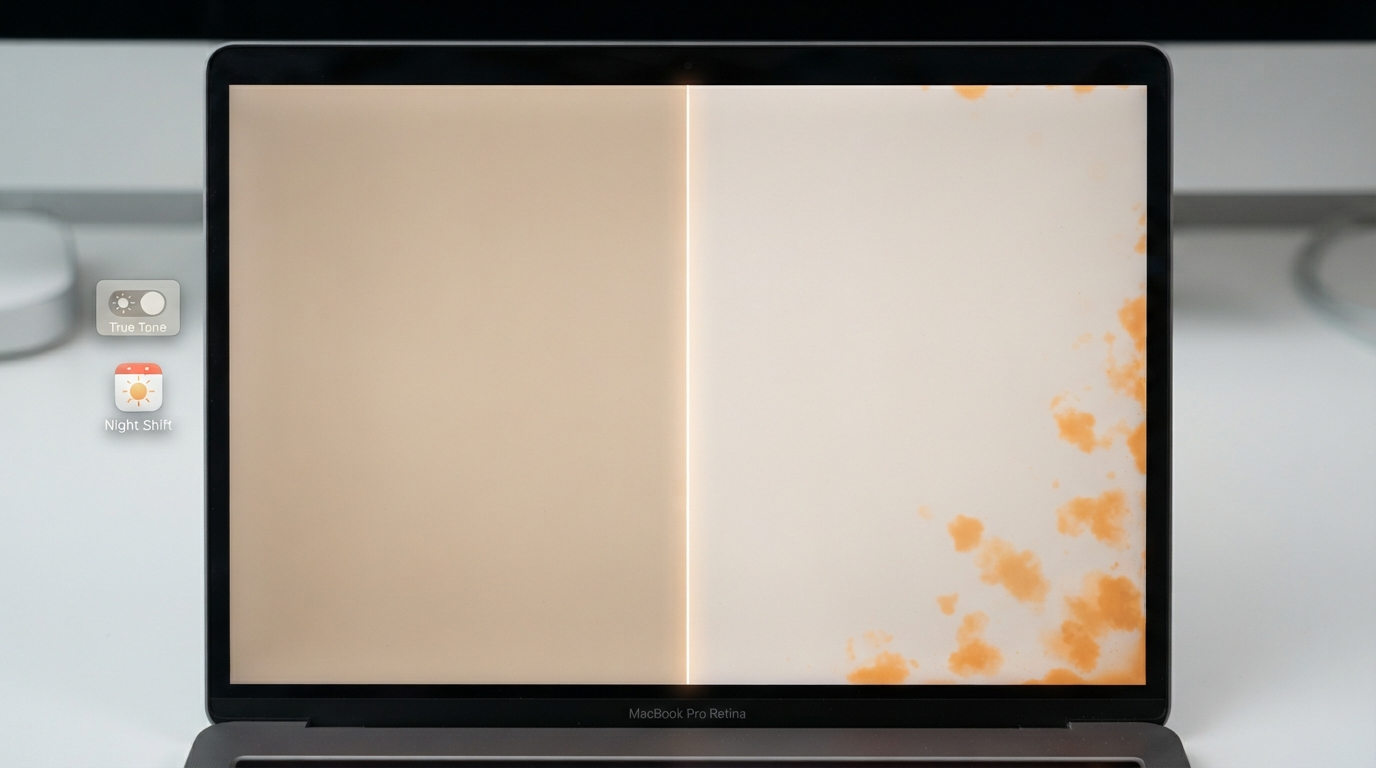
Orange discoloration on a MacBook Pro screen has two broad sources: software (True Tone, Night Shift, an incorrect color profile, or a stuck accessibility color filter) and hardware (pressure marks, heat damage to the LCD layers, backlight degradation, or liquid damage). Start with the software checks first — they take under two minutes and rule out roughly half of reported cases. If disabling True Tone, Night Shift, and color filters doesn’t change anything, the discoloration is very likely hardware-related and needs a professional diagnosis, not a deeper settings dig.
Rule Out Software First — It Takes Two Minutes
Two built-in features are responsible for a surprising share of “my screen looks orange” reports, precisely because they’re designed to shift the display toward warm tones on purpose.
True Tone adjusts your display’s white balance to match the ambient lighting around you, which can look like a persistent orange or yellow cast, especially indoors under warm bulbs. Night Shift does something similar on a schedule, shifting colors warmer in the evening to reduce blue light. Turn both off under System Settings → Displays, and see if the tint disappears immediately — if it does, nothing is actually wrong with your hardware.
If that doesn’t resolve it, check for an active Color Filter under System Settings → Accessibility → Display. These accessibility filters can get toggled on accidentally (a stray keyboard shortcut is a common cause) and will distort the entire display’s color output until turned back off.
Also check your Color Profile under System Settings → Displays → the profile dropdown. If the wrong calibration profile is selected, tones across the whole screen can appear artificially warm. Resetting to the default Apple profile for your model resolves this in most cases.
If none of these settings changes anything, try a Safe Mode boot (hold Shift while starting up). If the orange tint disappears in Safe Mode, a third-party app or display driver is the culprit, not the hardware — worth uninstalling anything recently added before assuming the worst.
When It’s Actually Hardware
If the discoloration survives every software check above, the underlying cause is almost always one of four things:
Pressure damage
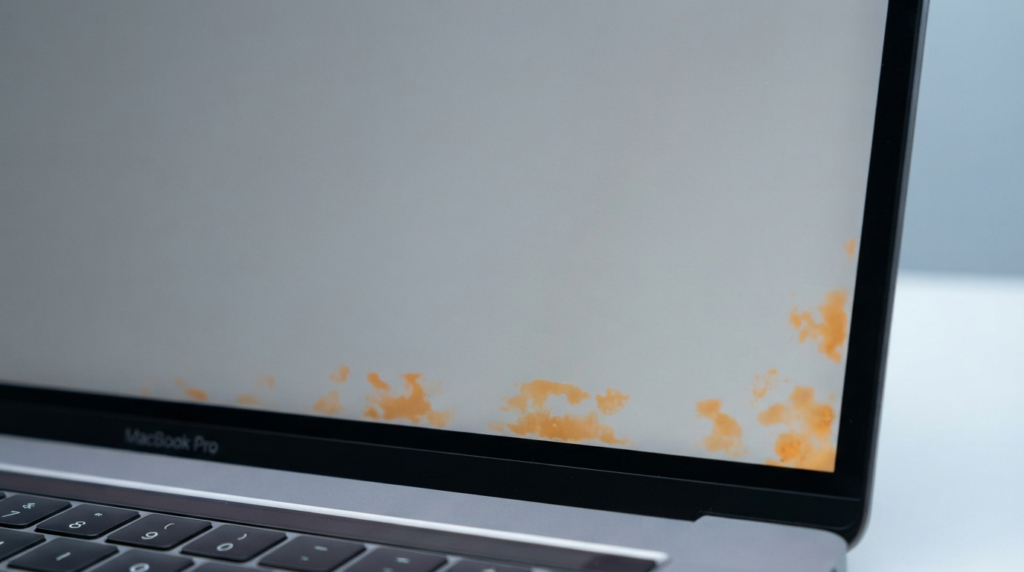
Irregular orange patches, often in a shape that roughly matches something that pressed against the closed lid (a pen, a charging cable, an object left on the keyboard), point to physical pressure damage to the LCD layers. This tends to produce uneven, patchy discoloration rather than a uniform tint across the whole screen.
Heat-related layer damage
Prolonged heat exposure can warp the adhesive between display layers, causing orange discoloration to “leak” into the affected area — often starting at an edge or corner and gradually growing.
Backlight degradation
As a MacBook’s backlight ages or begins failing, it can produce warm, orange-tinted patches that are most visible in dark rooms or on dark content, since the tint is easier to spot against a black background than a bright one.
Liquid damage
If moisture gets trapped between display layers — even from an old spill you may have forgotten about — it typically leaves warm, orange, or yellow hazy patches that don’t move or change with any software setting.
A Fast Way to Tell Which One You’re Dealing With
Look at how the discoloration behaves, not just what it looks like:
- Uniform tint across the whole screen → almost always software (True Tone, Night Shift, or a color profile issue)
- Irregular patches in one area, especially near where something could have pressed on the lid → pressure damage
- Slowly growing patch starting at an edge or corner → heat-related layer damage or early backlight degradation
- Same discoloration appears identically in a screenshot → this is a strong signal the problem is in the GPU or display output itself, not a physical screen defect, and worth mentioning specifically to a technician
- The exact same discoloration appears on every color test, regardless of what’s on screen → confirms physical pixel or panel damage rather than a display setting
What Not to Do
Don’t open the case yourself
MacBook displays are assembled in ways that make DIY disassembly genuinely likely to cause more damage than the original problem, and it will void any remaining warranty or AppleCare coverage immediately.
Don’t call a number from a page that leads with “call now” before explaining anything
Legitimate repair guidance explains the cause before asking for money or contact information — pages structured the other way around, especially ones stuffed with phone numbers repeated many times, are a known tech-support scam pattern targeting exactly this kind of search.
Don’t wait if you suspect liquid damage
Trapped moisture actively continues corroding internal components over time — this is the one cause on this list where speed matters more than diagnosis precision.
When to See a Professional
Book a repair (through Apple directly, or a reputable third-party shop) if any of the following apply: the discoloration persists after all software checks and a Safe Mode test, it’s visibly spreading over days or weeks, it shows up identically in screenshots, or you have any reason to suspect a past liquid exposure. If your Mac is still under AppleCare+, start with Apple directly regardless of the specific cause — coverage may apply even if the exact defect doesn’t have a name like “Flexgate” attached to it.
Frequently Asked Questions
Why does my MacBook Pro screen suddenly look orange?
Most sudden cases are software — True Tone or Night Shift kicking in based on time of day or ambient light, or an accidentally toggled color filter. Check these first before assuming a hardware fault.
Can orange discoloration go away on its own?
Software-caused tinting resolves the moment the responsible setting is disabled. Hardware-caused discoloration (pressure, heat, or backlight damage) does not resolve on its own and typically stays the same or worsens over time.
Is orange discoloration the same issue as Flexgate?
Not necessarily. Flexgate specifically causes a horizontal banding “stage light” pattern near the top or bottom edge of the screen, tied to a failing display cable. Orange discoloration can have several different causes, and only some overlap with Flexgate’s specific symptom pattern.
Will Apple fix orange screen discoloration for free?
Only if it’s covered under AppleCare+, a specific active repair program for your exact model, or standard warranty terms. Outside of those, it’s a paid repair, with cost depending on the diagnosed cause.
Should I trust a support page that has a phone number in the title and text?
Be cautious. Genuine troubleshooting content explains causes and lets you decide how to proceed. Pages built primarily around repeated phone numbers and urgent “call now” language are a common tech-support scam format — don’t call, and don’t enter any personal or payment information based on one.
Final Verdict
Most orange-tint complaints resolve with two settings toggles that take under a minute — always worth ruling out before assuming anything is physically wrong. When it survives that check, the pattern of the discoloration (uniform vs. patchy, static vs. spreading, present in screenshots or not) tells you almost everything about whether you’re looking at pressure damage, heat damage, backlight failure, or liquid damage — and whether it’s worth a professional diagnosis.