You probably arrived here one of two ways. Either you just bought security cameras and the box, the installer, or a Dutch webshop keeps using the word camerabewaking — or you already own a camera system and you are hunting for the app that lets you watch it from your phone. Both searches land on the same term, and both are really asking the same thing: which app do I need, and what should it cost me?
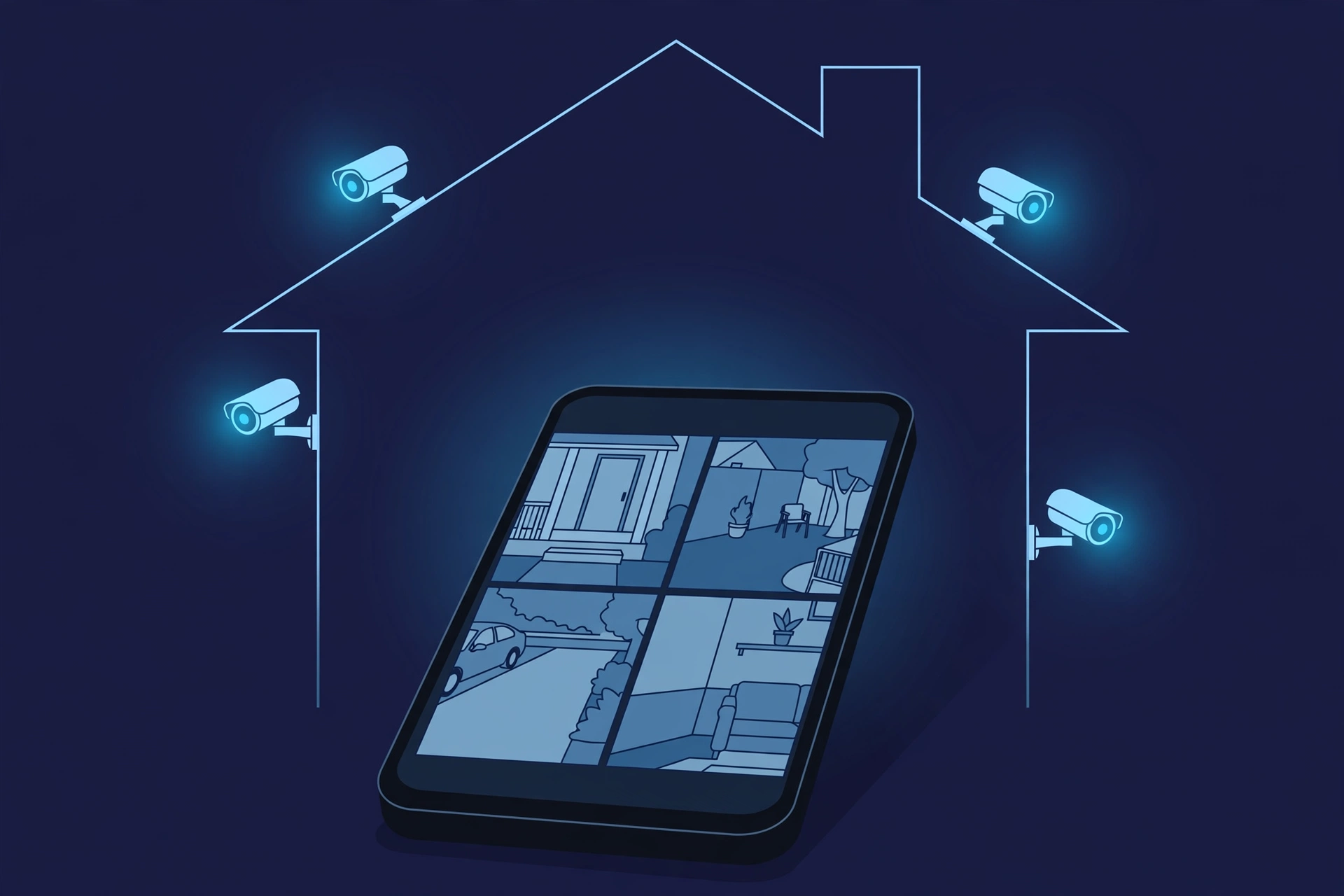
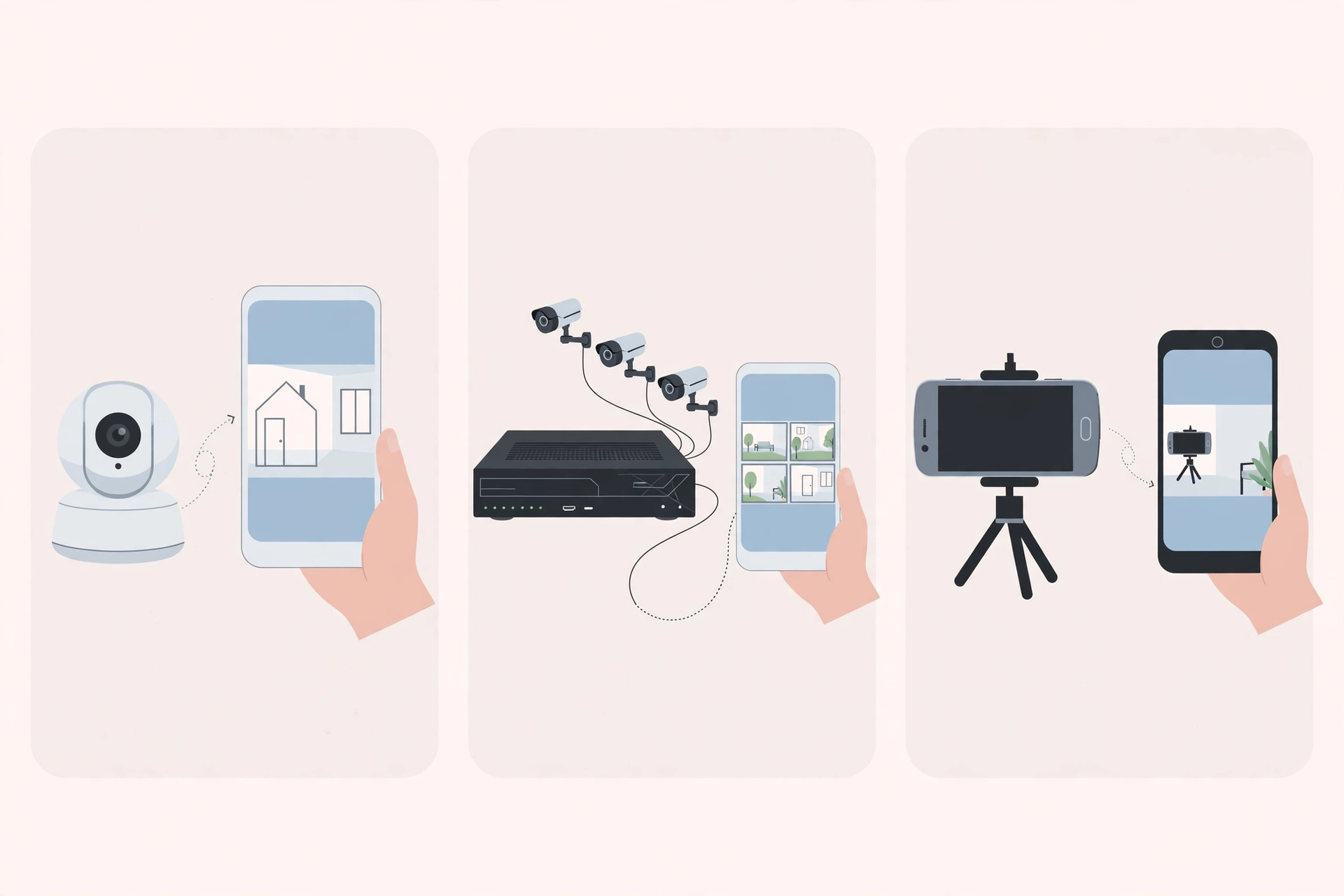
The short answer: a camerabewaking app is not one specific app. Camerabewaking is simply the Dutch word for camera surveillance, and a “camerabewaking app” is any security camera app that connects your cameras to your phone — live view, motion alerts, recorded clips, two-way audio. They fall into three kinds: brand apps that only work with one maker’s cameras, universal viewer apps that connect to camera systems you already own, and apps that turn an old phone into the camera itself. Which kind you need is decided entirely by the hardware in your hallway, not by which app has the prettiest screenshots.
This guide walks through all three kinds, compares the best options with real 2026 pricing, explains how these apps actually move video from a camera to your phone, and covers the Dutch and European privacy rules that almost every English guide skips — including what you are and are not allowed to film.
What “Camerabewaking” Actually Means
It’s a category, not an app name
There is no official product called “Camerabewaking.” The word combines camera with bewaking — guarding or surveillance — and in the Netherlands and Belgium it is the everyday term for CCTV and video surveillance in general. Dutch retailers sell “camerabewaking” the way English shops sell “home security”: as a shelf category, not a brand. So when someone searches for a camerabewaking app (or the near-identical Dutch term beveiligingscamera app), they are searching for a type of app, the same way “banking app” describes a type rather than one product.
That is also why the search results look so messy. Google sees a Dutch category term and mixes app-store listings, Dutch installer companies, and camera webshops, because different searchers want different things from the same two words.
Who searches this term
Three groups, mostly. Homeowners in the Netherlands and Belgium comparing camera systems before buying. Owners of an existing DVR, NVR, or IP camera setup — very common with Hikvision and Dahua hardware — who need the right viewer app to watch their cameras remotely. And people with a spare phone in a drawer who have heard it can be turned into a free security camera. The sections below follow exactly those three situations.
The 3 Kinds of Camerabewaking Apps
Brand apps: one maker, one app
Buy a Ring, Nest, eufy, Reolink, Arlo, Blink, or Wyze camera and you will use that maker’s app. The camera and app are designed together, setup is usually a QR code scan, and features like person detection are tuned to the hardware. The trade-off is a hard wall: a Ring camera will never appear in the eufy app. Choosing a brand app is really choosing a camera ecosystem, and often a subscription.
Universal viewer apps: for cameras you already own
Professional and budget CCTV systems — the DVR in a shop’s back room, the NVR in a home office, loose IP cameras from different brands — are watched through viewer apps. Some are published by the recorder’s maker (Hikvision’s Hik-Connect, Dahua’s DMSS, Uniview’s Guard Viewer), and some are independent apps like tinyCam Monitor and IP Cam Viewer that speak the standard protocols (ONVIF and RTSP) and can pull feeds from many brands at once. If your cameras already exist, this is your section — no new hardware required.
Phone-as-camera apps: the spare phone is the camera
The third kind skips camera hardware entirely. Apps like AlfredCamera install on two phones: the old one becomes the camera, your current one becomes the viewer. It is the cheapest possible camerabewaking setup — genuinely €0 if the phone is already in a drawer — and for a pet cam, a baby room check-in, or watching a front door while travelling, it is better than its price suggests.
Best Brand Apps Compared
Prices below are US list prices checked in October 2026. Most of these brands sell across Europe with euro pricing that broadly tracks the dollar figures, and every vendor here has a record of raising prices — Wyze lifted Cam Plus annual billing from $19.99 to $29.99 per camera in March 2026, and Arlo’s entry plan has climbed from $2.99 to $7.99 a month in two steps. Treat any price as a snapshot, and weigh the subscription, not just the camera, before buying.
Ring: best for Alexa households
Ring’s app is polished, fast, and the default choice if your home already runs on Alexa. The catch is absolute: without a subscription, a Ring camera records nothing at all — live view and two-way talk work, but no video history exists. Ring’s current plans (renamed from Ring Protect in 2026) are Solo at $4.99 a month for one device, Multi at $9.99 a month covering every device at one address, and Pro at $19.99, with up to 180 days of video history. One camera on Solo is reasonable; a house full of Ring cameras on per-device billing is how people end up paying more for the app than the hardware.
Google Home (Nest): best for Google households
Newer Nest cameras include 3 hours of free event history (6 hours of previews on the newest models), which covers “did someone just come to the door?” and nothing older. Google Home Premium — the renamed Nest Aware — costs $10 a month for Standard (30 days of event history, familiar-face detection) or $20 a month for Advanced (60 days of events plus 10 days of 24/7 recording and Gemini-written event descriptions). One subscription covers every Nest camera in the home, which makes Google’s maths friendlier than Ring’s once you own three or more cameras.
eufy Security: best for avoiding subscriptions
eufy’s whole pitch is local storage. Cameras record to a HomeBase hub or a microSD card, person detection runs on the device, and there is no monthly fee for the features Ring and Arlo charge for. Cloud storage exists if you want an off-site backup — $3.99 a month for one device, $13.99 for unlimited — but it is genuinely optional rather than a ransom. If the phrase “another subscription” makes your eye twitch, eufy is the brand app to beat.
Reolink: best for no-fee recording and flexible hardware
Reolink covers the widest hardware range here — battery, solar, 4G cellular, PoE, and Wi-Fi cameras — and records free to microSD or a Reolink NVR, including person and vehicle detection without a plan. A basic free cloud tier (7 days, 1GB) exists for compatible cameras, and the paid Classic Standard plan adds 30 days of history for up to 5 cameras at $6.99 a month. The app is more utilitarian than Ring’s, but for farms, holiday homes, and anywhere without reliable Wi-Fi, Reolink is usually the practical answer.
Arlo: best video quality, priciest app
Arlo cameras produce some of the sharpest footage in this class, and Arlo Secure’s AI detection (person, vehicle, animal, package) is genuinely good. You will pay for it: Arlo Secure Plus starts at $7.99 a month for a single camera and $17.99 for unlimited cameras on annual billing, with 60 days of cloud history. Local storage is possible through an Arlo SmartHub, but it is the ecosystem’s side door, not its front entrance. Buy Arlo for the picture, and go in with your eyes open about the rent.
Blink: best for renters and simple setups
Amazon’s other camera brand is the simple one: battery cameras that run for up to two years, a five-minute setup, and local recording to a Sync Module with a USB stick or microSD card. Without a plan, live view is capped at 5 minutes and clips are not saved to the cloud. Blink Basic costs $3.99 a month for one device (60 days of cloud history in the US, 30 in the EU) and Plus costs $11.99 for unlimited devices. For a rented flat with one door to watch, Blink’s simplicity is the feature.
Wyze: best for tight budgets
Wyze cameras are startlingly cheap for what they do, and the app reflects it: live view and alerts are free, a microSD card gives you local recording, but the free cloud tier only saves 12-second clips with a 5-minute cooldown between them. Cam Plus removes the limits at $2.99 a month per camera ($29.99 a year since the March 2026 increase), or Cam Unlimited covers everything at $9.99 a month. At one or two cameras, nobody beats Wyze’s total cost. At six cameras, do the Unlimited maths carefully.
| App | Best for | Free local storage | Paid plans from | A subscription gets you |
|---|---|---|---|---|
| Ring | Alexa homes | No | $4.99/mo, 1 device | Any recording at all |
| Google Home (Nest) | Google homes | No (3 hrs free history) | $10/mo, all cameras | 30-day history, familiar faces |
| eufy Security | Avoiding subscriptions | Yes (HomeBase/microSD) | $3.99/mo (optional) | Cloud backup only |
| Reolink | No-fee recording | Yes (microSD/NVR) | $3.49/mo (optional) | Cloud backup, rich alerts |
| Arlo | Video quality | Via SmartHub | $7.99/mo, 1 camera | Cloud history, AI detection |
| Blink | Renters | Yes (Sync Module) | $3.99/mo, 1 device | Cloud clips, person detection |
| Wyze | Tight budgets | Yes (microSD) | $2.99/mo per camera | Full events, AI detection |

Best Universal Viewer Apps for Existing Camera Systems
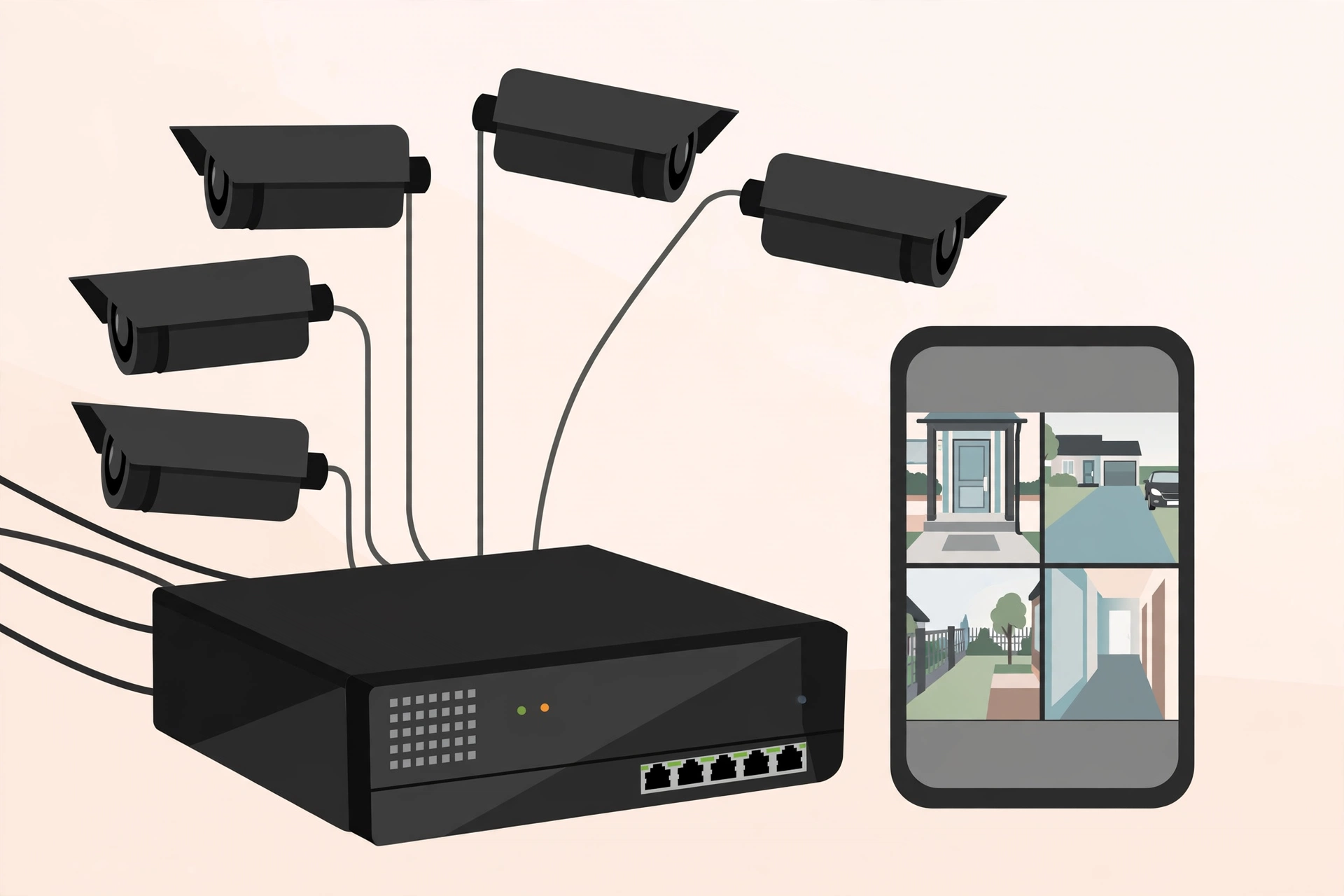
This is the section most guides skip, and for owners of an existing system it is the only section that matters. If your home or business already has a recorder humming away — a Hikvision DVR, a Dahua NVR, a no-name box from an installer — you do not need a new camera ecosystem. You need the app that speaks to the box you own. Start with the maker’s own app; reach for an independent viewer when you have mixed brands or the official app lets you down.
Hik-Connect: for Hikvision cameras and recorders
Hikvision is the world’s largest camera maker, and a large share of installed systems in Dutch homes and shops carry its logo (or its budget line, HiLook). Hik-Connect is the official app: free, live view and playback from Hikvision DVRs, NVRs, and IP cameras, with alarm push notifications. Add a device by scanning the QR code on the recorder, enable the Hik-Connect service on the device, and remote viewing works without port forwarding.
DMSS: for Dahua cameras and recorders
Dahua is the other giant, and DMSS is its official viewer — the app CCTV suppliers point Dahua owners to for iPhone and Android. It handles live view, playback, PTZ control, and alarm notifications for Dahua recorders and cameras, and connects remotely by scanning the device’s serial number (the P2P method), so no router configuration is needed.
tinyCam Monitor: the Android power tool
tinyCam Monitor is the independent favourite on Android. It connects to an unusually wide range of IP cameras — vendor figures and long-standing Play Store listings credit it with support for thousands of camera models — plus anything speaking ONVIF or RTSP, which covers most cameras that are not locked inside a consumer cloud. The free version is fully usable; the one-time PRO upgrade adds extras like background recording and more layouts. If your system mixes brands, tinyCam is usually where the pieces come together.
IP Cam Viewer: the cross-platform fallback
IP Cam Viewer (by Robert Chou) has been around for years on both Android and iOS, with support for a long list of camera brands and generic RTSP/ONVIF streams. The interface will not win design awards, but as a “make this odd camera visible on my phone” tool — including cameras whose makers never shipped a decent app — it earns its place.
Guard Viewer: for Uniview systems
Uniview (UNV) recorders and cameras are common in professional installs, and Guard Viewer is their official app: free, with live view in split screens of up to 16 cameras, playback, PTZ control, and alarm push. It also accepts ONVIF-compliant devices, and Uniview rates it for very large device lists — up to 1,000 devices and 256 channels — which tells you it was built for installers, not doorbells.
| Your camera or recorder | The app you need |
|---|---|
| Hikvision or HiLook | Hik-Connect |
| Dahua or Imou (pro line) | DMSS |
| Uniview (UNV) | Guard Viewer |
| Mixed brands, or anything ONVIF/RTSP | tinyCam Monitor (Android) or IP Cam Viewer |
| White-label DVR with no clear brand | The seller’s app first; an XMEye-family app or tinyCam as the fallback |
Best Apps That Turn an Old Phone into a Security Camera
AlfredCamera: the easy default
AlfredCamera is the name every guide lands on, because the setup genuinely takes minutes: install it on the old phone and your current phone, sign in on both, set one as Camera and the other as Viewer. The free tier covers 2 cameras with motion alerts, two-way talk, and a low-light filter. Premium Standard ($5.99 a month) raises the limit to 4 cameras and adds HD streaming, 14 days of cloud storage, and person, vehicle, and pet detection; Premium Plus ($7.99 a month) removes the camera cap and stretches cloud storage to 30 days. A phone will never match a real outdoor camera for night vision or weatherproofing, but indoors, free beats nothing by a wide margin.
IP Webcam: the free, local-only option
IP Webcam (Android, by Pavel Khlebovich) takes the opposite approach to Alfred: no account, no cloud, no subscription. It turns the phone into a local IP camera streaming over your own Wi-Fi, viewable in a browser or in a viewer app like tinyCam — which also means it keeps working if the internet drops, and your footage never leaves your house. The interface is dated and the setup is more manual, but for a technically comfortable user who values privacy over polish, it is the most honest €0 in this guide.
How a Camerabewaking App Works
The flow: camera, network, storage, app
Every system in this guide moves video along the same path. The camera captures footage and sends it across your network — by Wi-Fi, Ethernet cable, or 4G. The footage lands somewhere: on a microSD card in the camera, on a recorder (DVR/NVR) or hub, in the maker’s cloud, or in more than one of those. The app on your phone connects to that footage, live or recorded, and pushes you a notification when the system decides something moved. Everything else — AI detection, subscriptions, storage tiers — is a variation on where the middle steps happen and who pays for them.
How your phone reaches the camera: P2P, cloud relay, RTSP
When you open an app at home, the phone usually talks to the camera directly over your own network. From anywhere else, most consumer and CCTV systems use P2P: the camera keeps a connection open to the maker’s server, the app finds it there using the device’s serial number or QR code, and the video relays through. That is why modern setup needs no port forwarding — and why a camera whose maker’s servers shut down can lose remote viewing overnight. RTSP is the older, open standard: the camera serves a video stream at a local address, and any compatible viewer (tinyCam, IP Cam Viewer, VLC) can pick it up. Open standards are less convenient and far harder to kill.
Local vs cloud storage
Local storage (microSD, hub, NVR) means no monthly fee, footage that survives an internet outage, and video that stays in your house — but it can be stolen with the device, and storage is finite. Cloud storage means recordings survive a stolen camera and are reachable from anywhere, at the price of a subscription and trusting the provider with video of your home. Most sensible setups quietly use both: local for continuous recording, cloud for event backup.
NVR vs VMS, in one breath
An NVR (network video recorder) is a box that records IP cameras — the home and small-business default. A VMS (video management system) is software doing the same job at larger scale: many cameras, several sites, user permissions, event search. If you have one property, you want an NVR and its app. The VMS world only starts mattering when “which employee can see which warehouse” becomes a real question.

Features That Actually Matter
AI detection that names what moved
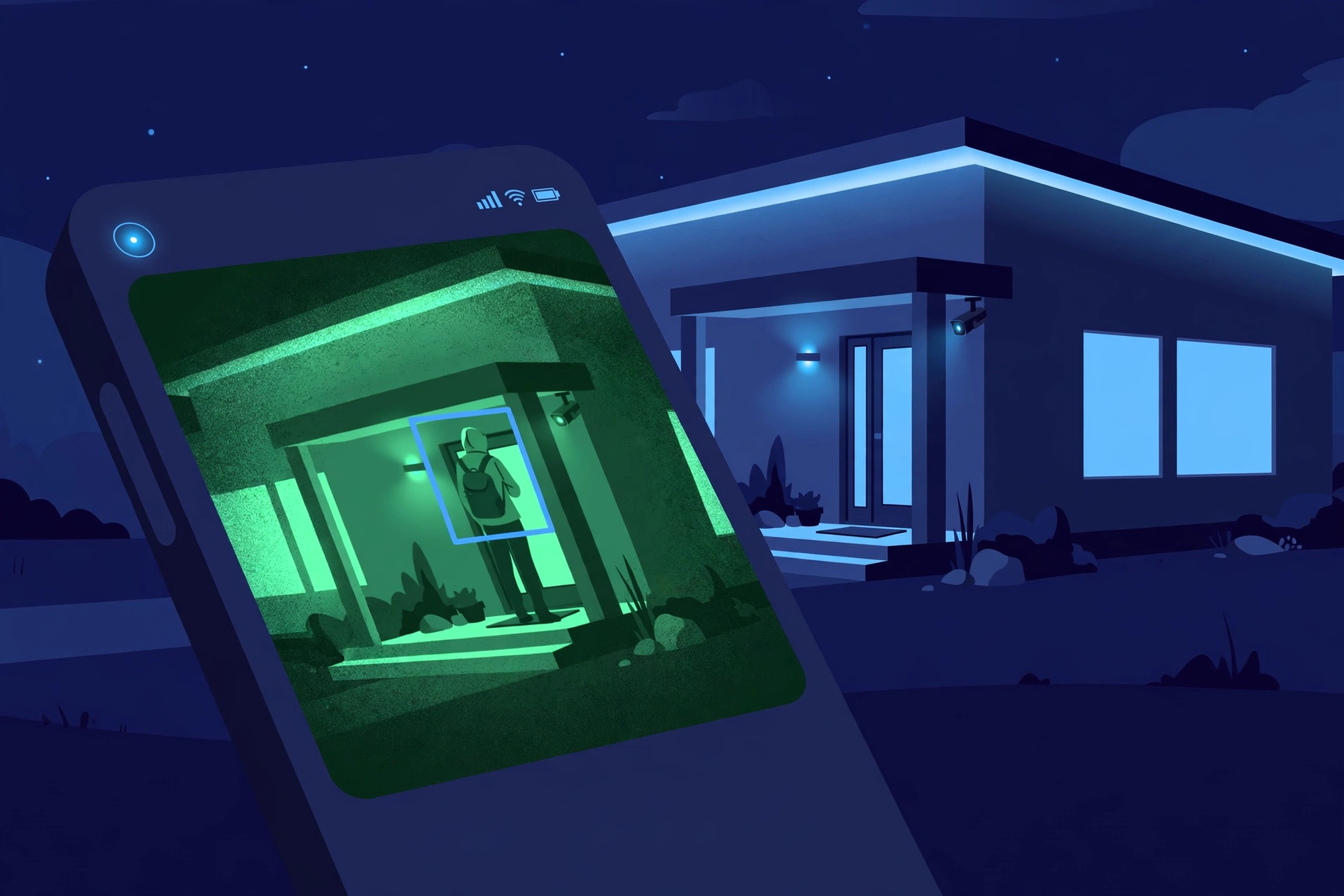
Plain motion detection reacts to moving pixels — shadows, trees, headlights. AI detection classifies the mover: person, vehicle, animal, package. The practical difference is the notification. “Motion detected” is noise you learn to ignore; “Person detected at the front door” is information. The catch: on most brand systems, classification sits behind the subscription, and on-device systems like eufy and Reolink are the exception rather than the rule.
Activity zones and alert discipline
The goal of alerts is fewer of them, not more. Activity zones let you draw the area that matters — your driveway, not the street in front of it — and schedules keep night-time alerts for the doors that matter. Ten minutes spent on zones and sensitivity on day one saves you from the notification fatigue that makes people mute the app entirely, which is how cameras quietly become useless.
Night vision
Infrared night vision is what makes a camera useful on an unlit driveway or back garden — which, in a Dutch winter, is most of the day. Colour night vision (a spotlight or a sensitive sensor) identifies clothing and car colour better; plain infrared reaches further for less money. Either way, check the rated range against the distance you actually need to cover.
Two-way audio
Speaking through the camera — to a delivery driver, a visitor, or a dog on the sofa — is standard on consumer cameras and rarer on professional CCTV. Enjoy it, but know it comes with a legal footnote covered below: in the Netherlands, recording other people’s conversations is treated far more strictly than recording video.
Pan, tilt, and zoom
A PTZ camera sweeps an area that would otherwise need two or three fixed cameras, and viewer apps like DMSS and Guard Viewer can drive it from the phone. For a yard, parking area, or shop floor it is real coverage for less hardware — balanced against the fact that a PTZ camera can only look one way at a time.
Frame rate over resolution
Marketing shouts about megapixels, but a choppy 4K stream is worse evidence than a smooth 1080p one. Frame rate is what turns a passing figure into a recognisable one. If a live view stutters, lower the stream quality first — a stable feed at a lower resolution beats a beautiful slideshow.
How to Choose the Right One
Renting, one door to watch
Keep it removable and cheap. A Blink or Wyze camera on a shelf or screwed into a doorframe you are allowed to touch, or AlfredCamera on a spare phone, covers a rented flat’s front door without angering a landlord. Skip anything that needs drilling, cabling, or a hub you will have to unpick when you move.
A homeowner with several cameras
Pick the ecosystem first, the cameras second, because the app is what you will open every day. If subscription fatigue is your enemy, build around eufy or Reolink local recording. If you are deep in a smart-home platform, Ring (Alexa) or Nest (Google) will feel native. Either way, price the whole system over two years before the first camera goes in the basket.
A business with multiple sites
Multi-site businesses should start from the viewer side: one app, one login, every location, with per-person access you can revoke when staff leave. That usually means staying with one recorder brand’s app (Hik-Connect and Guard Viewer both scale to hundreds of devices) rather than mixing consumer ecosystems. Permissions and audit trails matter more here than another two megapixels.
You already own a DVR or NVR
Congratulations — you may need to spend nothing. Find the recorder’s brand, install its app from the table above, scan the QR code on the box, and test playback. Only if the official app is broken or your system mixes brands should you move to tinyCam or IP Cam Viewer. New cameras are the answer to bad cameras, not to a missing app.
The real cost check: hardware plus two years of app
Do this arithmetic before buying any brand camera. Ring with one camera: the camera plus Solo at $4.99 a month adds about $120 over two years. Three Arlo cameras on the unlimited plan ($17.99 a month) add about $432. Three eufy or Reolink cameras recording locally add €0 — but budget the HomeBase or NVR up front. Neither answer is automatically wrong; the subscription buys cloud backup and AI features some people love. Just never compare a €60 camera against a €150 camera without adding the two-year app bill to both.
Setting Up a Camerabewaking App
Six steps cover nearly every app in this guide:
- Check your internet first. Live viewing from outside your home rides on your upload speed, not your download. Ring’s own guidance is roughly 2 Mbps of upload per 1080p camera; a house with four cameras and a thin upload connection will struggle no matter which app you choose.
- Install the official app for your camera or recorder brand — the app named in the tables above, from the App Store or Google Play.
- Pair the camera. Brand cameras and CCTV systems alike usually pair by scanning a QR code or the device serial number in the app. No codes, no port forwarding, no router spelunking.
- Set alerts and zones now. Draw your activity zones, choose person-only alerts if offered, and set sensitivity before the first night of notification spam teaches you to ignore the app.
- Decide on storage. Insert the microSD card, set up the hub or NVR, or start the cloud trial — and check a day later that recordings actually exist. A camera that is not recording is a decoration.
- Test day and night. Walk the boundary of each camera’s view in daylight and after dark. Check that faces are recognisable at the distance you care about, and that night vision reaches the gate, not just the wall beside the camera.
When it goes wrong
- Camera keeps going offline — it is usually power or Wi-Fi, not the app. Check the signal at the camera’s exact spot — outdoor walls eat Wi-Fi — before replacing anything.
- P2P won’t connect — confirm the P2P, Hik-Connect, or DMSS service is switched on in the device’s own settings, and that the device clock is right; a wrong date breaks secure connections silently.
- Alert floods — zones too wide, sensitivity too high, or AI detection off. Fix them in that order.
- Missing recordings — check whether the system records only on events, whether the card or disc is full, and whether recording was quietly tied to a subscription trial that just expired.
Privacy & the Law in the Netherlands and EU
This is the section American guides cannot write for you. The rules below follow the Autoriteit Persoonsgegevens (AP), the Dutch data protection authority, whose camera guidance is linked at the end of this section. Belgian readers face the same GDPR logic through their own authority.
GDPR/AVG basics for camera owners
The AVG (the Dutch name for the GDPR) in principle does not apply when a private individual records purely for household use — your hallway camera watching your own front door is your business. The exemption ends where your own property does. Film public space, or publish footage where unlimited people can see it, and the GDPR applies to you like it applies to a company.
Filming neighbours and the public road
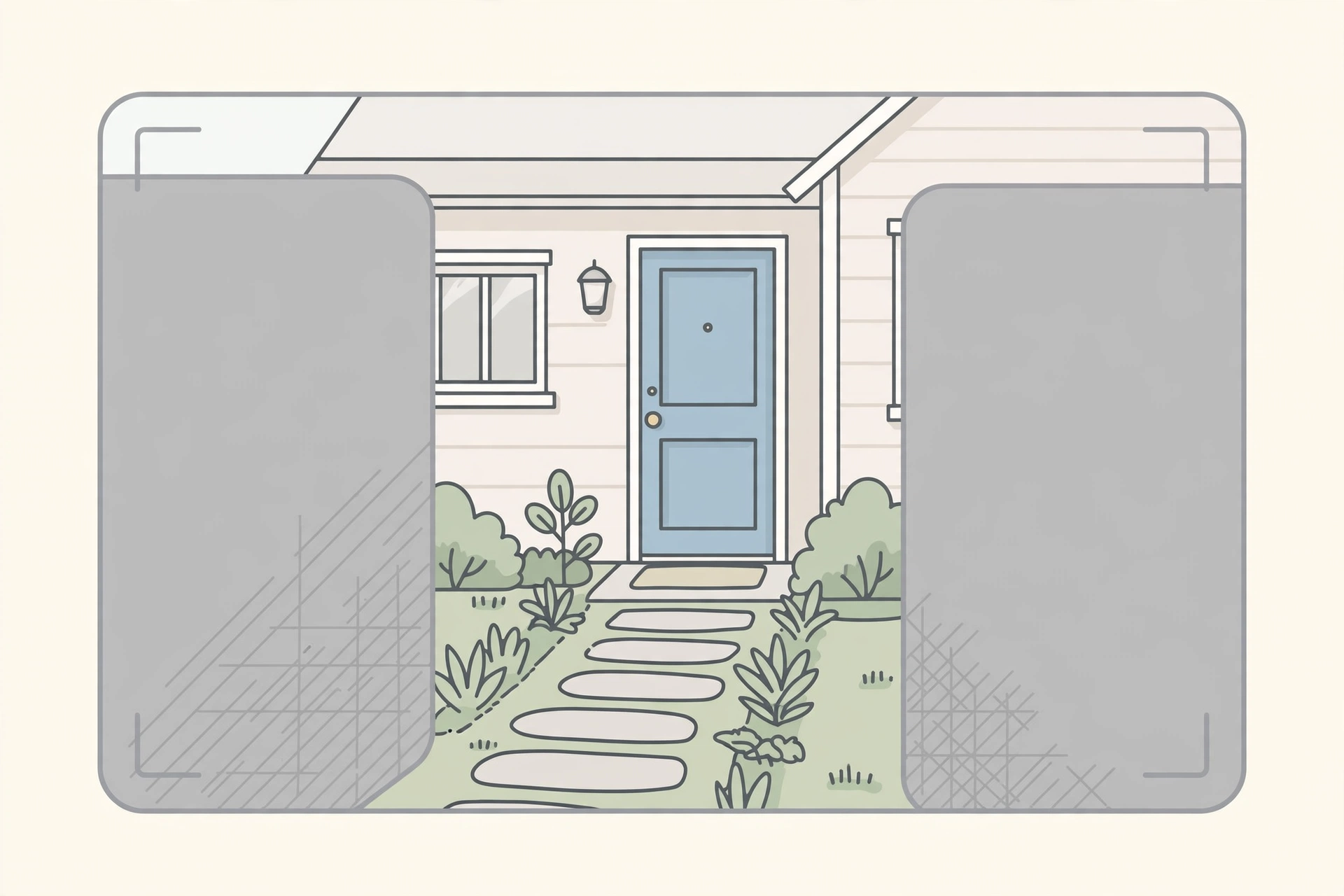
The AP’s position is plain: you may secure your property with a camera, but in principle you may not film the public road or your neighbours. The exception needs a demonstrably good reason — a recent run of burglaries in your street is the AP’s own example — and even then you must film as little beyond your property as possible and inform people that a camera is there. In practice: angle the camera at your own door, gate, and garden; use privacy masks or zones to black out the pavement and the neighbour’s windows where the app offers them; and expect the AP to take the neighbour’s side if your camera is really doing street surveillance.
Rules for businesses
For businesses the GDPR applies in full. You need a legitimate interest that outweighs the privacy of the people filmed — protecting stock and staff usually qualifies, watching employees’ productivity usually does not. People must be informed, normally with clear signage at the entrance. And retention is short: the Dutch rule of thumb is to delete footage within four weeks at the latest, unless it captured an incident you need to investigate or hand to the police. Dutch police also run a voluntary scheme, Camera in beeld (Camera in View), where home and business owners can register that they have a camera, so officers know where footage exists after an incident — worth the five minutes.
Audio recording is stricter than video
Video of your own property is one thing; other people’s conversations are another. Dutch criminal law treats secretly recording a conversation you are not part of far more harshly than filming, which is why experienced installers disable camera microphones by default — especially on cameras that can hear neighbours or passers-by. Two-way talk for your own doorstep is normal use; a always-on microphone pointed at the street is a liability.
Securing your account and footage
A camera account is a live feed into your home, so protect it like one. Use a strong, unique password and turn on two-factor authentication in the app. Give family members and staff their own accounts with limited permissions instead of sharing one login, and remove access the moment someone no longer needs it. Keep camera and recorder firmware updated. And check, before you buy, whether footage is encrypted in transit and how long the provider keeps what it stores — a question subscription-free local systems answer simply: the footage never leaves the building.
The Dutch DPA’s own guidance: Camera use in and around the home — Autoriteit Persoonsgegevens
FAQs
Is camerabewaking the name of an app?
No. Camerabewaking is the Dutch word for camera surveillance — a category, not a product. There is no single official “camerabewaking app”; the right app depends on your cameras: your brand’s app for consumer cameras, a viewer like Hik-Connect or DMSS for an existing recorder system, or AlfredCamera if a spare phone is your camera.
Are there free camerabewaking apps?
Yes, several genuinely free routes exist. Hik-Connect, DMSS, and Guard Viewer are free for compatible recorders. AlfredCamera’s free tier runs 2 cameras, and IP Webcam is free with no account at all. Among brand cameras, eufy and Reolink record locally with no monthly fee; Ring is the opposite case — without a paid plan, its cameras save no video at all.
Which app do I need for my Hikvision or Dahua cameras?
Hik-Connect for Hikvision (and its HiLook line), DMSS for Dahua. Both are free, and both connect remotely by scanning the QR code or serial number on your recorder — enable the app service in the recorder’s network settings first. If your system mixes brands, tinyCam Monitor (Android) or IP Cam Viewer can usually pull the feeds together through ONVIF or RTSP.
Can I watch my cameras without internet?
On your home network, yes — local systems keep working. A local-network viewer (IP Webcam with a browser or tinyCam, or a recorder’s app on the same Wi-Fi) streams without any cloud. What you lose without internet is remote viewing from outside the house and push notifications, because both need a path from your network to your phone.
Can I use an old phone as the camera?
Yes — that is exactly what AlfredCamera and IP Webcam are for. The practical limits: a phone needs constant power, its night vision is weak compared with a camera that has infrared LEDs, and it is not weatherproof. Indoors, as a pet cam, baby room camera, or travel check-in, it works surprisingly well for €0.
Is it legal to film my street in the Netherlands?
In principle, no. The Dutch DPA (Autoriteit Persoonsgegevens) says home cameras may protect your own property but should not film the public road or your neighbours, except where you have a demonstrably good reason — for example, repeated burglaries nearby — and even then you must minimise what you capture beyond your property and inform people. Angle the camera at your own property, and mask the street where you can.
Local or cloud storage — which is better?
Neither wins outright. Local storage costs nothing monthly, keeps footage private, and survives an internet outage — but it can be stolen with the camera. Cloud storage survives theft and is reachable from anywhere, at the price of a subscription and trusting a provider with your video. Many systems support both; local recording with cloud backup of events is the combination most owners end up happiest with.
The Bottom Line
A camerabewaking app is simply the phone-side half of a surveillance setup, and the right one is chosen by your hardware, not by an app-store ranking. If you are buying new and hate monthly bills, eufy and Reolink record locally and ask for nothing more, while Ring, Nest, and Arlo fold genuinely polished apps and AI into subscriptions that deserve a hard look at the two-year total before you commit. If the cameras are already on your walls, your answer is probably already free — Hik-Connect, DMSS, or Guard Viewer for the recorder you own, or tinyCam when the brands are mixed. And if all you have is a drawer phone and a door you want to keep an eye on, AlfredCamera will be watching it within ten minutes. Whatever you choose, point it at your own property, secure the account properly, and set the alert zones on day one — the best camera app is the one whose notifications you still trust in month six.