
Your phone just rebooted — probably after an update — and instead of your home screen you’re staring at a stark black screen: “Enter password to unlock” with “30/30 attempts remaining” underneath. You don’t remember setting any password. Your fingerprint doesn’t work. And there’s a counter ticking down your chances.
Take a breath. This screen looks alarming, but it’s not a virus and your phone isn’t broken. It is, however, a screen you should treat with respect — because every wrong guess burns one of those 30 attempts, and what happens at zero is not something you can undo. This guide explains exactly what’s going on and walks you through your options in the right order: data-safe fixes first, the nuclear option last.
What “30/30 Attempts Remaining” Actually Means
This screen is called Secure Startup, and it’s Android’s encryption gate. Here’s the plain version: your phone’s storage is scrambled (encrypted), and it stays scrambled until the correct PIN or password unscrambles it. This prompt appears *before* Android itself even boots up — that’s why nothing looks familiar and none of your usual unlock methods work.
The “30/30” is simply your remaining guesses. You started with 30. Each wrong entry ticks it down. Your fingerprint and face unlock are disabled here on purpose — biometrics can’t decrypt storage, only your PIN or password can.
The important reframe: this is a security feature doing its job, not a malfunction. It’s the same encryption that keeps a thief from reading your photos and messages off a stolen phone. Right now it’s just pointed at you instead of a thief — which means the way out isn’t a trick or a hack. It’s remembering (or recovering) the right credential, in the right order, without gambling away the counter.
Why You’re Seeing This Screen
Secure Startup Is Enabled on Your Phone
The most common reason, and the least alarming one. At some point — during initial setup or later in Settings — Secure Startup (sometimes called “Secure start-up” or “Strong protection”) got switched on. On many phones it comes bundled with setting up a PIN or password: the phone quietly uses that same credential to encrypt your storage. You never thought of it as a separate password, because it isn’t one. If this is your situation, the fix is usually just entering your regular lock-screen PIN.
It Appeared After a System Update or Reboot
This is the scenario that panics people. Everything worked fine, then an update installed, the phone restarted, and suddenly there’s a password prompt you’ve never seen. What happened: Secure Startup was always on, but you’d never rebooted since enabling it — your phone just stayed on for months, so the encryption gate never appeared. The update forced the first reboot, and now it’s asking. Again, your normal lock-screen PIN is almost certainly the answer.
It’s a Second-Hand Phone With the Previous Owner’s Password
If you bought the phone used, the previous owner may have set a Secure Startup password and never removed it — or never properly wiped the phone before selling it. In that case no amount of guessing on your part will work, because the credential belongs to someone else. Your path is the factory reset section below (and, honestly, a conversation with the seller).
Someone (or Something) Burned Attempts Already
Check the counter. If it doesn’t say 30/30 anymore — if you’re at 22/30 or 11/30 — someone has already been guessing. Kids, a pocket full of accidental taps, a glitching digitizer registering phantom touches: it happens. This just means you have fewer guesses left, so the “stop and think before each attempt” rule matters even more now.
One brand note: this screen shows up most often on older LG phones (G6, G7, G8, V35 running Android 9 or earlier), because those use full-disk encryption — the entire storage locks at boot until the password lands. And if you’re on a Samsung with One UI 9, know that Samsung tightened its own lock-screen policy in 2026: under it, the 13th failed attempt permanently locks the device and only a factory reset will bring it back. Different counter, same lesson — don’t guess wildly.
Before You Touch Anything — Read This
Two rules. Everything below only works if you respect them.
1. Stop guessing. I know the urge — maybe it’s this PIN, maybe it’s that one, just try a few. Don’t. Each wrong attempt permanently burns one of your 30, and the counter does not refill. People wipe their own phones this way every day: not through any exotic failure, but by treating the prompt like a guessing game. If you’re going to try a PIN, it should be one you have a genuine reason to believe is correct — not a hopeful stab.
2. The password is almost certainly your lock-screen PIN. This is the single most useful fact in this entire article. On the vast majority of phones, Secure Startup doesn’t have its own separate password — it uses the same PIN, pattern, or password you normally unlock your screen with. The reason it feels unfamiliar is that you’ve been unlocking with your fingerprint for months and haven’t typed the actual PIN in ages. Before anything else, sit down and think hard about what that PIN was. Check old notes, think about what you set up on day one. One careful, deliberate entry of the right PIN ends this whole ordeal instantly — with all your data intact.
Fixes That Keep Your Data (Try in This Order)
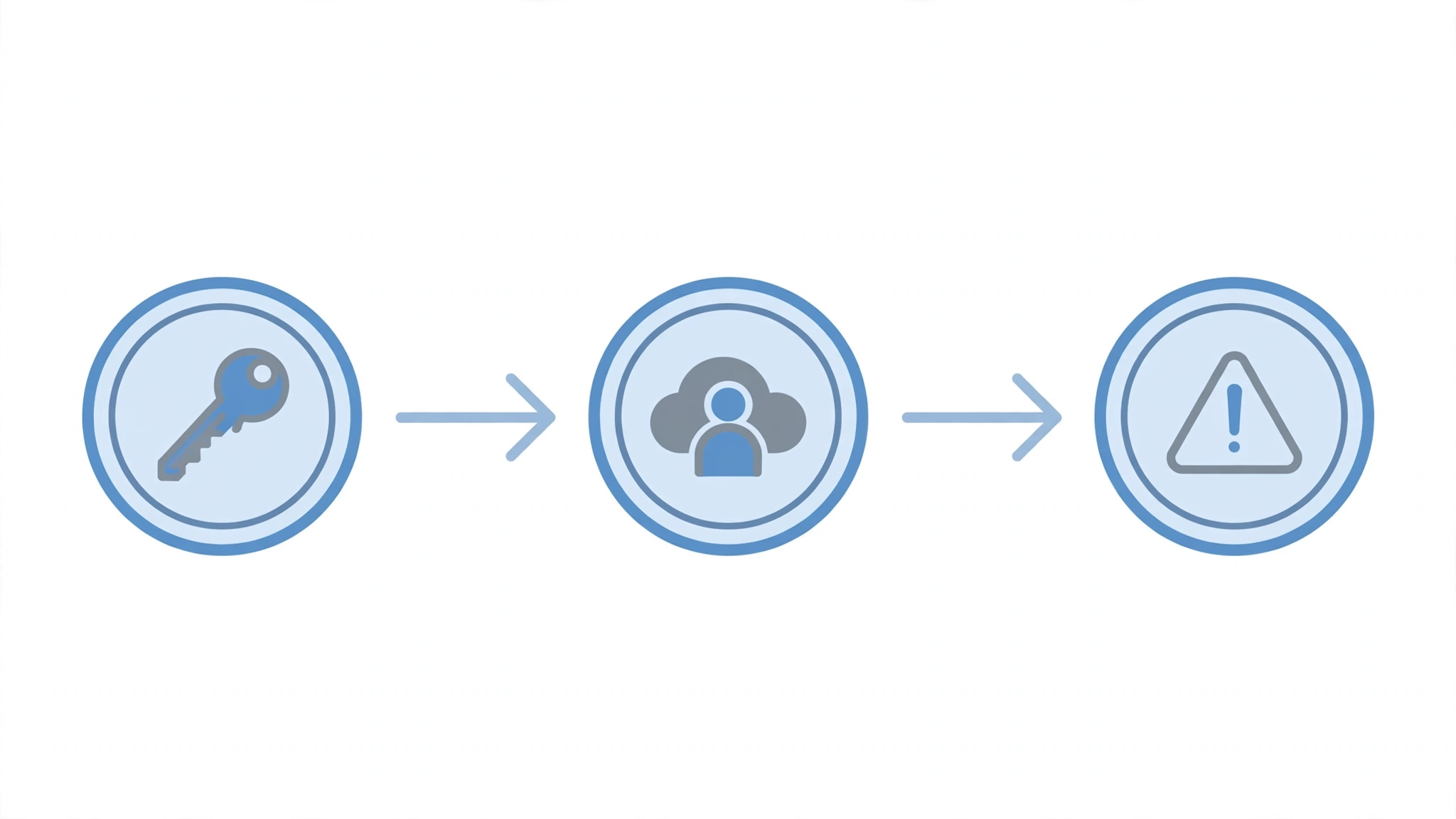
1. Wait Out the Timeout, Then Enter Your Lock-Screen PIN Carefully
After several wrong attempts, most phones impose a temporary lockout — 30 seconds to a few minutes where you can’t try again. Use that pause. Don’t stare at the timer; use it to genuinely recall your PIN. Think about the day you set up the phone. Common patterns people forget: a birth year, an old ATM PIN they reused, a simple sequence they meant to change later.
When the timer clears, type it slowly and deliberately. Watch each digit land. One careful attempt is worth more than ten hasty ones — because hasty ones are how the counter bleeds out.
2. Try the “Forgot Password” / Google Account Option (Older Android)
On phones running Android 9 or older, the lock screen sometimes offers a “Forgot Password” or “Forgot Pattern” option — either visible right away, or appearing after a few failed attempts. Tap it, and the phone will ask for the Google account credentials tied to the device. Enter them, and it lets you set a new PIN without wiping anything.
The honest caveat: on newer Android versions this option usually doesn’t appear at this screen at all. If you don’t see it after a couple of deliberate failed attempts, don’t keep failing on purpose to summon it — move on to the next fix.
3. Try Your Backup PIN (If You Set One)
Some manufacturers let you set a backup PIN during initial setup — a secondary code specifically for situations like this. After the timeout, look for wording like “Enter backup PIN” on the screen. If you set one and remember it, you’re in.
Not all phones offer this, and most people never set one. If the option isn’t there, it doesn’t exist on your device — skip it without spending attempts.
4. Samsung Phones: Remote Unlock via Find My Mobile
Samsung owners have one more card to play. If your phone is linked to your Samsung account (not just Google), go to Samsung’s Find My Mobile site from any computer or another phone, sign in with the same Samsung account, select your device, and use the Unlock feature. This can clear the lock-screen credential remotely.
Requirements, plainly stated: the phone needs an internet connection, it must be registered to your Samsung account, and this unlocks the *screen lock* — on some models and software versions it won’t bypass the pre-boot Secure Startup prompt. Still worth trying before anything destructive; it costs you zero attempts.
The Last Resort: Factory Reset via Recovery Mode
If nothing above worked — the PIN is truly gone, no Google recovery option exists, no backup PIN, no Samsung account — there is exactly one door left, and you should understand its price before walking through it: a factory reset erases everything on the phone. Photos, messages, apps, files — all of it, permanently, unless you have a cloud backup. This is the option for when the data is already unrecoverable or the attempts are nearly gone.
Here’s the general method (exact buttons vary by brand — check your manufacturer’s site if these don’t work):
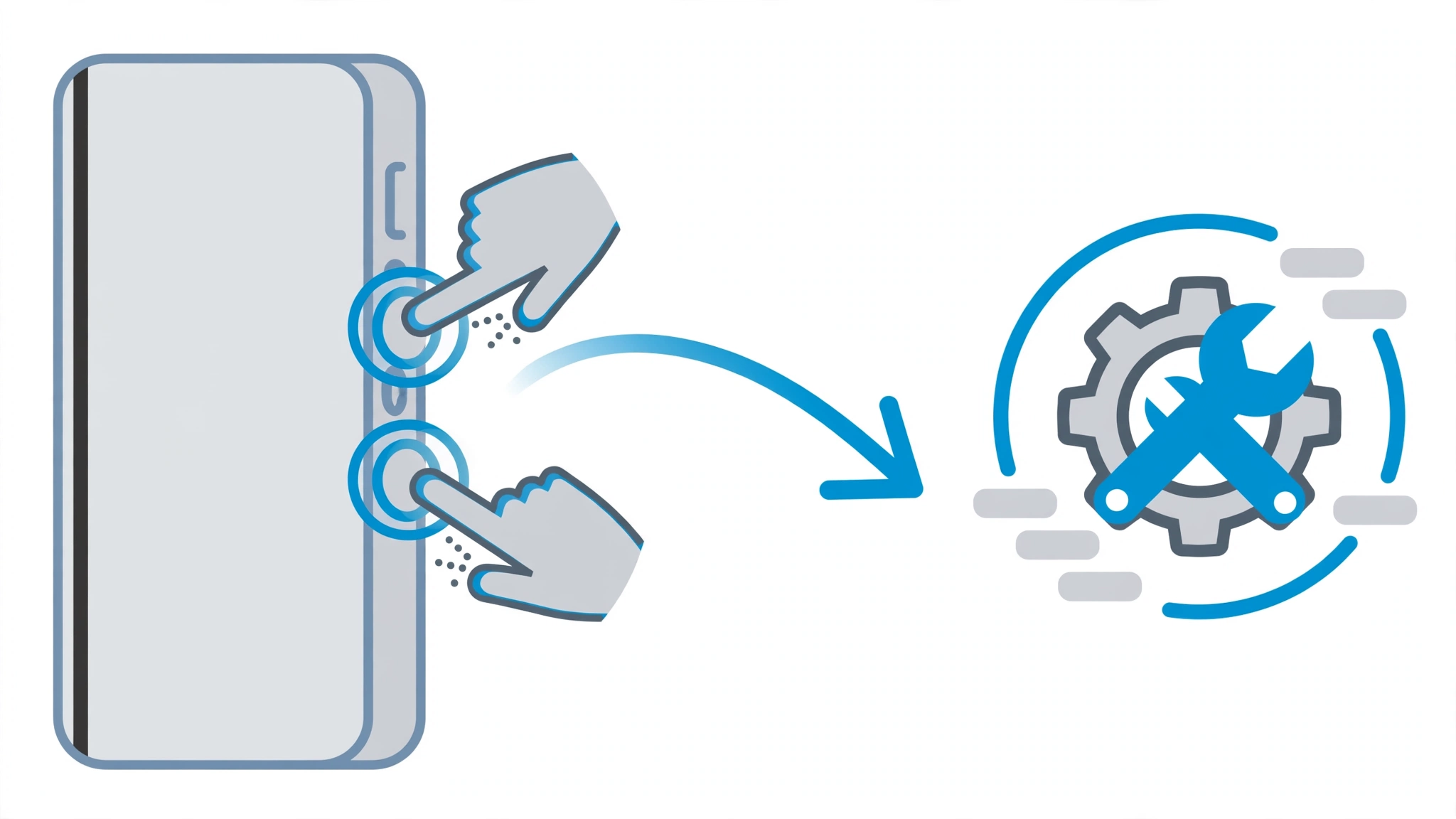
- Power the phone fully off. Hold the power button until it shuts down.
- Boot into recovery mode. Press and hold Power + Volume Up together (on some models it’s Power + Volume Down) until the brand logo appears, then release.
- Navigate with the volume buttons to “Wipe data / Factory reset” and confirm with the power button.
- Confirm “Yes,” wait for it to finish, then select “Reboot system now.”
Now the critical warning most guides bury: after the reset, you’ll hit Factory Reset Protection (FRP). The phone will demand the Google account that was on it before the wipe before it lets you set it up again. This is anti-theft protection — and it means a factory reset does *not* help if you also don’t know the Google credentials. No Google account, no usable phone. If you bought the phone second-hand and can’t reach the seller for their account details, stop here and contact the manufacturer instead — you’re otherwise holding an expensive brick.
What Happens When the Attempts Hit Zero
Bluntly: the phone wipes itself. That’s what the counter is counting down to — it’s not a scare tactic, it’s the security design. When the last attempt fails, the device performs a factory reset on its own: everything on it is erased, exactly as if you’d done the recovery-mode wipe yourself, and you’ll still face Factory Reset Protection afterward.
The exact behavior varies a bit by manufacturer — Samsung’s One UI 9 policy, for instance, permanently locks the device at the 13th failed attempt and requires a factory reset from there — but the endpoint is the same everywhere: no data, no recovery, no appeal. This is the reason the “don’t guess” rule from earlier isn’t advice, it’s the whole game. Every attempt you spend on a hopeful guess is one fewer standing between you and a wiped phone.
How to Prevent This Next Time
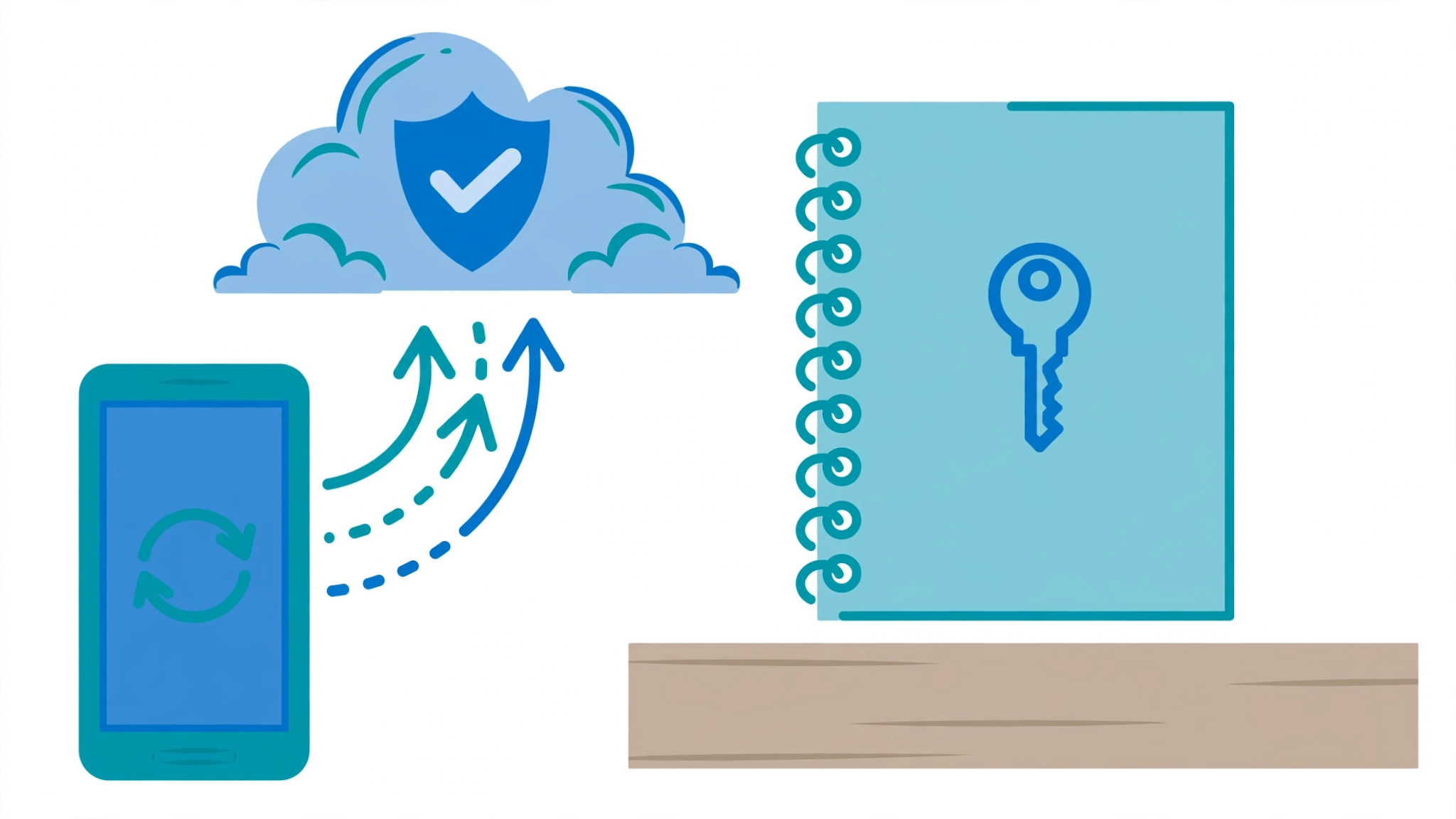
Once you’re back in — by whichever method worked — take ten minutes to make sure this never happens again:
- Know whether Secure Startup is on. Check Settings → Security (wording varies). If it’s on, make sure you know the credential it uses — which, again, is usually just your lock-screen PIN.
- Write the PIN down somewhere safe. Not in your notes app on the same phone. Paper in a drawer, a password manager, anywhere the phone itself isn’t the only copy.
- Keep cloud backups current. Google One, Samsung Cloud, whatever your brand offers — a wiped phone with a good backup is an inconvenience; without one, it’s a disaster.
- Buying second-hand? Factory-reset the phone in front of the seller and confirm their Google and manufacturer accounts are removed *before* money changes hands. A phone that still asks for someone else’s password after purchase is the seller’s problem to fix, not yours to hack around.
Frequently Asked Questions
What Is Secure Startup on Android?
It’s a setting that encrypts your phone’s storage with your lock-screen PIN or password, and requires that credential every time the phone boots — before Android itself loads. Think of it as a padlock on the entire storage drive, not just the front door. It lives under Settings → Security on most phones, sometimes under names like “Secure start-up” or “Strong protection.”
I Never Set a Password — Why Is It Asking for One?
You almost certainly did, without realizing it. On most phones, enabling a lock-screen PIN automatically enables Secure Startup with the *same* PIN. Then, because fingerprint unlock handled everything day to day, months passed without you ever typing it — until a reboot or update surfaced the prompt. Try the PIN you’d have set on day one.
Will I Lose My Data if the Attempts Run Out?
Yes. When the counter hits zero, the phone factory-resets itself and everything on it is erased permanently — unless you have a cloud backup to restore from afterward. There is no grace period and no recovery afterward. This is exactly why the guide insists on not guessing.
Does a Factory Reset Remove the Secure Startup Lock?
Yes — a factory reset wipes the encryption keys along with everything else, so the Secure Startup prompt is gone afterward. But you’ll immediately meet Factory Reset Protection instead: the phone will demand the Google account that was on it before the wipe. A reset removes the lock; it doesn’t remove the ownership check.
I Bought This Phone Second-Hand — What Do I Do?
If the phone is asking for the previous owner’s Secure Startup password, contact the seller — only their credential (or their Google account, after a reset) will unlock it. If the seller is unreachable, your options are a factory reset followed by FRP with *their* Google account (which you don’t have), or taking it to the manufacturer with proof of purchase. This is also why you should always verify a used phone is fully wiped and account-free before paying.
Conclusion
Here’s the reframe worth keeping: that frightening black screen is Android doing exactly what it promised. The encryption that keeps a thief from pulling your photos, messages, and banking apps off a stolen phone is the same encryption now standing between you and your home screen. There is no enemy here — just a credential you’ve forgotten and a counter you shouldn’t gamble.
So the fix was never going to be a hack or a secret code. It’s key management, the unglamorous kind: know your PIN, write it down somewhere the phone isn’t, keep your backups current, and treat those 30 attempts like the finite resource they are. Do that, and the next time an update reboots your phone at 3 AM, you’ll type four digits half-asleep and never think about Secure Startup again.