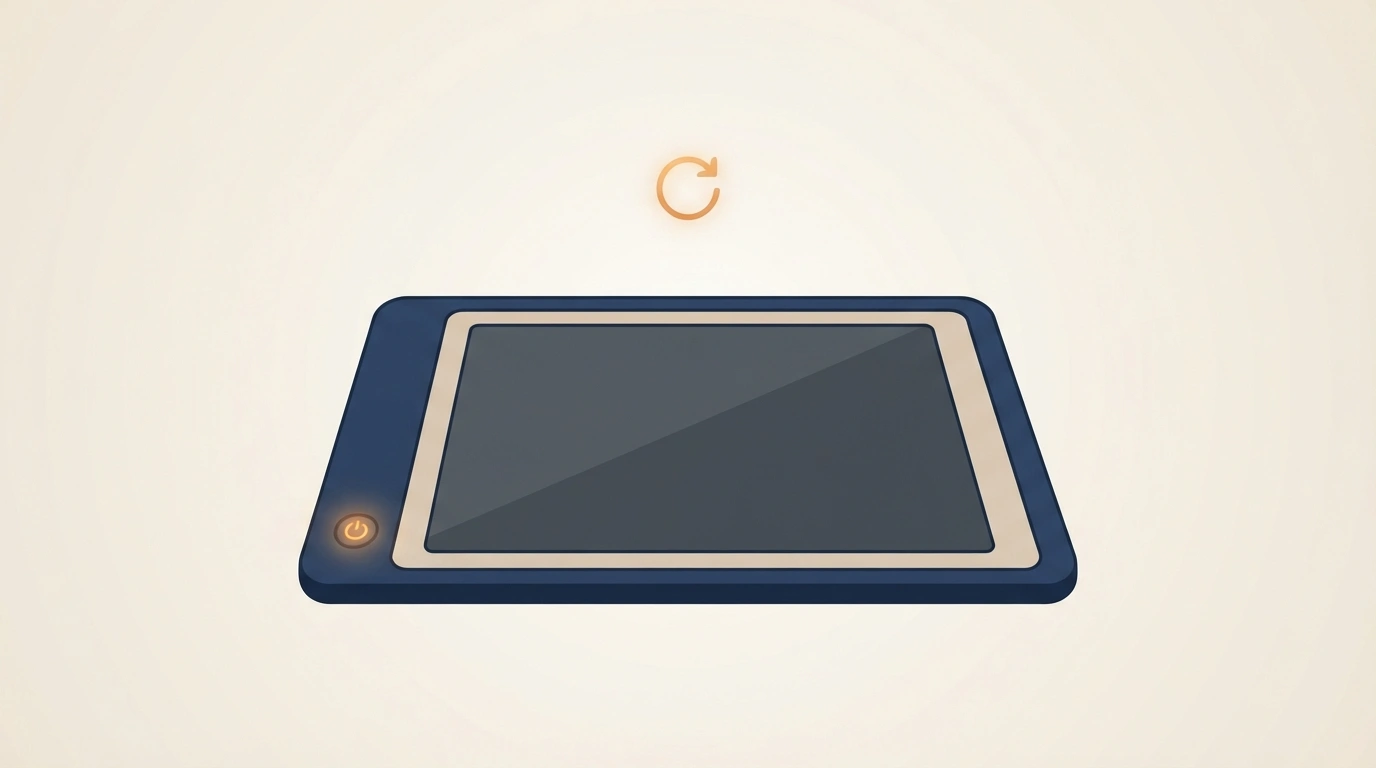
A frozen Kindle screen looks alarming mostly because there’s so little on it to begin with — no spinning wheel, no error message, just a static page that won’t respond no matter how many times you tap it. The fix is almost always simpler than it looks, and which method you need depends entirely on whether you’re dealing with a temporary freeze or a deeper problem that needs a genuine fresh start.
The Short Answer
There are two real reset options on a Kindle, and they’re not interchangeable. A soft reset (holding the power button for an extended press) reboots the device without touching any of your books, settings, or account — this is the fix for a frozen screen or general sluggishness. A factory reset (through the Settings menu) wipes everything back to out-of-box condition, removing all downloaded content, personal settings, and your linked Amazon account — reserved for persistent problems a soft reset doesn’t fix, or before selling or giving away the device.
Soft Reset: Your First Move for a Frozen or Sluggish Kindle
Step 1: Locate the Power Button
On most Kindle models, this is a small button on the bottom edge of the device, though exact placement varies slightly by model and generation.
Step 2: Press and Hold
Hold the power button down continuously for about 40 seconds. This is longer than the button press you’d use for a normal power-off — the extended hold is specifically what forces a genuine restart even when the screen isn’t visibly responding to anything else.
Step 3: Release and Wait
Let go of the button and give the device a few seconds before doing anything else — the screen may stay blank briefly during this pause, which is normal.
Step 4: Power Back On
Press the power button again to turn the Kindle back on. If the soft reset worked, you should see the Amazon or Kindle logo appear as it boots back up normally.
What This Does and Doesn’t Affect
A soft reset does not remove your books, bookmarks, reading progress, WiFi settings, or your Amazon account — it’s functionally equivalent to restarting a computer that’s frozen, not wiping it. This should always be your first attempt, since it resolves the large majority of frozen-screen and sluggish-performance complaints without any risk to your library or settings.
Factory Reset: When You Need a Genuine Fresh Start
When This Is Actually Necessary
Reserve this for situations a soft reset didn’t fix — persistent freezing that returns repeatedly, a Kindle that won’t connect to WiFi no matter what you try, or preparing the device to be sold, given away, or traded in.
Step 1: Back Up Anything Irreplaceable First
Since a factory reset removes all downloaded content, settings, and your linked Amazon account, back up anything stored locally that isn’t already tied to your Amazon library (personal documents you’ve side-loaded, for instance) before proceeding.
Step 2: Open Settings
From the Kindle’s home screen, tap the menu icon and select Settings.
Step 3: Find Device Options
Navigate to Device Options within the Settings menu.
Step 4: Select Reset
Tap Reset Device (labeling varies slightly by Kindle generation and software version — look for wording along the lines of “Reset to Factory Defaults” or simply “Reset”).
Step 5: Confirm
Confirm the reset when prompted. The Kindle will restart and begin wiping its data — this process typically takes several minutes, so let it complete without interrupting power.
What Gets Removed
A factory reset erases all downloaded books and content, personal settings, and de-links the Amazon account associated with the device. Your actual Kindle library itself isn’t lost, since it remains stored in your Amazon account in the cloud — you’ll simply need to sign back in and re-download anything you want available on the device again after the reset completes.
If the Touchscreen Menu Isn’t Responding
If your Kindle is frozen badly enough that you can’t navigate to Settings at all, a soft reset (covered above) should be your first attempt regardless — it often restores enough responsiveness to reach the menu afterward if a factory reset genuinely turns out to be necessary. If the device remains completely unresponsive even after a soft reset attempt, connecting it to a power source and letting it charge for a period before trying again resolves cases where a critically low battery was the underlying cause of the unresponsiveness in the first place.
Setting Your Kindle Back Up After a Factory Reset
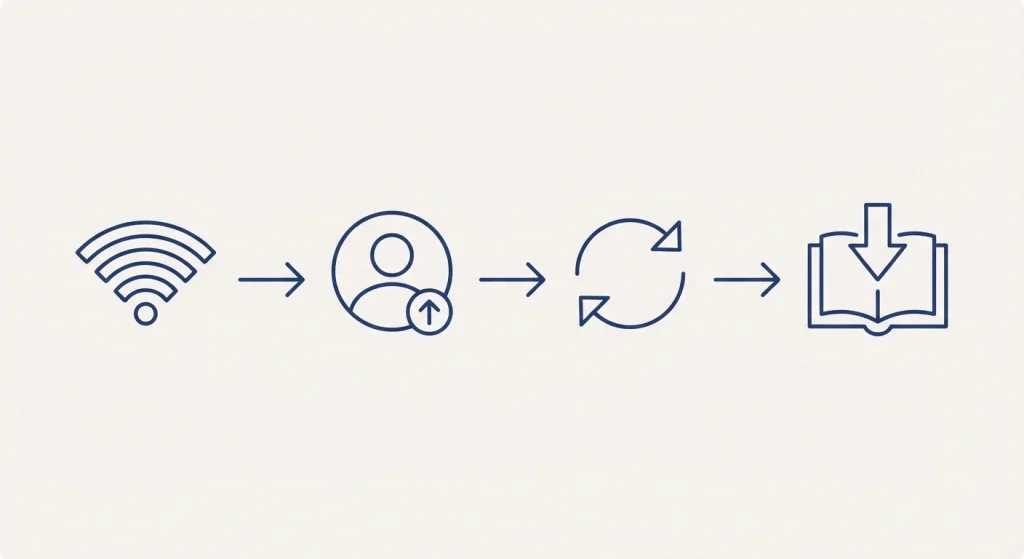
Step 1: Connect to WiFi
The Kindle will prompt you to join a wireless network as part of its out-of-box setup sequence.
Step 2: Sign Back Into Your Amazon Account
This re-links your device to your existing Kindle library, which remained safely stored in the cloud throughout the reset process.
Step 3: Check for Software Updates
Install any available system updates before re-downloading your library — this ensures you’re running the current, most stable version of the Kindle software going forward.
Step 4: Re-download What You Need
Your full purchased library remains accessible through your account; select which titles you want stored locally on the device again, rather than needing to redownload everything at once.
A Note on Older Kindle Models
Very early Kindle generations (the original Kindle and Kindle Keyboard, for instance) used physical buttons and slightly different reset procedures than current touchscreen models — including, on the very first generation, a physical reset button accessed by opening the battery cover. If you’re troubleshooting a genuinely old device, the general soft-reset-first, factory-reset-as-last-resort logic still applies, but the exact button combination and timing can differ from the touchscreen steps above, so it’s worth confirming your specific model’s exact procedure rather than assuming current-generation steps apply identically.
Frequently Asked Questions
Will a soft reset delete my books or reading progress?
No — a soft reset is designed specifically to force a reboot without affecting your downloaded content, settings, or account. Only a factory reset removes that data.
How long should I hold the power button for a soft reset?
Around 40 seconds is the commonly recommended duration — long enough to force a genuine restart even if the screen isn’t visibly responding, though some models may respond to a somewhat shorter hold.
Do I lose my purchased books after a factory reset?
No — your purchased Kindle library remains stored in your Amazon account in the cloud. A factory reset only removes what’s downloaded locally on that specific device; everything is re-downloadable once you sign back in.
My Kindle won’t turn on at all — what should I do?
Connect it to a power source and let it charge for a period before attempting a soft reset, since a critically depleted battery is a common and easily overlooked cause of an apparently unresponsive device.
When should I do a factory reset instead of a soft reset?
Only after a soft reset has failed to resolve the issue, or when preparing to sell, give away, or trade in the device — a factory reset should be treated as the last resort, not the default first troubleshooting step.
Most Kindle problems that feel alarming in the moment — a frozen page, an unresponsive screen — resolve with nothing more than a 40-second button hold. The factory reset exists for the genuinely stubborn cases, but reaching for it before trying the simpler fix first means risking your local library and settings for a problem that usually didn’t need that level of intervention at all.