Every lithium-ion battery ages the same frustrating way: the closer it sits to 100% for long stretches, the faster it chemically wears down. Optimized Battery Charging is Apple’s answer to that specific problem, and it’s quietly running on more of your devices than you might realize — iPhone, Mac, and Apple Watch each have their own version of it, with real differences in exactly how each one behaves.
The Core Problem It’s Actually Solving
Lithium-ion batteries don’t wear out primarily from use — they wear out from chemical aging, a gradual process driven by a combination of heat exposure and time spent at high charge levels. Sitting at 100% for hours, which is exactly what happens every night when a phone charges to full at 11pm and stays plugged in until a 7am alarm, is one of the more stressful states for the battery chemistry specifically. Optimized Battery Charging exists to shrink how much time your device actually spends in that stressful state, without asking you to change your habits or manually manage charging yourself.
How It Actually Works, Step by Step
Learning Your Routine
The feature uses on-device machine learning to study your daily charging pattern — when you typically plug in, how long the device usually stays connected, and roughly when you unplug it and start using it again.
Charging Normally Up to 80%
Your device charges at its normal rate up to around 80%, identical to how it would charge with the feature off entirely.
Pausing Before the Final Stretch
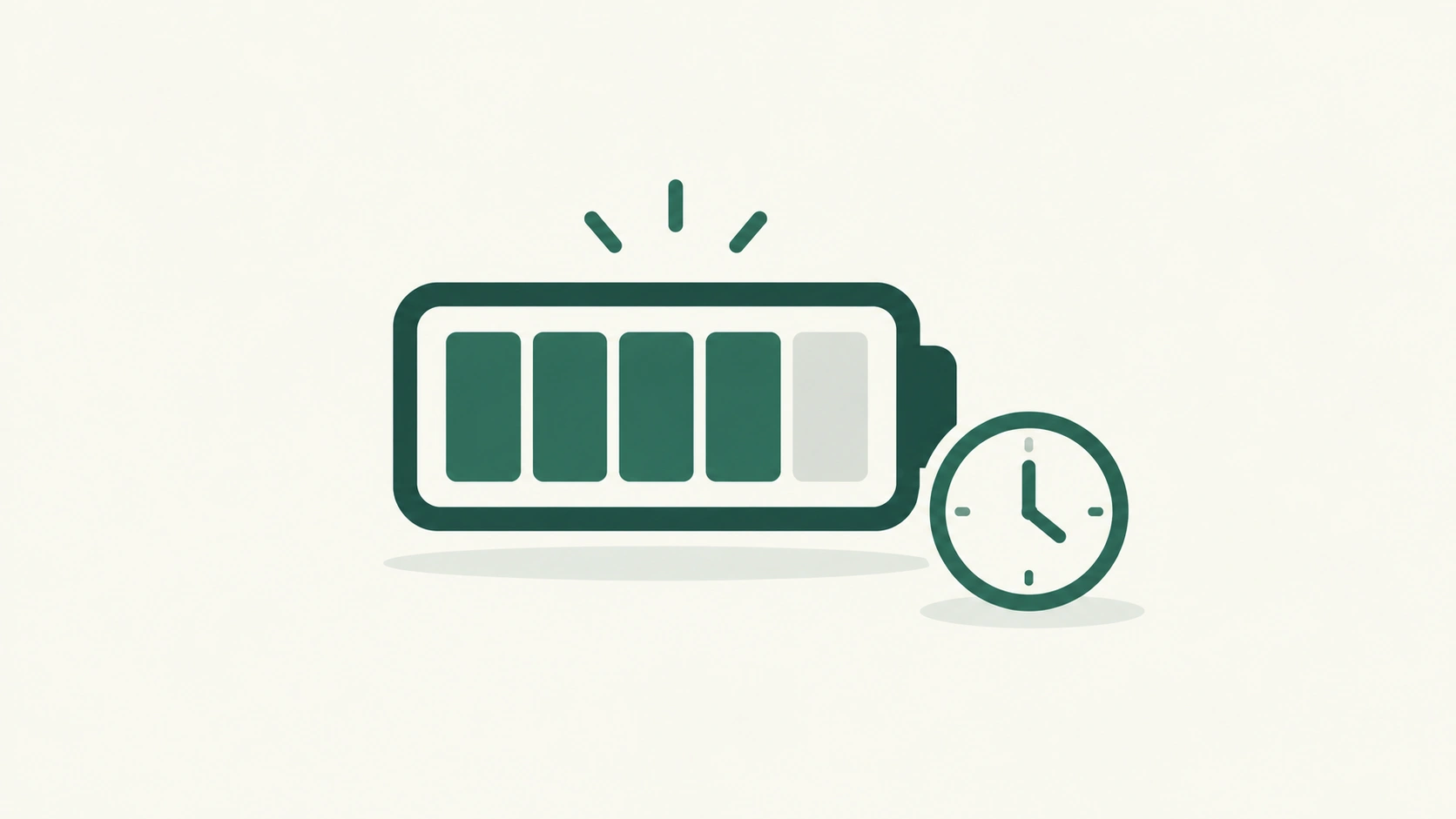
Rather than continuing straight to 100%, the device holds near 80% for an extended period — this is deliberate, since the final push from 80% to 100% is the more chemically stressful part of a full charge cycle, and pausing here is what actually reduces long-term wear.
Finishing Just Before You Need It
Based on your learned routine, the device times the final charge to 100% so it’s ready right around when you typically unplug and start your day — the goal is a fully charged device when you need it, without the extended hours at 100% that would otherwise happen.
How Each Apple Device Handles It Slightly Differently
iPhone
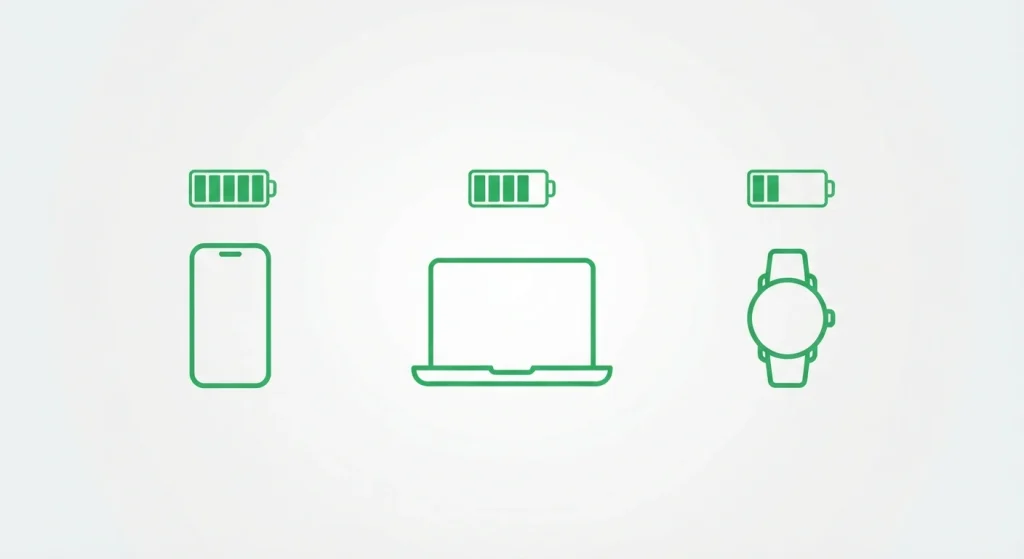
On iPhone 14 and earlier, Optimized Battery Charging is a simple on/off toggle under Settings > Battery > Battery Health & Charging. On iPhone 15 and later, Apple added a third option: alongside Optimized Battery Charging and “None,” you can choose an 80% Limit mode, which charges only to about 80% and stops — resuming only once the battery drops to 75%, rather than eventually completing a full charge like the standard optimized mode does. With 80% Limit enabled, the iPhone will still occasionally charge fully to 100% specifically to maintain accurate battery-percentage readings over time.
Mac
On Macs running macOS Big Sur or later, the equivalent feature works the same core way — delaying charging past 80% when it predicts your Mac will stay connected to power for an extended stretch. Mac adds its own version of a hard ceiling too: a separate Charge Limit setting, letting you cap charging at a fixed percentage rather than relying solely on the learned-routine behavior, useful specifically for a Mac that spends most of its life plugged in at a desk rather than being carried around and depleted daily.
Apple Watch
On Apple Watch, the behavior is more tightly bounded: when active, the watch’s battery holds specifically between 75% and 80% rather than a looser “around 80%,” and only activates in situations where it predicts an extended charging session. If you need a full charge sooner than the algorithm plans for, every version of this feature across all three devices lets you manually force a full charge on demand — on iPhone, this means touching and holding the Lock Screen charging notification and tapping “Charge Now.”
When It Actually Makes Sense to Turn It Off
This is the part most coverage of this topic skips or barely mentions. There are real, legitimate reasons to disable it, not just reasons to keep it on:
Before Travel or a Day You Know Needs Full Charge Early
If you know you’re leaving the house at 6am and your device usually doesn’t finish charging until closer to 7 or 8, the algorithm’s prediction can work against you on that specific day — manually forcing a full charge, or temporarily disabling the feature, avoids getting caught with less charge than expected.
If Your Charging Routine Is Genuinely Unpredictable
The feature’s entire value depends on recognizing a consistent pattern. If you charge at wildly different times day to day with no real routine, the machine learning has less to work with, and the practical benefit shrinks accordingly.
If You Consistently Need 100% Immediately After Unplugging
For specific workflows — a device that needs to leave the charger and immediately handle a demanding task at full capacity — the tighter 80% Limit mode (on supported iPhones) or disabling the feature outright may fit better than the standard predictive version.
Does Turning It Off Actually Hurt Your Battery?
Apple’s own documentation is direct about this: turning off charging optimizations can increase wear on your battery and reduce its lifespan over time. That’s a real trade-off, not a scare tactic — but it’s also worth weighing against genuine day-to-day reliability needs. For most people with a reasonably consistent routine, leaving it on is the better long-term default; the cases above are legitimate exceptions, not reasons to disable it permanently.
What About Android and Other Devices?
Apple didn’t invent this concept — most major Android manufacturers ship comparable features under different names (commonly called “Battery Protection” or “Adaptive Charging” depending on the brand), built around the same underlying idea: reduce time spent at a full, chemically stressful charge state by learning the user’s routine. The specific percentage thresholds and learning behavior vary by manufacturer, but the core chemistry problem being solved, and the general approach to solving it, is consistent across the industry.
Frequently Asked Questions
Does Optimized Battery Charging slow down how fast my device charges?
No — charging up to around 80% happens at the normal rate. The feature only affects the final stretch from 80% to 100%, delaying it rather than slowing the overall charging speed you’d notice day to day.
Will my device ever actually reach 100% with this feature on?
Yes, under standard Optimized Battery Charging — it’s designed to reach full charge by the time you typically unplug, just later than it would charging at full speed the whole time. The separate 80% Limit mode on newer iPhones is the option that intentionally stops short of 100% as a matter of course.
Is it safe to turn off Optimized Battery Charging?
It’s safe in the sense that it won’t damage your device immediately, but Apple’s own guidance confirms it can increase long-term battery wear — worth reserving for specific situations (unpredictable routines, needing a fast full charge) rather than leaving off permanently without a real reason.
Does this feature work the same way on an iPad?
iPad includes similar optimized charging behavior to iPhone, following the same core learned-routine approach, though exact settings menu locations and available options can vary slightly by iPad model and iPadOS version.
Why does my phone sometimes charge to 100% overnight even with this feature on?
Standard Optimized Battery Charging still aims for a full charge by your typical unplug time — it delays reaching 100%, it doesn’t prevent it. If you’re specifically trying to avoid ever hitting 100%, the dedicated 80% Limit option (where available) is the setting built for that, not the standard optimized mode.
The underlying idea across every version of this feature is the same, regardless of which device or brand: a battery that spends less time sitting at full charge ages more slowly, and Apple’s approach handles that trade-off automatically so you don’t have to think about it — right up until the one day your routine breaks the pattern, which is exactly when it’s worth knowing how to override it manually instead of fighting the algorithm.