
You’ve probably read the usual advice on how to automate tasks with AI. It goes like this: here’s a list of 20 tools, go connect them, good luck. Then you sign up for three free trials, build one Zap that sort of works, and abandon the whole thing by Thursday.
The problem isn’t you. The problem is that almost every guide starts with tools instead of tasks. Tools are interchangeable. Tasks are what eat your day. So this guide flips it: five specific tasks, each with a real blueprint you can build this week — what triggers it, what the AI actually does, where a human still checks the work, and what it costs. No tool list. No hype math.
Why Most “Automate with AI” Advice Fails
The tool-list trap
Search for how to automate tasks with AI and you’ll get listicles: 8 tools, 12 tools, 25 tools. The unspoken assumption is that picking the right tool is the hard part. It isn’t. The hard part is knowing exactly what the automation should do when something ambiguous shows up — and every listicle skips that, because “connect Gmail to Slack” is easier to write than “here’s the classification prompt that decides what counts as urgent.”
Tools also change pricing, rename features, and get acquired. A blueprint built around a task survives all of that. If Zapier doubles its prices next year (it won’t be the first time), you rebuild the same blueprint on Make or n8n in an afternoon. The task logic — the triggers, the prompts, the review rules — transfers. The tool-specific clicks don’t.
Task-first vs tool-first thinking
Task-first thinking starts with a sentence like: “Every morning I spend 40 minutes deciding which emails need answers.” That’s automatable, because it’s specific. Tool-first thinking starts with: “I should use AI agents more.” That’s a vibe, not a plan, and it dies in a free trial.
Every blueprint below follows the same anatomy: the bottleneck it kills, the trigger that starts it, the AI step in the middle, and the output plus who reviews it. Borrow that anatomy for any task of your own and you’ll be ahead of 90% of automation guides.
The 3-Tier Picker: Match the Task to the Right Automation
Before building anything, sort your task into one of three tiers. This is the single highest-leverage decision in intelligent workflow automation, because the #1 failure mode is using a sledgehammer where a rule would do — or a rule where you needed judgment.
Tier 1 — Fixed rules (no AI needed)
The task is fully predictable: when X happens, always do Y. New form submission → add row to spreadsheet. New invoice → save to Drive folder. Don’t pay for AI here. A plain automation (or even an email filter) does it faster, cheaper, and with zero hallucinations. If you’re learning how to automate business processes, Tier 1 is where you start, because the wins are instant and the failure modes are boring.
Tier 2 — Branching logic with light AI
The task has a few known paths, but picking the path needs some reading comprehension. A support ticket arrives — is it a refund request, a bug report, or a pricing question? Route it accordingly. The structure is fixed; the classification needs a brain. This is where most “AI automation” actually lives: deterministic scaffolding with one AI step doing classification, extraction, or drafting.
Tier 3 — AI agents for judgment calls
The input is messy and the right action isn’t enumerable in advance. Triaging an inbox where “urgent” depends on context, researching a topic across sources, negotiating a schedule across three calendars. Here you need an agent that can reason, use tools, and ask for help. It’s the most powerful tier and the most expensive — in money, in setup time, and in the review burden. Never start here.
The #1 mistake: using the wrong tier
Put a Tier 1 task on a Tier 3 agent and you’re paying agent prices for filter work — plus introducing hallucinations into something that was deterministic. Put a Tier 3 task on Tier 1 rules and you get a brittle mess of if-statements that breaks the first time someone writes an email differently. When an automation feels flaky, the tier is wrong nine times out of ten. Fix the tier before you touch the tool.
Blueprint 1 — Sort and Triage Email with an AI Agent
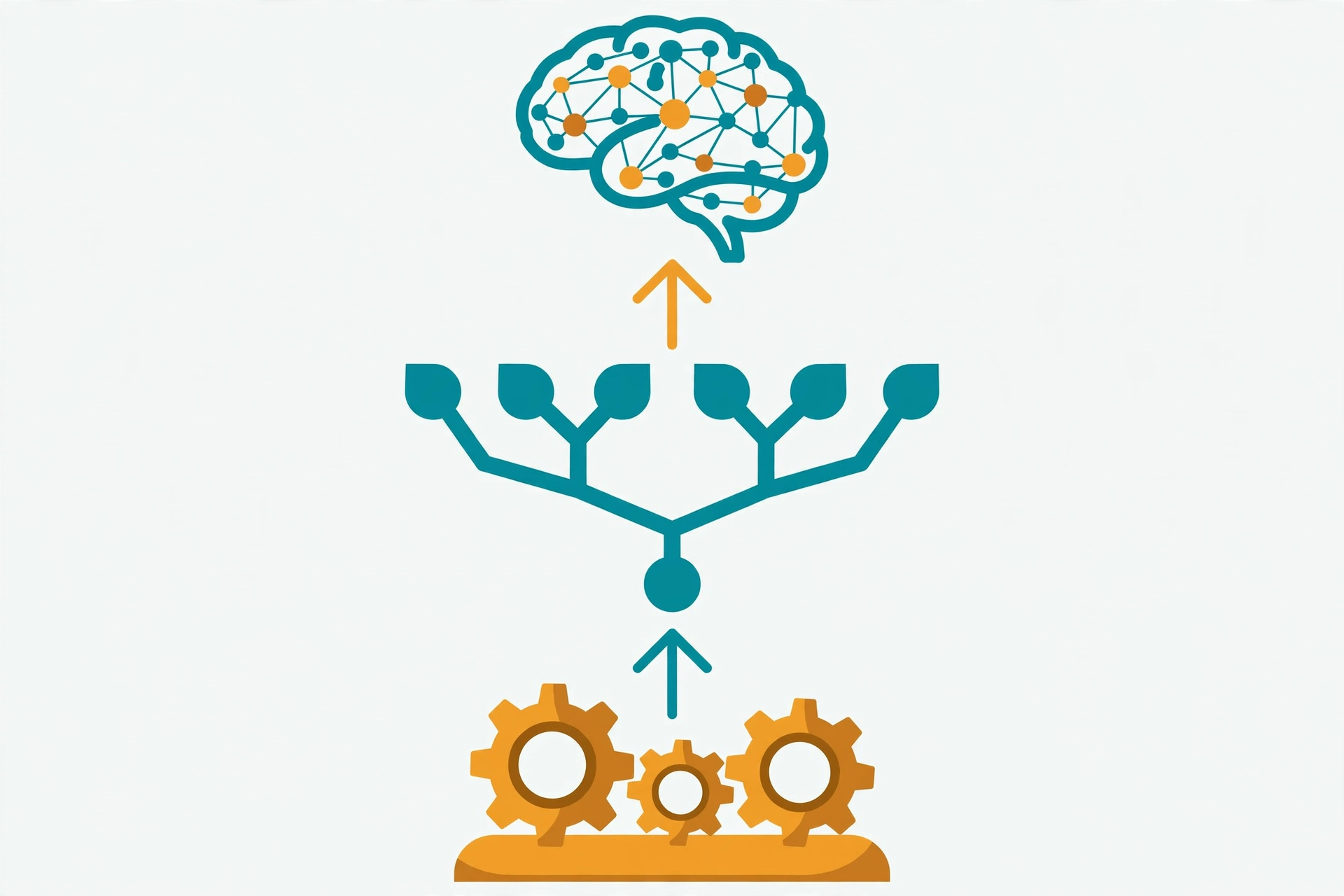
Email is the universal time sink, which is why learning how to use an AI agent to sort emails pays off faster than almost any other automation. This is a Tier 3 task: “important” is contextual, and no filter rule understands context.
Step 1: Connect the inbox and define your categories
Connect your inbox to your automation platform (Zapier, Make, and n8n all have Gmail/Outlook triggers; Lindy connects inboxes natively). Then define 4–6 categories that match how you actually triage. A solid starting set: Needs reply today, FYI (read once, no reply), Waiting on someone else, Newsletters and promos, and Escalate (anything involving money, legal, or your boss’s boss).
Resist the urge to make 15 categories. The agent’s accuracy drops with every category you add, and you’ll spend more time fixing misfilings than you saved.
Step 2: Build the triage prompt
The prompt is the whole automation. Everything else is plumbing. Here’s the shape that works:
“You are an email triage assistant. Classify each email into exactly one category: [your categories]. Rules: newsletters with unsubscribe links are always promos. Anything mentioning invoices, payments, or contracts is Escalate. If you’re unsure between two categories, pick the more urgent one and add a one-line reason. Output: category, one-line summary, suggested action.”
Test it on 50 old emails before you let it touch the live inbox. You’ll find your edge cases in that batch — the vendor who writes “urgent” in every subject line, the automated alerts you actually need. Tune the rules, not the model.
Step 3: Route, draft replies, and escalate what matters
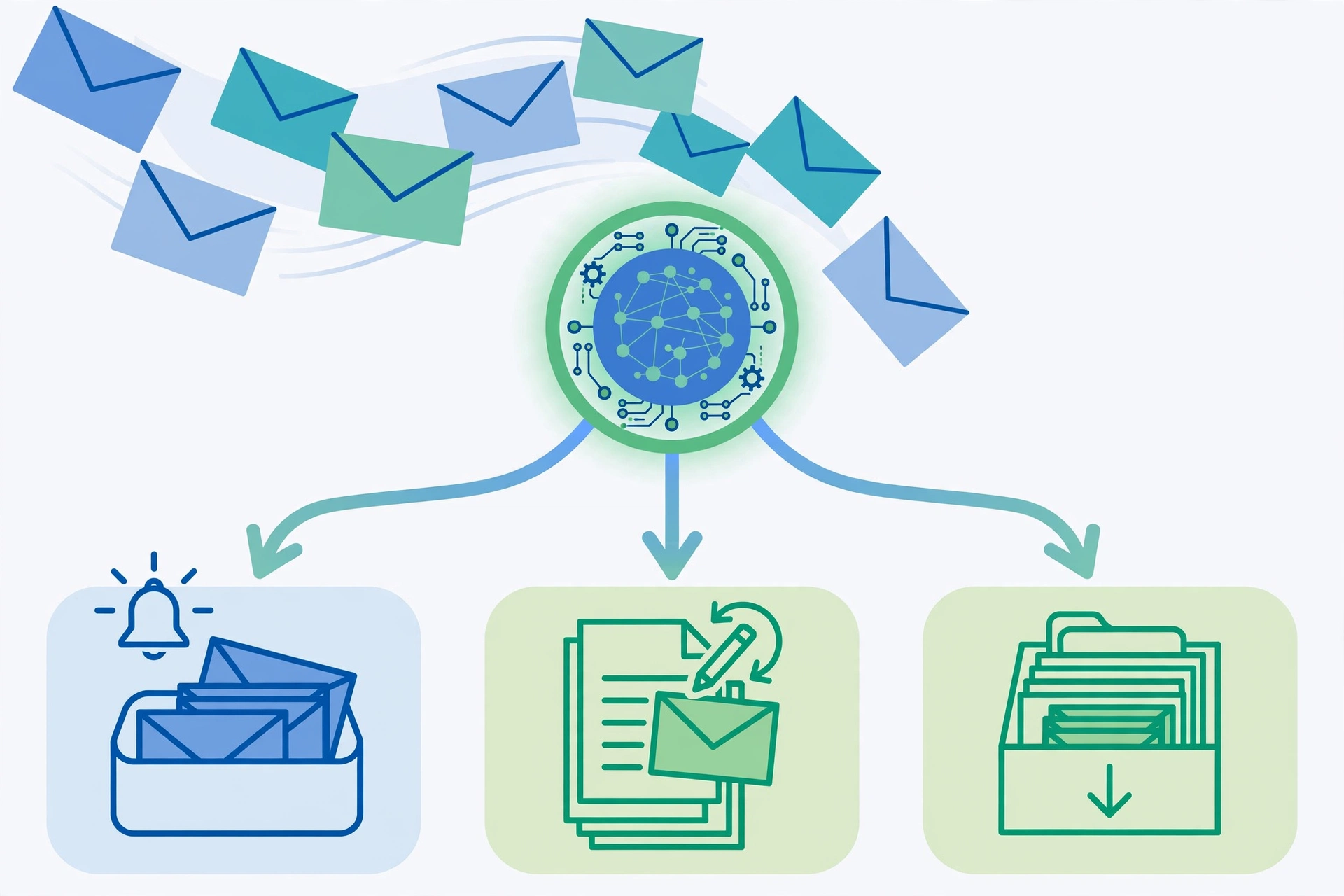
The output side has three lanes. FYI and promos get labeled and archived — no human involved. “Needs reply today” gets a draft reply written by the AI, sitting in your drafts folder, never sent. You review and send in one batch. “Escalate” pings you immediately (Slack, SMS, whatever you’ll actually see).
That middle lane — draft, don’t send — is the entire safety model. The agent does the reading and the writing; you keep the sending. It cuts triage time by more than half while keeping the failure mode to “a bad draft in your drafts folder,” which is a 10-second problem, not a career problem.
The free-tier version of this blueprint
Gmail filters plus labels get you 60% of the value for $0: filter newsletters to a label, filter receipts to another, star anything from your VIP list. Add the AI layer only once the filters are doing their job — AI triage on top of an unfiltered firehose just gives you confidently mislabeled chaos.
Blueprint 2 — Turn Meetings into Action Items Automatically
Meetings generate decisions that evaporate. Someone says “I’ll send the revised timeline by Friday” and it lives in nobody’s task list. This is a Tier 2 task: the structure (extract commitments, owners, deadlines) is fixed, but understanding the transcript needs reading comprehension.
Step 1: Capture the transcript
You need a transcript source. Most meeting platforms now produce one natively (Zoom, Meet, Teams all do). If yours doesn’t, a meeting bot (Fireflies, Otter, or Lindy’s meeting teammate) joins and transcribes. The trigger for the automation is “transcript ready” — usually a webhook or a new file in a folder.
One non-negotiable: tell people they’re being recorded. It’s the law in many places and basic decency everywhere.
Step 2: Extract decisions and owners with a prompt
Feed the transcript to an AI step with an extraction prompt, not a summary prompt. Summaries are pleasant to read and useless to act on. You want structured output:
“Extract from this meeting transcript: (1) every commitment made, with the owner’s name and any deadline mentioned, (2) every decision taken, in one line each, (3) open questions nobody answered. Format as a checklist. If no owner was named for a commitment, mark it UNASSIGNED.”
The UNASSIGNED flag is the killer feature. It surfaces the exact commitments that would otherwise evaporate.
Step 3: Route action items to your task manager
The checklist goes where work actually gets tracked — Asana, Todoist, Notion, a Slack channel, whatever your team checks. Assigned items go to the owner’s list; UNASSIGNED items go to the meeting organizer. The whole loop runs within minutes of the meeting ending, while memories are fresh.
Build this one before you need it, not after a meeting where three deadlines got lost. It takes an afternoon to set up and pays for itself the first week.
Blueprint 3 — Draft First Passes from Rough Notes
Most knowledge work starts as ugly raw material: bullet points from a call, a voice memo recorded while walking, half a page of disconnected thoughts. Turning that into a first draft is pure Tier 2 work — the structure is known (it’s an email, a proposal, a doc), but the transformation needs judgment.
Step 1: Dump your raw input
Create one capture point and make it frictionless: a notes app, a voice memo, an email to yourself. The automation triggers on new input in that inbox. Friction here kills the whole blueprint — if capturing takes more than 10 seconds, you’ll stop doing it and go back to staring at blank pages.
Step 2: The drafting prompt (voice + structure)
The prompt needs two things most people forget: your voice and the output structure. “Write this up professionally” produces generic mush. Instead:
“Turn these notes into a [email / proposal / doc]. Structure: [the sections you want]. Voice: direct, short sentences, no jargon, no hype. Length: [target]. Keep every fact from the notes; flag anything ambiguous with [CHECK] rather than inventing it.”
The [CHECK] instruction matters more than it looks. It converts hallucinations into visible flags you can verify, instead of confident fabrications you might miss.
Step 3: The human review loop
This is augmentation vs automation in its purest form: the AI drafts, you edit. The goal was never to remove you — it’s to remove the blank page, which is where most of the time goes. A first draft you can react to takes 15 minutes to finalize; a blank page takes two hours to fill. Measure the blueprint on that delta, not on whether the AI “wrote it for you.”
Blueprint 4 — Follow Up with Leads Without Lifting a Finger
Lead follow-up is where revenue quietly dies. Not from bad strategy — from nobody sending the second email. This is Tier 2: the triggers are known (new lead, stale deal, downloaded resource), but each message needs enough personalization to not read like a drip campaign from 2014.
Step 1: Set the trigger (new lead or stale deal)
Define the moments that start a follow-up: a new lead enters the CRM, a deal hasn’t moved in 7 days, someone downloads a pricing page. Each trigger starts the same core workflow with different context. Keep the trigger list short — three is plenty. Every trigger you add is another path to test.
Step 2: Personalize without being creepy
The AI step writes the follow-up using real context: what they downloaded, what page they visited, what industry they’re in. The line between personalization and creepiness is data they gave you vs data you inferred. “Saw you downloaded our pricing guide” is fine. “Noticed you spent 4 minutes on the enterprise tier page at 11pm” is surveillance with a mail merge.
Give the prompt a hard constraint: one personalization element per message, drawn only from declared data. More than that and it reads like a stalker with good grammar.
Step 3: The human handoff rule
The automation handles touches one through three. The moment a lead replies with anything substantive — a question, an objection, a meeting request — a human takes over, immediately, with full context attached. No “let me check with the team” delays while the automation tries to handle an objection it wasn’t built for. The handoff rule is a sentence in your workflow: “any reply containing a question routes to [owner] within 15 minutes.” Write it down. Automations without handoff rules are how companies send five emails to someone who already said no.
Blueprint 5 — Build a Daily Intelligence Digest
You don’t have an information problem; you have a filtering problem. Industry news, competitor moves, relevant papers, pricing changes — it’s all out there, and reading all of it would be a full-time job. This is Tier 2 trending toward Tier 3: the sources are fixed, but deciding what’s actually relevant needs judgment.
Step 1: Pick your sources
Choose 8–12 sources maximum: competitor blogs, industry newsletters, a couple of RSS feeds, maybe a subreddit or two. Fewer, better sources beat a firehose. For each source, write one line on what “relevant” means — “pricing changes and feature launches, not funding news,” for example. That line becomes part of the filter prompt.
Step 2: Summarize and filter the noise
The automation pulls new items on a schedule (daily is right for most people; hourly is anxiety with extra steps), and an AI step scores each item against your relevance line. Anything below the bar gets dropped silently. Survivors get a 2–3 line summary: what happened, why it matters to you specifically. The “to you specifically” is doing all the work — generic summaries are just headlines with extra words.
Step 3: Deliver it where you’ll actually read it
Email, Slack channel, Notion page — wherever you already look every morning. A digest delivered to a place you never check is a cron job performing for an empty theater. And cap it: if the digest regularly exceeds 10 items, your relevance bar is too low. The point is to read less, not to feel informed about more.
The Free-Tier Path: Prove Value Before Paying a Cent
Week 1: One task, free tools only
Pick exactly one blueprint — email triage if your inbox is the pain, meeting action items if your calendar is. Build it on free tiers: Zapier’s free plan (100 tasks/month), Make’s free tier (1,000 operations), n8n’s self-hosted community edition ($0 plus a cheap server). One task, one week, zero spend. You’re not building infrastructure; you’re running an experiment with a hypothesis: “this saves me X hours.”
Week 2: Measure, then decide what to pay for
At the end of week one, do the honest math. Time saved minus time spent building and fixing. If the number is clearly positive, pay for the tier that removes whatever bottlenecked you (usually task/operation limits). If it’s marginal, the blueprint was wrong for you — kill it and try a different task, not a different tool. Paying for a tool to rescue a bad automation is how $29/month subscriptions accumulate into a $400/month graveyard.
Honest Numbers: What Time Savings to Actually Expect
What each blueprint realistically saves per week
No vendor whitepaper numbers here — just the shape of the math, so you can plug in your own. Email triage: if you spend 30 minutes a day deciding what’s important, the draft-don’t-send lane typically cuts that to 10–12 minutes. That’s ~1.5 hours a week. Meeting action items: if you attend 5+ meetings a week, you reclaim the 15 minutes per meeting you used to spend reconstructing commitments — about an hour, plus the deadlines that stop slipping. Drafting from notes: the blank-page delta is real but varies wildly; most people report first drafts taking a third of the time. Lead follow-up and digests don’t save time so much as capture value that was evaporating — measure those in recovered leads and better decisions, not hours.
The compounding effect nobody talks about
The real payoff isn’t any single blueprint. It’s that each automation you trust teaches you the anatomy — trigger, AI step, review — and the next one takes half the time to build. People who automate one task well usually have five running within a quarter, not because they’re “automation people” but because the pattern repeats. If you want the business-wide version of this pattern, my 12-blueprint automation library covers it end to end. Start with one. The compounding handles the rest.
Tool Pricing Snapshot (2026)
Prices change, so treat this as a snapshot verified in October 2026 and check the live pricing page before you buy. The important column isn’t the price — it’s the unit, because the unit decides how fast your bill grows.
| Tool | Entry paid plan | What you get | Billing unit |
|---|---|---|---|
| Zapier | $19.99/mo annual ($29.99 monthly) | 750 tasks/mo | One task = one successful action step |
| Make | $9/mo annual (~$12 monthly) | 10,000 operations/mo | One operation = one module execution |
| n8n Cloud | €24/mo (€20 annual) | 2,500 executions/mo | One execution = one full workflow run |
| Lindy | $29.99/user/mo | 3,000 credits/mo | Credits per AI action (no published per-action table) |
The unit math is where beginners get burned. A 5-step Zapier workflow running 200 times a month burns 1,000 tasks — that’s already past the 750-task Professional tier. The same workflow on n8n is 200 executions, barely a dent in 2,500. On Make it’s 1,000 operations out of 10,000. Same automation, three wildly different bills. For open source workflow automation tools, n8n’s self-hosted community edition is free (you pay only for the server, ~$5/month) — the cheapest serious option if you’re technical.
Note on Lindy: several comparison sites still show $49.99/month. That’s stale — Lindy cut its entry price in August 2026. Current entry is $29.99.
5 Mistakes That Kill AI Automations
Automating with the wrong tier
Covered above, worth repeating because it’s still the #1 killer. If your automation feels flaky, check the tier before you check the tool. A Tier 3 agent doing Tier 1 work will hallucinate on your invoices. Tier 1 rules doing Tier 3 work will silently misroute your escalations.
Automating a broken process
If the manual process is chaos, the automated chaos just runs faster. The email triage blueprint assumes you know your categories. The lead follow-up blueprint assumes someone defined the triggers. Automate the process after you’ve run it manually for two weeks and written down the steps — never before. The two weeks of manual work is the specification.
Skipping human review on outbound actions
Anything that sends, publishes, charges, or promises gets a human review lane. Drafts, not sends. Suggested replies, not auto-replies. This isn’t paranoia — it’s the cheapest insurance in the stack, and it’s the difference between “the AI wrote a weird draft” and “the AI emailed the client something weird.” The governance question — who approves what the agent does — deserves a real answer before you scale past one workflow.
Letting prompts rot
Prompts are code that nobody version-controls. Your triage categories drift, the business changes, and six months later the automation is confidently sorting by rules from a company you no longer are. Put a quarterly 30-minute review on the calendar: run 20 recent items through the prompt by hand and check the output. Rot is gradual and invisible until it isn’t.
No failure alerts
Every automation needs a dead-man’s switch: if it hasn’t run in 24 hours, or if the error rate spikes, you hear about it. Silent failures are the norm, not the exception — an expired API token, a changed field name, a quota hit at 2am. The automations that survive are the ones that complain loudly when they break.
Frequently Asked Questions
Do I need to know how to code to automate tasks with AI?
No. Every blueprint above is buildable with low code process automation tools — Zapier, Make, and Lindy are all no-code at the level these blueprints need. Code helps at the edges (custom API calls, self-hosting n8n), but the core skill is prompt design and workflow thinking, not programming.
Which blueprint should I start with?
Whichever task currently costs you the most dread, not the most time. Dread is the better metric because it’s what makes you actually finish the build. For most people that’s email triage or meeting action items. One blueprint, one week, free tier — that’s the whole strategy.
Is it safe to let AI handle my email?
With the draft-don’t-send lane, yes. The AI reads, classifies, and drafts; you send. The failure mode is a bad draft in your folder, not a bad email to your client. Never give an email agent send permissions in week one. Earn that trust over months, if ever — most people never need to.
What are the best free AI automation tools?
Zapier’s free plan (100 tasks/month, 2-step Zaps), Make’s free tier (1,000 operations, 2 scenarios), and n8n’s self-hosted community edition (unlimited executions, you pay ~$5/month for the server). All three run Blueprint 1 at small scale for effectively nothing.
What are good open source workflow automation tools?
n8n is the serious answer — self-hosted, unlimited executions, sustainable-use license. Activepieces is the newer open-source alternative worth watching. Open source wins on cost and data control; it costs you server maintenance and setup time instead.
When should I NOT automate a task?
Three cases: the task happens rarely enough that building the automation costs more than doing it (rule of thumb: under 30 minutes a month, don’t bother), the task’s value is in the doing (relationship-building calls, creative work you enjoy), and the process changes so often the automation would need weekly rebuilds. Automation is for stable, repeated, low-dread work — everything else, do by hand.
The Bottom Line
Forget the tool lists. Pick the one task that drains you, sort it into its tier, and build the blueprint on a free tier this week. Measure honestly at the end of the week. If it works, you now know the anatomy — trigger, AI step, human review — and every automation after it gets easier. That’s how you actually automate tasks with AI: not by adopting a platform, but by killing one bottleneck at a time until the pattern becomes a habit.