
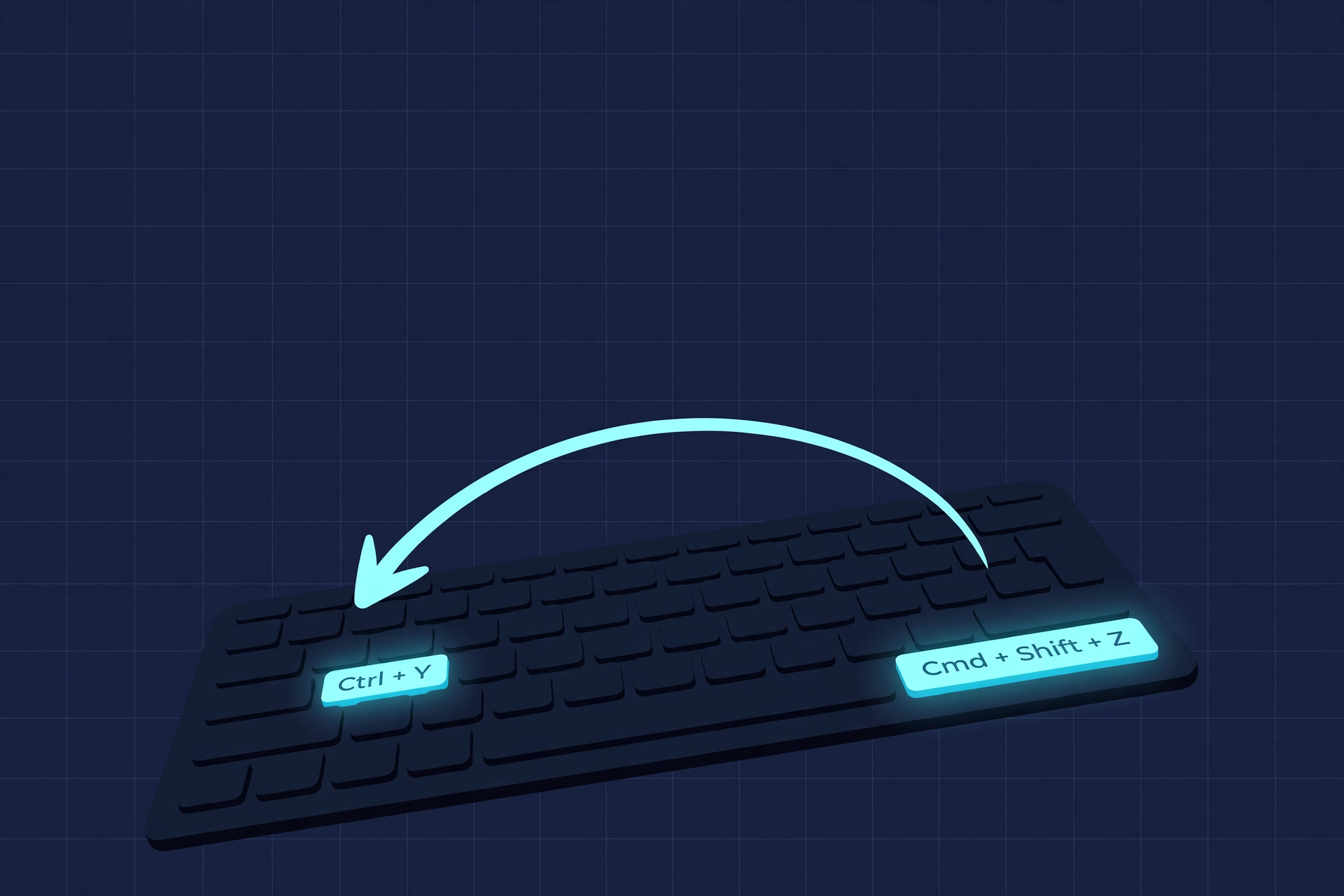
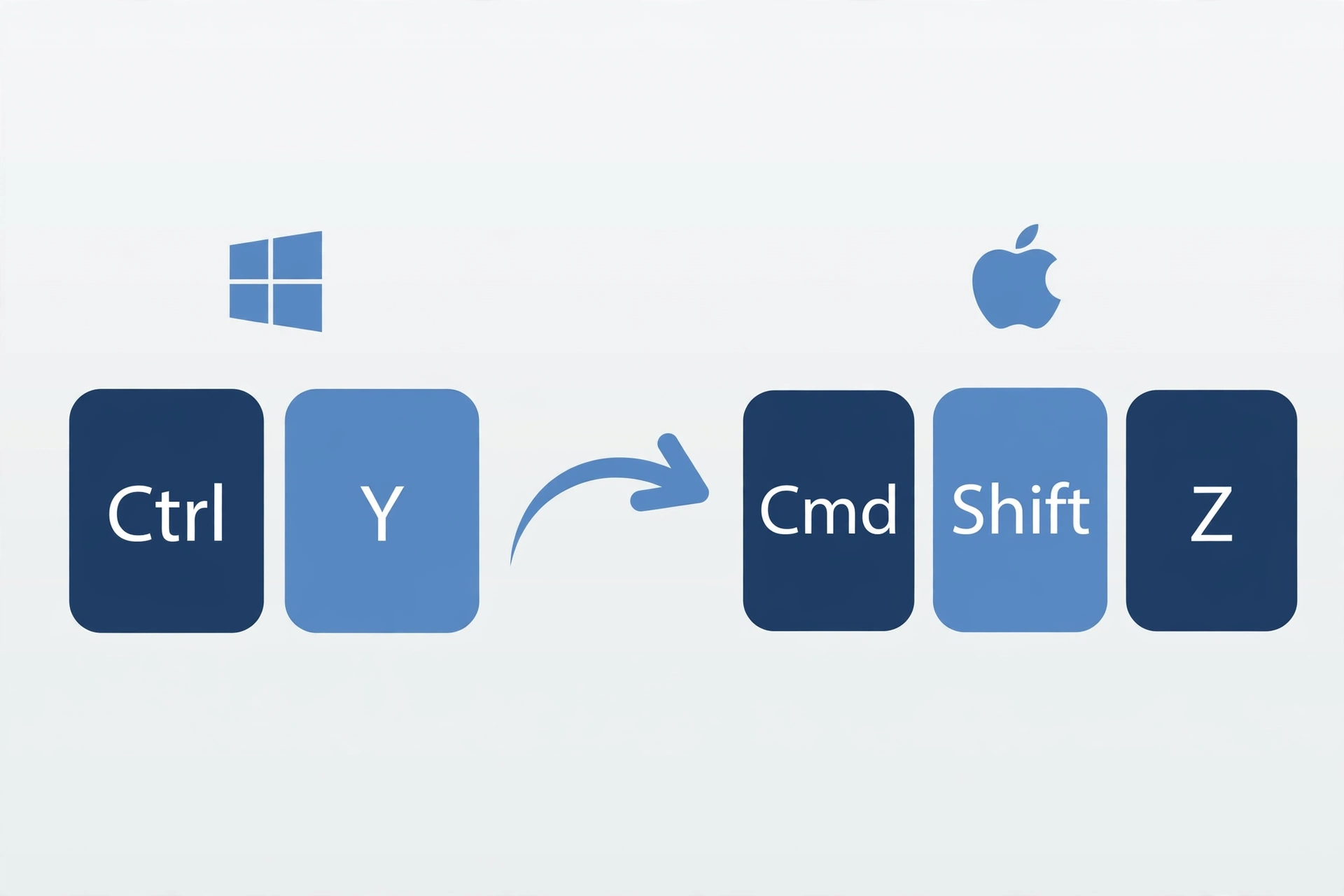
The redo shortcut is Ctrl+Y on Windows and Cmd+Shift+Z on Mac. It brings back the last action you undid with Ctrl+Z or Cmd+Z. In some apps — Google Docs, Photoshop, VS Code — use Ctrl+Shift+Z on Windows instead, and in Chrome, Ctrl+Y opens history, not redo.
Everyone has done it: you press undo one time too many, and a paragraph, a formula, or a whole layer vanishes. Redo is the key that undoes the undo. It is two keys, it works almost everywhere, and it still confuses people daily — because the keys change by platform, some apps hijack them, and the feature quietly stops working in situations nobody explains. This guide covers the keys for every platform and app, how redo actually works underneath, and every fix for when it stops responding.
Redo Shortcut at a Glance
| Platform | Redo shortcut | Undo shortcut |
|---|---|---|
| Windows | Ctrl+Y (or Ctrl+Shift+Z) | Ctrl+Z |
| Mac | Cmd+Shift+Z (Cmd+Y in Word, Excel, PowerPoint) | Cmd+Z |
| Linux | Ctrl+Y or Ctrl+Shift+Z (depends on app) | Ctrl+Z |
| Chromebook | Ctrl+Shift+Z | Ctrl+Z |
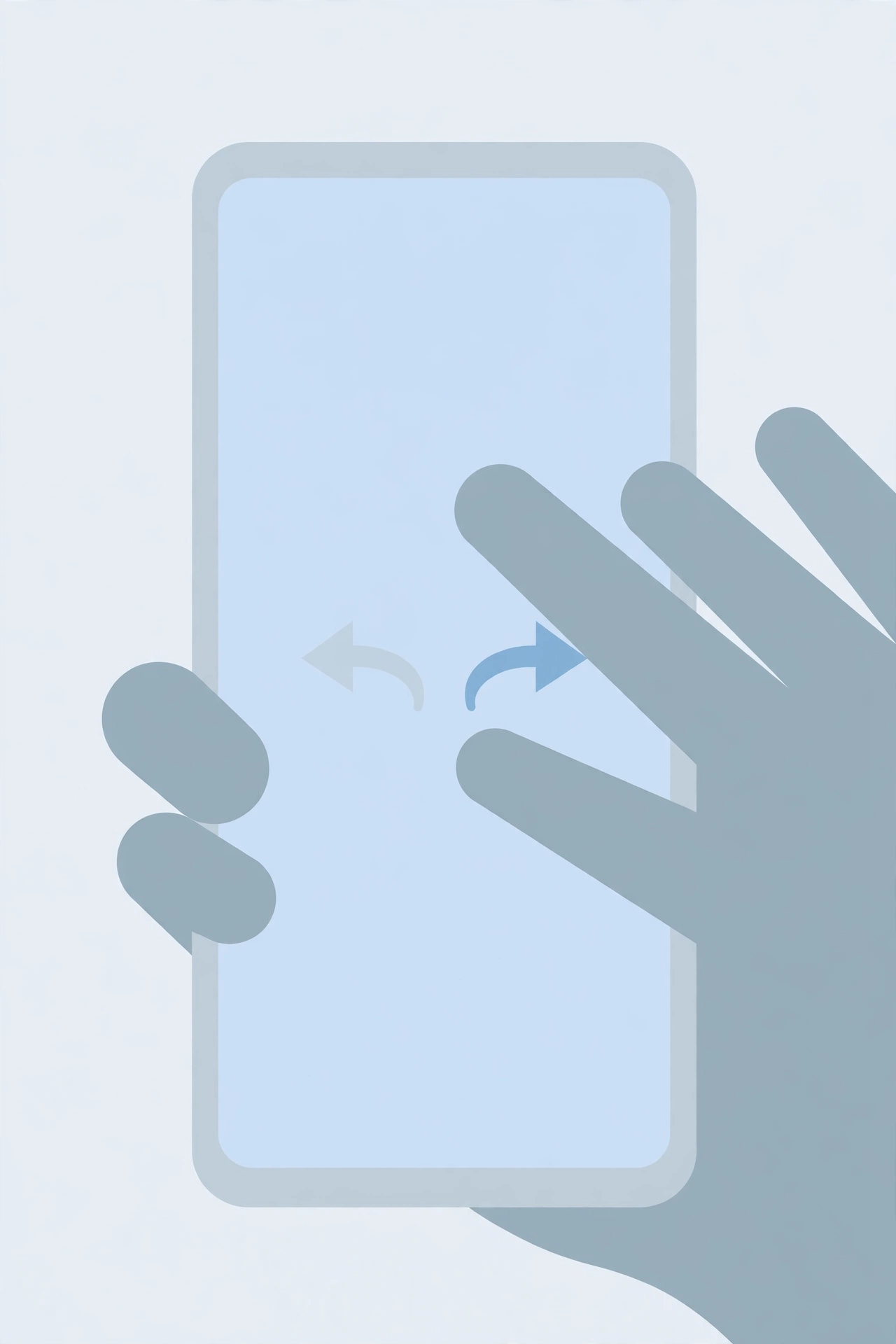
| iPhone and iPad | Three-finger swipe right | Three-finger swipe left |
| Android | Varies by app (no system-wide redo) | Varies by app |
Two shortcuts cover almost every case you will ever meet: Ctrl+Y and Cmd+Shift+Z. The third one, Ctrl+Shift+Z on Windows, is the alternative that creative and web apps prefer, because it mirrors Ctrl+Z more neatly. If you remember only the table above, you can already redo anywhere. The rest of this guide explains the cases where the table is not enough.
How Redo Actually Works: the Undo Stack
One press restores one step, in order
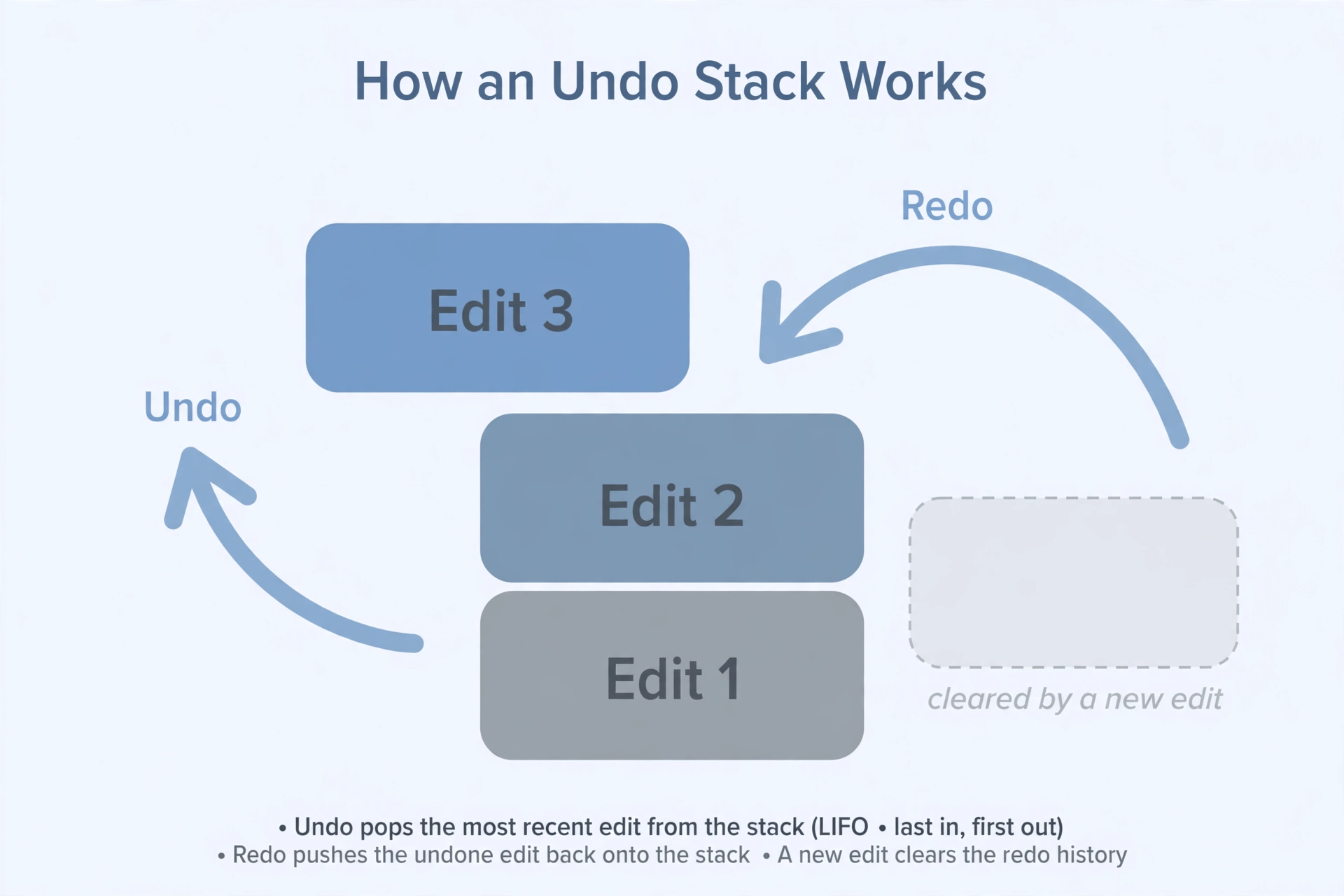
Redo does not jump to a saved version of your document. Behind every undo and redo sits a stack: a list of your recent actions, newest on top. Undo pops the top action off and reverses it. Redo pushes it back. Each press restores exactly one action, in the exact order you undid them. Undo three edits, then press redo three times, and you get all three back in sequence. Press it once and you get only the most recent one.
A new edit wipes the redo stack
This is the rule that explains most “redo stopped working” complaints. The moment you make a new edit after undoing, the redo stack is cleared. The actions you undid are gone from redo’s reach — not because anything broke, but because the stack now records your new edit instead. If you undo a paragraph, then type a single character, you can no longer redo that paragraph. This is by design in nearly every application, and it is the first thing to check when redo is greyed out.
Redo needs an undo first, in the same session
Redo is only available after an undo, and only within the same editing session. Close the document or the app and the stack is gone. Redo is not a version history or a backup: it cannot recover a file you closed, and it cannot bring back work from yesterday. That is what version history and backups are for, and confusing the two is how people lose work while believing redo will save them.
Why some apps store dozens of levels and others only a few
The depth of the stack varies by application. Microsoft puts the default at 100 undoable actions in Office, which is why you can step back through a long editing session in Word or Excel. Photoshop’s History panel holds dozens of states and lets you jump to any of them directly. Simpler editors may hold far fewer. The practical point is the same everywhere: the stack is finite, it is ordered, and a new edit resets the redo side of it.
Redo vs Repeat: the Office Trap
When nothing is undone, the same keys repeat your last action
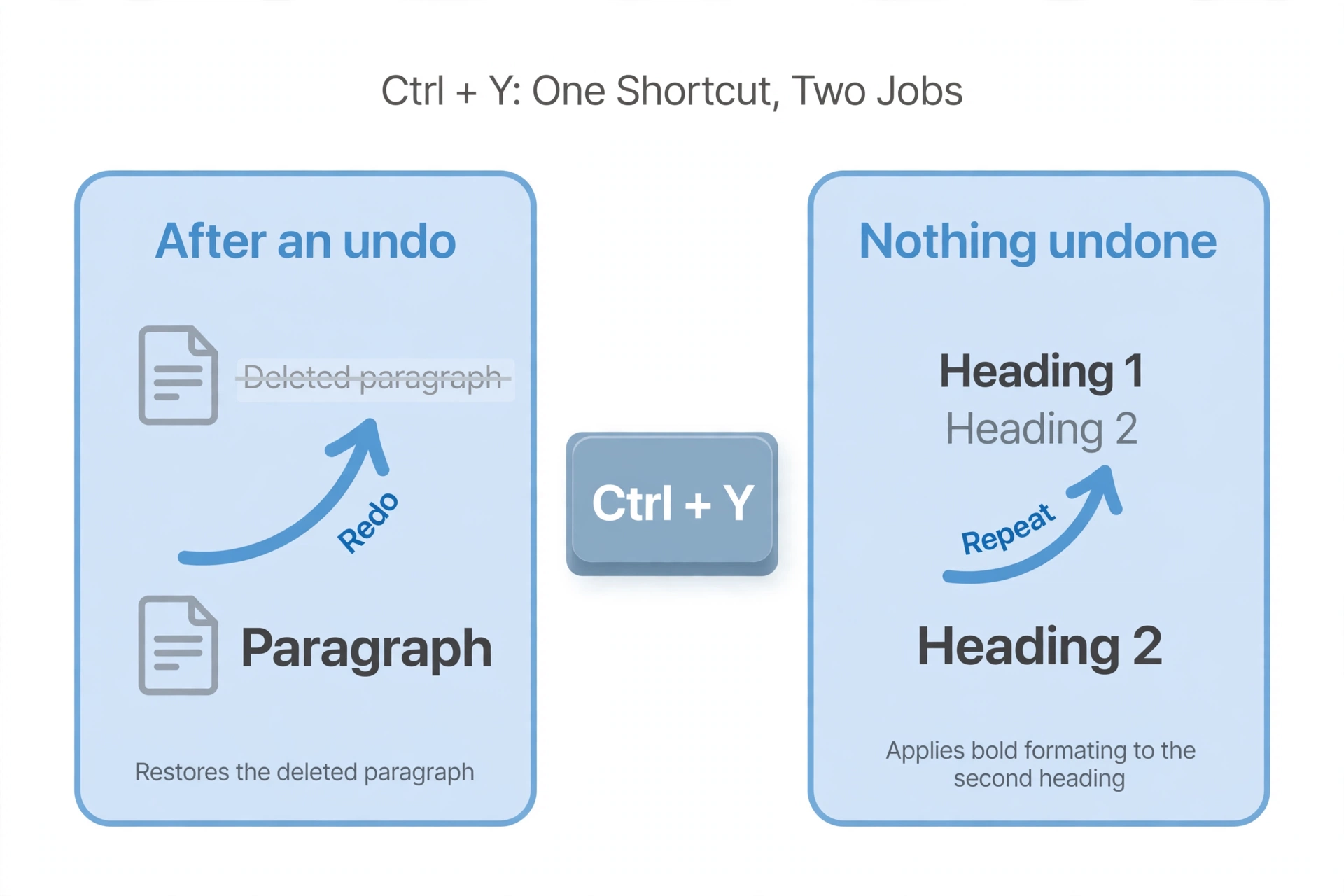
In Microsoft Office, the redo command has a second job. When there is nothing to redo — because you have not undone anything — Ctrl+Y and F4 become Repeat instead. Repeat performs your last action again. Bold one heading, select another, press Ctrl+Y, and the second heading gets the same bold formatting. Insert a table row, press F4, and another row appears. This is genuinely useful, and it is also why the shortcut sometimes seems to add something instead of bringing back what you expected: there was nothing undone, so it repeated instead.
How to tell which one is about to happen
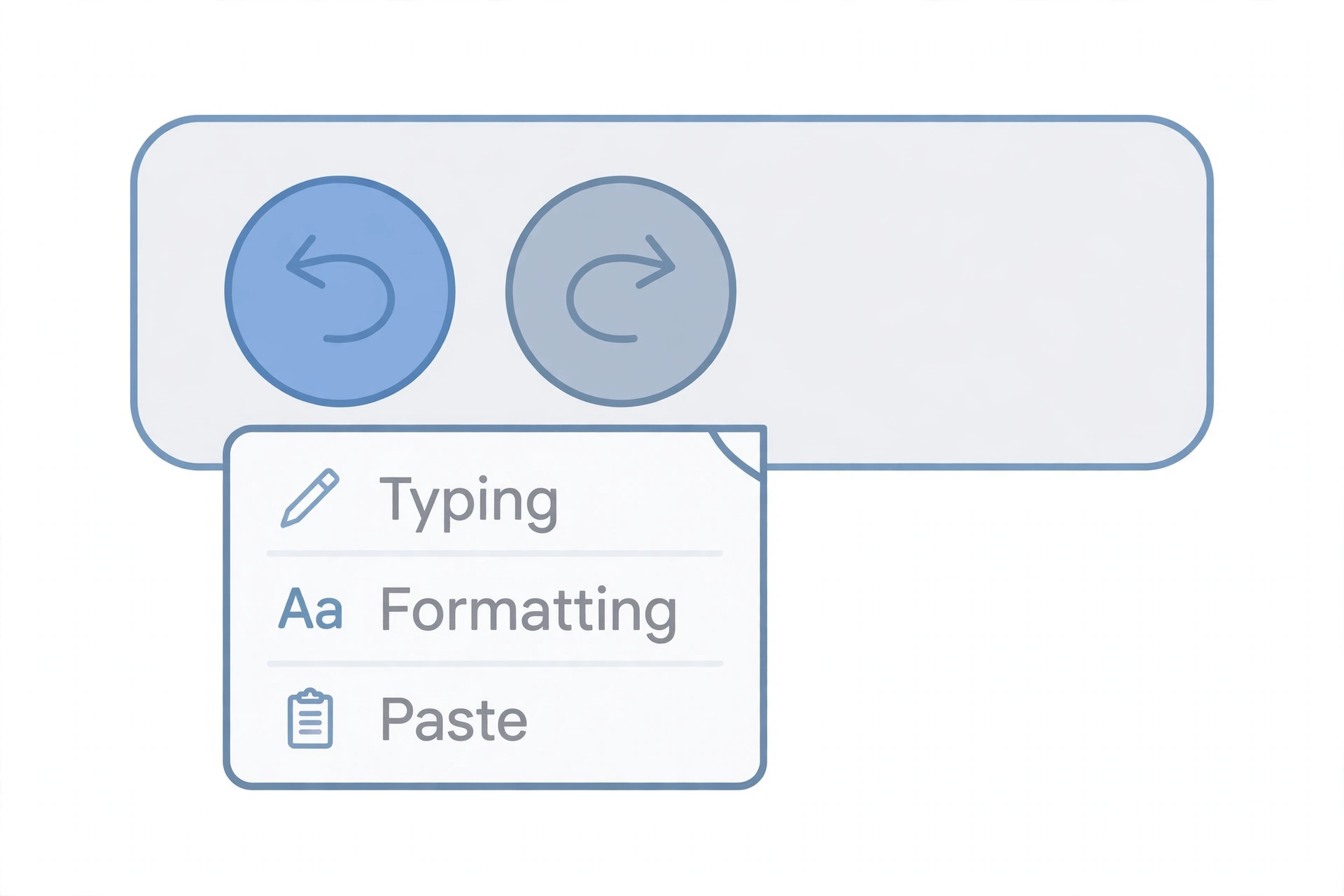
Check the button before you press the keys. In Word’s Quick Access Toolbar, the curved arrow button is labeled Redo when an undo is available and Repeat when it is not. Hover over it and the tooltip names the exact action, such as “Repeat Font Color.” The Edit menu tells the same story: its wording changes with the action, reading Redo Typing or Redo Delete after an undo, and Repeat after a plain action. If you are unsure which one is armed, the button label settles it in a second.
Laptop note: F4 may need Fn or F-Lock
On many laptops, the top row of keys sends media or brightness commands by default, so F4 alone may do nothing in Office. Hold Fn and press F4, or enable F-Lock, and the repeat function works. When in doubt, Ctrl+Y does the same job without touching the function row.
Redo Shortcut on Windows
Ctrl+Y standard
Ctrl+Y is the standard Windows redo shortcut, and it works in Word, Excel, PowerPoint, Notepad, and File Explorer, along with most traditional Windows applications. Undo with Ctrl+Z, redo with Ctrl+Y, and you can step back and forth through your recent edits as long as you do not make a new edit in between.
Ctrl+Shift+Z apps
Some Windows applications use Ctrl+Shift+Z instead. Google Docs, Photoshop, VS Code, Figma, and most browser-based editors prefer it, because it mirrors Ctrl+Z: hold Shift to reverse the undo. Developers adopted this pattern for cross-platform consistency, so the same combination works on Windows, Mac, and Linux in their apps. If Ctrl+Y does nothing in a creative or web app, Ctrl+Shift+Z is almost always the answer.
Where Ctrl+Y does something else

Two conflicts catch Windows users most often. In Google Chrome, Ctrl+Y opens the browser history page, not redo — so inside browser-based editors like Google Docs, you need Ctrl+Shift+Z instead. In Photoshop and Illustrator, Ctrl+Y can be assigned to previewing or repeating transformations, so redo there is Ctrl+Shift+Z as well. The rule of thumb: when Ctrl+Y surprises you, check what the application itself assigned to it before assuming redo is broken.
German keyboards: Strg is Ctrl
On German keyboards, the Ctrl key is labeled Strg, short for Steuerung. Strg+Y is Ctrl+Y, and Strg+Z is Ctrl+Z. If you are following an English-language guide on a German keyboard, translate every Ctrl to Strg and the shortcuts work exactly the same.
Redo Shortcut on Mac
Cmd+Shift+Z standard
On a Mac, the redo shortcut is Cmd+Shift+Z. The logic is visible in the keys: undo is Cmd+Z, and adding Shift reverses it. This works across Pages, Notes, most third-party apps, and Apple’s own software. Safari can use redo on some websites, though it depends on the site itself, and Finder offers only limited redo, such as for renaming files.
Cmd+Y in Office for Mac
Word, Excel, and PowerPoint on Mac accept a second shortcut that many guides miss: Cmd+Y. If Cmd+Shift+Z feels awkward in Office, Cmd+Y does the same job there. This is the detail that separates a complete Mac section from a copied one, and it is worth knowing because Office is where most Mac users actually need redo.
Redo in Apple Pages
Pages follows the Mac standard: Cmd+Z undoes, Cmd+Shift+Z redoes. The same stack rules apply — a new edit after undoing clears the redo side — so the troubleshooting later in this guide applies to Pages exactly as it does to Word.
Redo Shortcut on Linux and Chromebook
Linux varies by app and desktop
Linux has no single redo shortcut, because applications follow different desktop conventions. GNOME applications generally use Ctrl+Shift+Z, while KDE applications more commonly use Ctrl+Y, and cross-platform apps may accept either. The shortcut that works depends on the application, the desktop environment, and sometimes the toolkit underneath it.
LibreOffice, Gedit, VS Code, and JetBrains
LibreOffice primarily uses Ctrl+Y for redo across documents, spreadsheets, and presentations, with multiple redo levels. Gedit, the GNOME text editor, typically uses Ctrl+Shift+Z. VS Code usually uses Ctrl+Shift+Z on Linux but also accepts Ctrl+Y, and its redo shortcut can be remapped in the Keyboard Shortcuts settings. JetBrains IDEs such as IntelliJ IDEA often allow both combinations. When in doubt on Linux, try Ctrl+Shift+Z first in GNOME apps and Ctrl+Y first in KDE apps.
Terminal editors: Nano and Vim
Terminal editors play by their own rules. In Nano, redo is Alt+E in supported versions, restoring the last undone action — though some terminal emulators require pressing Esc followed by E instead. In Vim, redo is Ctrl+R: after reversing edits with the u key, each Ctrl+R press reapplies one undone edit. Vim’s modal editing makes redo behave differently from graphical programs, but the stack principle underneath is identical.
Chromebook
On a Chromebook, the standard redo shortcut is Ctrl+Shift+Z. ChromeOS is built around web applications, so Google standardized on the combination that works across browser-based apps. In Google Docs and Sheets on a Chromebook, Ctrl+Shift+Z redoes, and both apps show a redo button on the toolbar — a curved forward arrow next to the undo button — for anyone who prefers clicking.
Redo on Phones and Tablets
iPhone and iPad
On iPhone and iPad, there is no redo key, because there is no keyboard in the usual sense. The gesture is a three-finger swipe right to redo, and a three-finger swipe left to undo. It works in Notes, Pages, and most text-editing apps. On older iOS versions, shaking the device also offered undo. The stack rules are the same as on desktop: a new edit after undoing clears redo, and closing the app ends the session.
Android
Android has no system-wide redo shortcut. Each app decides for itself: Google Docs, Samsung Notes, and code editors all handle undo and redo differently, and many offer only on-screen undo and redo buttons. If you cannot find redo on Android, check the app’s Edit menu or its toolbar before assuming the feature does not exist — it usually does, just not under a universal key.
Redo Shortcut in Popular Apps
| App | Windows redo | Mac redo |
|---|---|---|
| Microsoft Word | Ctrl+Y (F4 repeats) | Cmd+Shift+Z (Cmd+Y also works) |
| Microsoft Excel | Ctrl+Y (F4 repeats) | Cmd+Shift+Z (Cmd+Y also works) |
| Microsoft PowerPoint | Ctrl+Y | Cmd+Shift+Z (Cmd+Y also works) |
| Google Docs | Ctrl+Shift+Z | Cmd+Shift+Z |
| Google Sheets | Ctrl+Shift+Z | Cmd+Shift+Z |
| Adobe Photoshop | Ctrl+Shift+Z | Cmd+Shift+Z |
| Adobe Illustrator | Ctrl+Shift+Z | Cmd+Shift+Z |
| Figma | Ctrl+Shift+Z | Cmd+Shift+Z |
| Canva | Ctrl+Y | Cmd+Shift+Z |
| Notion | Ctrl+Shift+Z | Cmd+Shift+Z |
| VS Code | Ctrl+Y (or Ctrl+Shift+Z) | Cmd+Shift+Z |
| Blender | Ctrl+Shift+Z | Cmd+Shift+Z |
| LibreOffice | Ctrl+Y | Cmd+Shift+Z |
| Clip Studio Paint | Ctrl+Y (or Ctrl+Shift+Z) | Cmd+Shift+Z |
| Browsers (text fields) | Ctrl+Y (or Ctrl+Shift+Z) | Cmd+Shift+Z |
How to undo and redo in Word
Undoing and redoing in Word takes three steps. First, press Ctrl+Z on Windows or Cmd+Z on Mac to undo your last action — a deleted paragraph, a formatting change, a pasted block. Second, if you went one step too far, press Ctrl+Y on Windows or Cmd+Shift+Z on Mac to redo it; in Word for Mac, Cmd+Y works too. Third, for several steps, use the small dropdown arrow beside the undo and redo buttons on the Quick Access Toolbar: it lists your recent actions, and picking one undoes or redoes everything down to it at once. Microsoft’s keyboard shortcuts page for Word documents the same keys. If you prefer clicking, the redo button is the right-curving arrow on that same toolbar, and its label switches to Repeat when there is nothing left to redo.
How to undo and redo in Excel
Excel follows the same pattern, with one difference that matters: redo restores formulas, formatting, and deleted data, not just text. Undo a deleted row with Ctrl+Z, redo it with Ctrl+Y. When nothing is undone, Ctrl+Y and F4 repeat your last action instead — reapplying a format, inserting another row, or repeating a value entry. The Quick Access Toolbar dropdown works the same way as in Word, letting you step back or forward through several actions from a list. One caution: in Excel, an action like running a macro or saving in certain ways can clear the undo stack, so redo is not available after those operations no matter which keys you press.
How to undo and redo in Photoshop
Photoshop treats redo as moving forward through history. Ctrl+Shift+Z on Windows or Cmd+Shift+Z on Mac steps forward one state at a time — each press re-applies one undone edit, whether that is a brush stroke, a layer change, or an effect adjustment. For bigger jumps, open the History panel: it shows a visual timeline of your editing states, and clicking any state jumps straight to it without stepping. That panel is the real answer to “redo several steps” in Photoshop, and it is more precise than pressing keys repeatedly.
Drawing tablets: XPpen and Wacom
On a drawing tablet, redo follows the host application, not the tablet. An XPpen or Wacom pen button does not have a redo function of its own; it sends whatever keystroke the tablet driver assigns to it. If a tablet button stops triggering redo, open the tablet driver’s settings and check what that button is mapped to — it should send Ctrl+Y or Ctrl+Shift+Z on Windows, or Cmd+Shift+Z on Mac, depending on the app you draw in. Clip Studio Paint users get one more option: on touch-capable devices, tapping the canvas with three fingers redoes, and two fingers undoes, alongside the keyboard shortcuts.
VS Code: remap it if you want
VS Code accepts Ctrl+Y and usually Ctrl+Shift+Z for redo on Windows, and Cmd+Shift+Z on Mac. If neither feels natural, remap it: open the Keyboard Shortcuts settings, search for Redo, and assign any combination you prefer. Developers remap redo more than any other editing shortcut, because it sits next to the keys they use hundreds of times a day.
Redo Multiple Steps at Once
Press the shortcut repeatedly
The simplest method works everywhere: press the redo shortcut once per step you want back. Undo three edits, press redo three times, and all three return in order. It is slow for long sequences, but it is exact, and it never surprises you.
Office Quick Access Toolbar dropdown
In Word and Excel, the dropdown beside the undo and redo buttons on the Quick Access Toolbar lists your recent actions. Pick an action from that list and Word undoes or redoes everything down to it in one move. This is the fastest way to reverse a whole run of edits without counting key presses, and it is the feature most guides — including denebrixai’s — leave out.
Photoshop History panel
In Photoshop, skip the keys for big jumps and use the History panel. Click any state in the timeline and the document jumps straight there, forward or backward. It is the only redo method in this guide that is non-linear: you choose the destination instead of stepping through every state between here and there.
Redo Without a Keyboard: Buttons and Menus
Toolbar buttons
Nearly every editor has undo and redo buttons shaped as curved arrows: left-curving for undo, right-curving for redo. Word and Excel put them on the Quick Access Toolbar; Google Docs puts them on its main toolbar; Photoshop puts them in the Edit menu area. If you search for “redo button” or “undo button,” this is what you are looking for, and it works identically to the keys.
Edit menu
The Edit menu in almost every application carries Undo and Redo commands, and their labels change with the action: Redo Typing, Redo Delete, Redo Paste after an undo; Repeat after a plain action. On a Mac, most Apple programs put Redo in the Edit menu at the top of the screen, which is also the easiest way to discover an app’s exact redo behavior without memorizing anything.
Touch Bar on supported MacBooks
On MacBook models with a Touch Bar, undo and redo buttons appear while editing documents or text. Tap the redo icon directly instead of pressing keys. Apple has retired the Touch Bar from current models, but on machines that still have one, it remains a working redo path.
Redo Shortcut Not Working? 8 Fixes

Nothing to redo: press Ctrl+Z first
The most common cause is also the simplest: redo is greyed out because there is nothing to redo. Press Ctrl+Z or Cmd+Z to undo something first, and redo activates. If you already undid and redo is still grey, you probably made a new edit since — and that edit cleared the redo stack, as explained above. There is no key that brings those actions back once the stack is cleared.
Wrong shortcut for the app
If Ctrl+Y does nothing, try Ctrl+Shift+Z. Creative apps, browser editors, and cross-platform tools prefer it, and on a Mac, Cmd+Shift+Z is the standard nearly everywhere. One of the two combinations works in almost every application; the trick is knowing which family the app belongs to, and the app table above tells you at a glance.
Browser override: Chrome turns Ctrl+Y into history
In Google Chrome, Ctrl+Y opens the history page. Inside any browser-based editor — Google Docs, Notion, Figma in a browser tab — use Ctrl+Shift+Z for redo instead. If pressing Ctrl+Y suddenly shows your browsing history, nothing is broken: the browser claimed the key before the app ever saw it.
Shortcuts changed after an update
Sometimes shortcuts genuinely change. Application updates, language or keyboard-layout switches, and add-in conflicts can all remap keys — Word users report this regularly after updates. If redo worked yesterday and does not today, check three things: whether the app updated overnight, whether your keyboard layout or input language changed, and whether a recently installed add-in or extension claims the same keys. Resetting the app’s keyboard shortcuts to defaults, where the app offers that option, clears most of these cases.
Keyboard layout or language mismatch
On non-US keyboard layouts, the physical position of Y and Z can swap — most famously on German QWERTZ keyboards, where the Z and Y keys sit in each other’s places. If Ctrl+Y seems to type or trigger the wrong command, check your layout: on a QWERTZ layout, the key labeled Y sits where Z sits on a US keyboard, and the redo combination follows the label, not the position. The same applies to input-language switches that happen silently when you press a language toggle.
Extension or software conflict stealing the keys
Browser extensions, clipboard managers, screenshot tools, and auto-hotkey utilities can all claim Ctrl+Y or Ctrl+Shift+Z before your editor sees them. If redo fails in one app but works in others, suspect a conflict: disable extensions or background utilities one at a time, starting with the most recently installed, until redo returns.
Fn-lock on laptops blocking F4
When F4 is your repeat key in Office and it does nothing, the laptop’s function row is almost certainly in media mode. Hold Fn and press F4, or enable F-Lock, and the repeat function works. If that fails, Ctrl+Y repeats the same action without the function row at all.
Restart the app; remap the shortcut as a last resort
If nothing above works, restart the application — a stuck editing state can silently disable redo until the app reloads. As a last resort, remap the shortcut: VS Code, JetBrains IDEs, and Clip Studio Paint all let you assign redo to any combination, and Word lets you customize keyboard shortcuts through its options. A remapped redo that you actually press beats a standard one that conflicts with something else on your machine.
Frequently Asked Questions
What is the redo shortcut on Windows?
Ctrl+Y is the standard redo shortcut on Windows. In creative and browser-based apps such as Google Docs, Photoshop, and VS Code, use Ctrl+Shift+Z instead.
What is the redo shortcut on a Mac?
Cmd+Shift+Z is the standard redo shortcut on a Mac. In Word, Excel, and PowerPoint for Mac, Cmd+Y also works.
What is the keyboard shortcut for redo in different applications?
It depends on the app family. Traditional Windows apps use Ctrl+Y; creative, web, and cross-platform apps use Ctrl+Shift+Z on Windows and Cmd+Shift+Z on Mac; terminal editors differ entirely — Vim uses Ctrl+R and Nano uses Alt+E. The app table in this guide lists the key per app.
How do I redo on a keyboard (Windows, Mac, Chromebook)?
On Windows, press Ctrl+Y or Ctrl+Shift+Z. On Mac, press Cmd+Shift+Z (or Cmd+Y in Office). On a Chromebook, press Ctrl+Shift+Z. In every case, undo first with Ctrl+Z or Cmd+Z — redo only works after an undo.
How do I redo multiple actions at once?
Press the redo shortcut once per action, or use a history list: the Quick Access Toolbar dropdown in Word and Excel, or the History panel in Photoshop. Both let you jump several steps in one move instead of counting key presses.
What is the redo shortcut in Excel?
Ctrl+Y on Windows, or F4 to repeat the last action when nothing is undone. On Mac, Cmd+Shift+Z, or Cmd+Y in Excel for Mac. Redo in Excel restores formulas, formatting, and deleted data, and the Quick Access Toolbar dropdown steps through several actions at once.
Why is Ctrl+Y not working?
The usual causes, in order: there is nothing to redo (press Ctrl+Z first, and check you did not make a new edit since, which clears the stack); the app uses Ctrl+Shift+Z instead; Chrome claimed Ctrl+Y for its history page; your keyboard layout changed; or an extension or background tool stole the keys. The fixes section above walks through all eight checks.
Is Ctrl+Shift+Z the same as Ctrl+Y?
In most applications, yes — both perform redo. Developers choose one or the other as the standard for their app: traditional Windows programs picked Ctrl+Y, while creative and cross-platform apps picked Ctrl+Shift+Z because it mirrors Ctrl+Z. They are two keys for the same command, not two different commands.
What is the difference between undo and redo?
Undo reverses your last change; redo reverses the undo, restoring the change you just removed. Undo is Ctrl+Z on Windows and Cmd+Z on Mac. Redo is Ctrl+Y or Ctrl+Shift+Z on Windows and Cmd+Shift+Z on Mac. Together they let you step backward and forward through your recent editing history.
How do I redo on my phone?
On iPhone and iPad, swipe right with three fingers to redo (left to undo). On Android there is no universal gesture or key: use the app’s own undo and redo buttons or its Edit menu. In Clip Studio Paint on touch devices, tapping the canvas with three fingers redoes and two fingers undoes.
What is the opposite of Ctrl+Z?
Ctrl+Y on Windows. On a Mac, the opposite of Cmd+Z is Cmd+Shift+Z. “Opposite” here means the key that reverses an undo: press Ctrl+Z to undo, then Ctrl+Y to redo what you just undid.
How do I undo an undo?
Press redo. That is literally what redo means: it undoes the undo. On Windows press Ctrl+Y (or Ctrl+Shift+Z in creative apps); on Mac press Cmd+Shift+Z. If redo is greyed out, you either never undid anything, or you made a new edit afterward, which cleared the redo stack.
Bottom Line
Redo is two keys that undo your undo, and for most people that is the whole story: Ctrl+Y on Windows, Cmd+Shift+Z on Mac, and a lifetime of recovered paragraphs. But the keys change by platform and app, a browser can steal them, Office can turn them into repeat, and the stack underneath has rules that nobody tells you — a new edit erases it, a closed document ends it, and no key brings back what the stack has already forgotten. Learn the stack once, learn the two exceptions that matter — Chrome’s history grab and Office’s repeat — and the shortcut never surprises you again. Press it with confidence, and keep the Quick Access dropdown in mind for the days when one step back is not enough.